Grouping
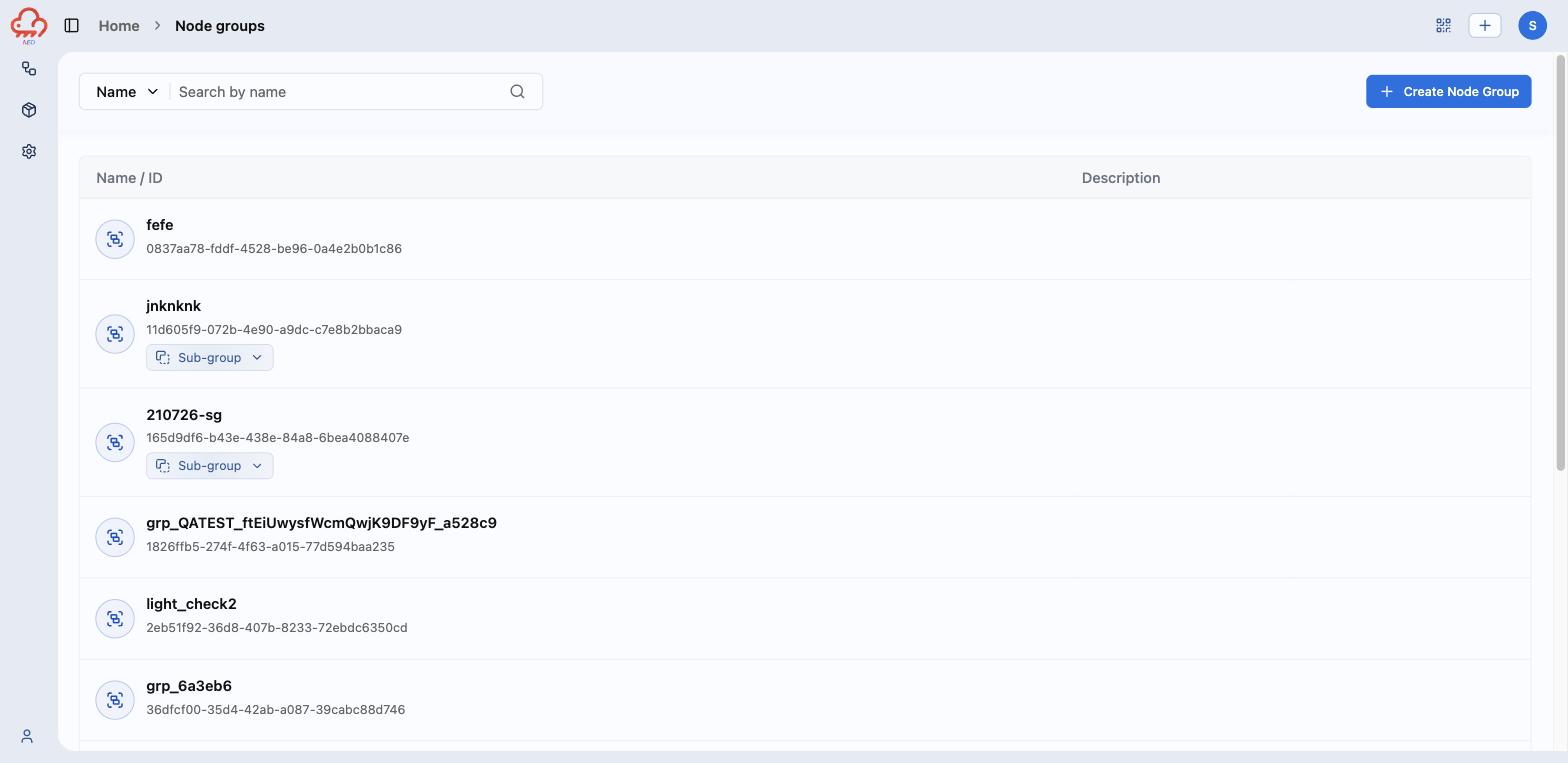
Node groups is admin-side grouping: organise the fleet and target OTA rollouts. Create a group, put nodes in it, and the group becomes selectable wherever a job asks for a target — most importantly OTA jobs.
Admin node groups are distinct from the Groups an end user sees in the phone app (rooms, homes, sharing). The two live in different trees and serve different masters — see Groups for that model.
Node groups in the left sidebar lists what you have. Search matches on Name or Description — pick which from the selector left of the box. A row's Sub-group chip means the group is nested under a parent; expand it to see which.
Decide the kind of group first
A group's detail page has no edit action — Delete group is the only structural control — so decide what kind of group you want before you click Create node group:
| Kind | Membership | Use it for |
|---|---|---|
| Static | You add and remove nodes by hand | A pilot batch, a customer's fleet, anything you want to control exactly |
| Dynamic | Rules decide; nodes join and leave on their own | "every esp32c3 light on firmware 1.4.0" — a target that should stay current |
| Sub-group | Static, plus nested under a parent | Breaking a big group into regions or batches |
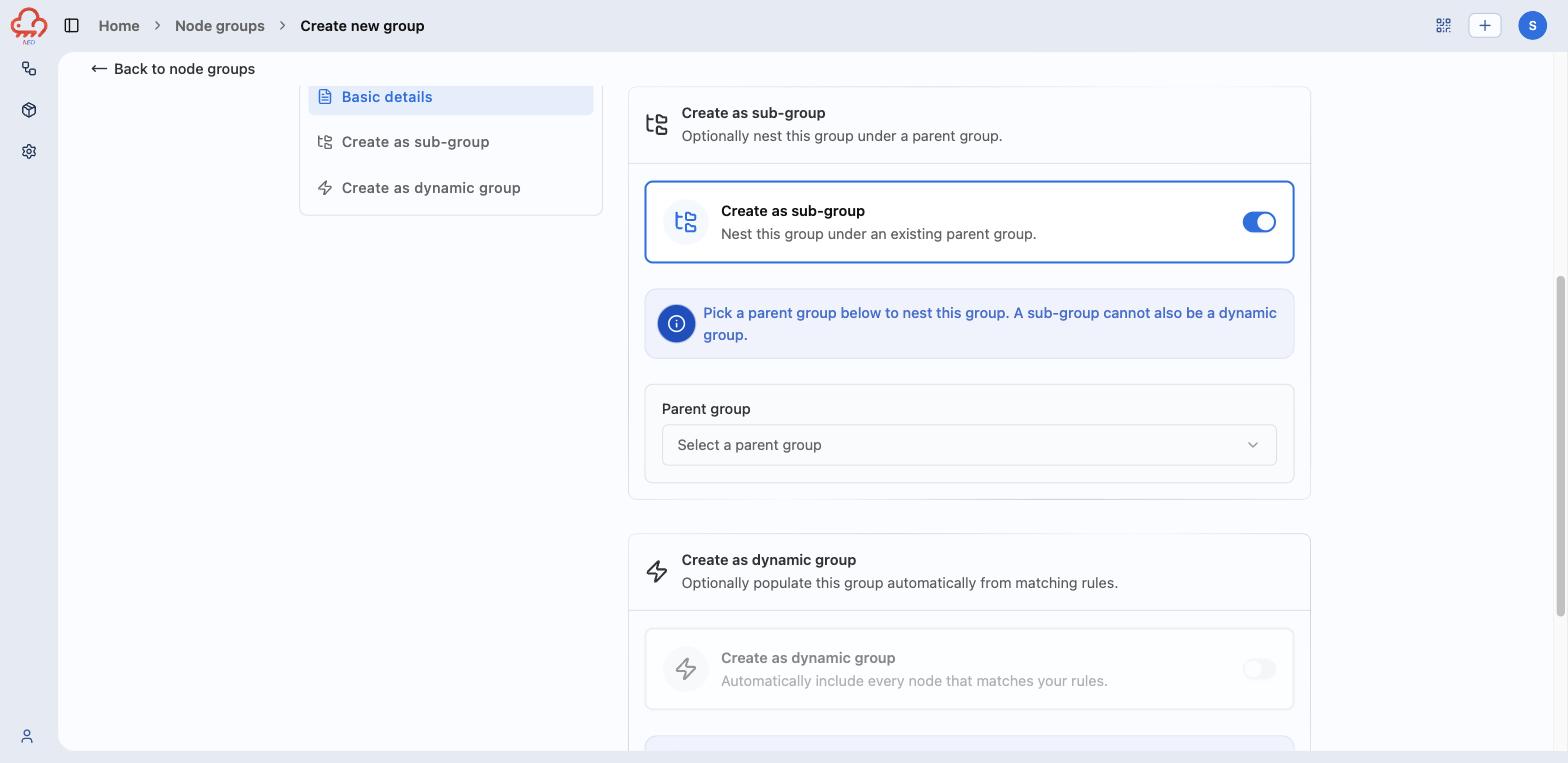
A group cannot be both a sub-group and dynamic — the form disables one when you turn on the other.
1. Name it
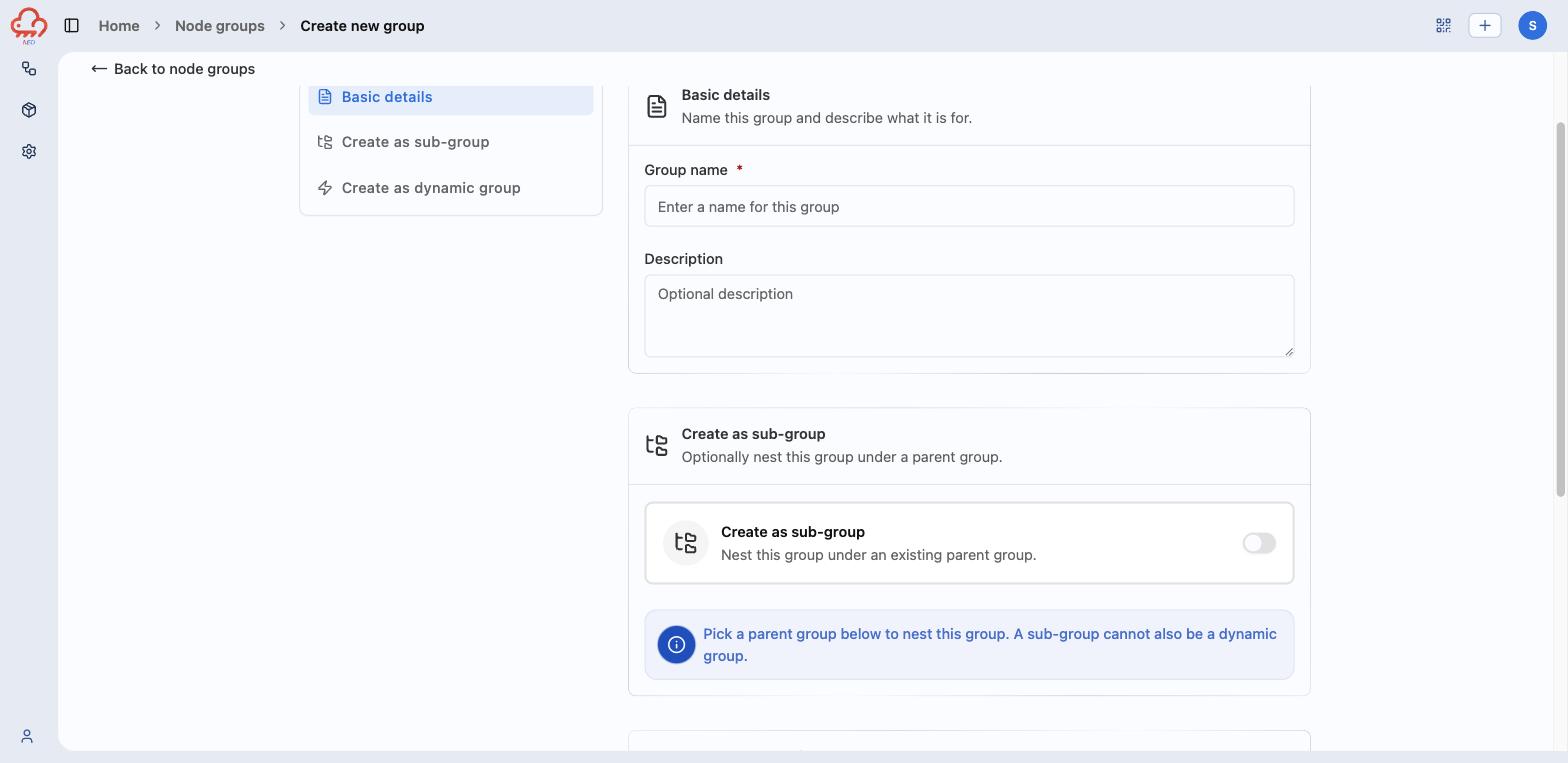
Node groups → Create Node Group. Group name is required; Description is optional and is one of the two fields the group list searches, so it earns its keep.
2. Nest it, or make it dynamic
Leave both toggles off for a plain static group and skip to step 3.
Create as sub-group reveals a searchable Parent group picker. Nesting is about membership rolling up — a group's node list is "nodes assigned to this group, including sub-groups", so a parent is a way to address several batches at once.
Create as dynamic group replaces manual membership with rules.
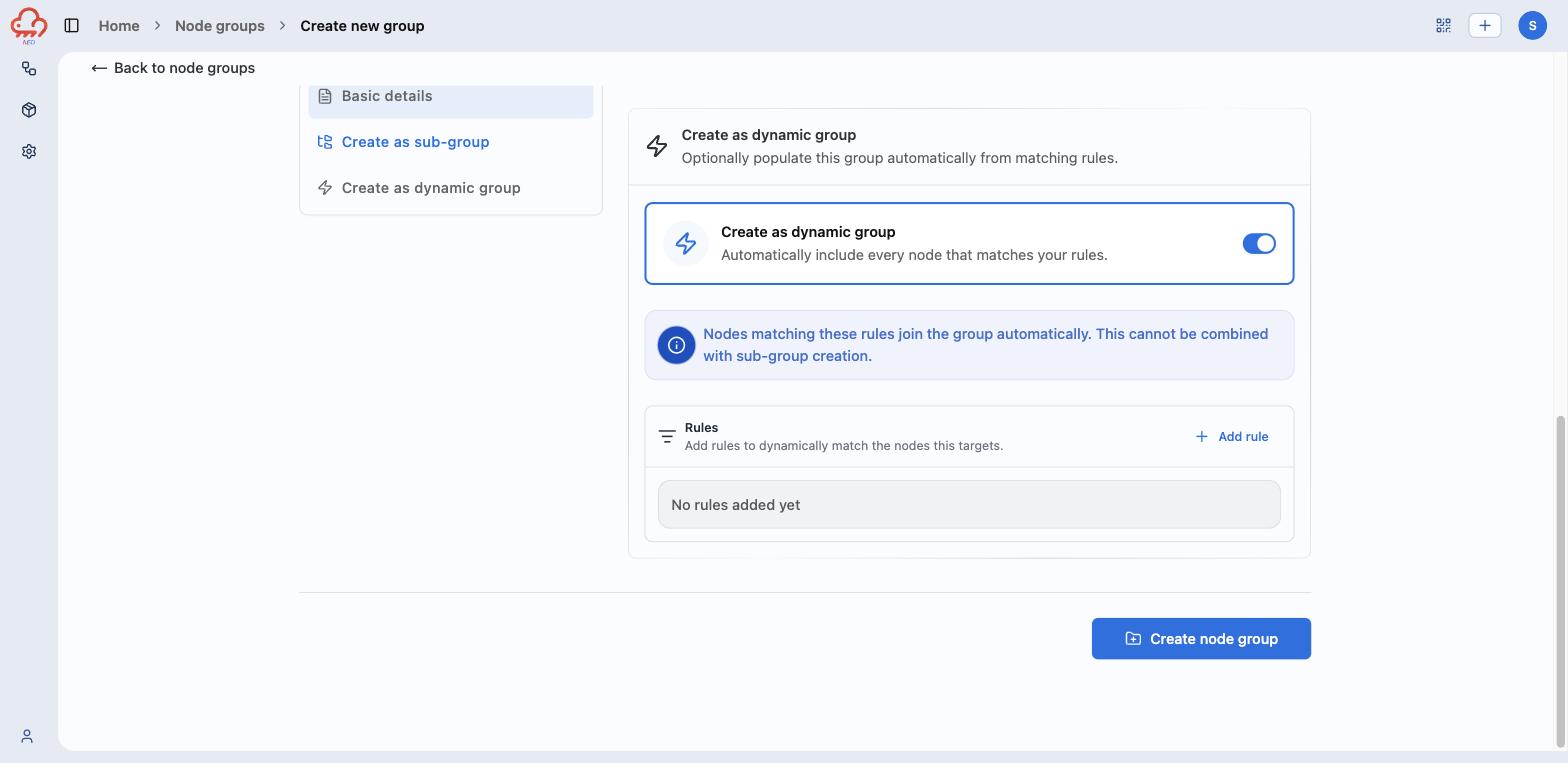
Add rule opens a Type + Value pair — pick a type, give it a value, Submit. Repeat for each condition. Rules combine with AND: the group detail page states it as all of the following must match, so more rules means fewer nodes.
| Type | Value |
|---|---|
| Device Type | e.g. light, switch |
| Device Model | the model string reported by the node |
| Firmware Version | e.g. 1.4.0 |
| Online Status | True or False, from a dropdown |
| Created By | who created the node |
| Registered From | where the registration came from |
| Registration Batch | the batch a generated node belongs to |
| Room | the room the node is assigned to |
| User Location | the end user's location |
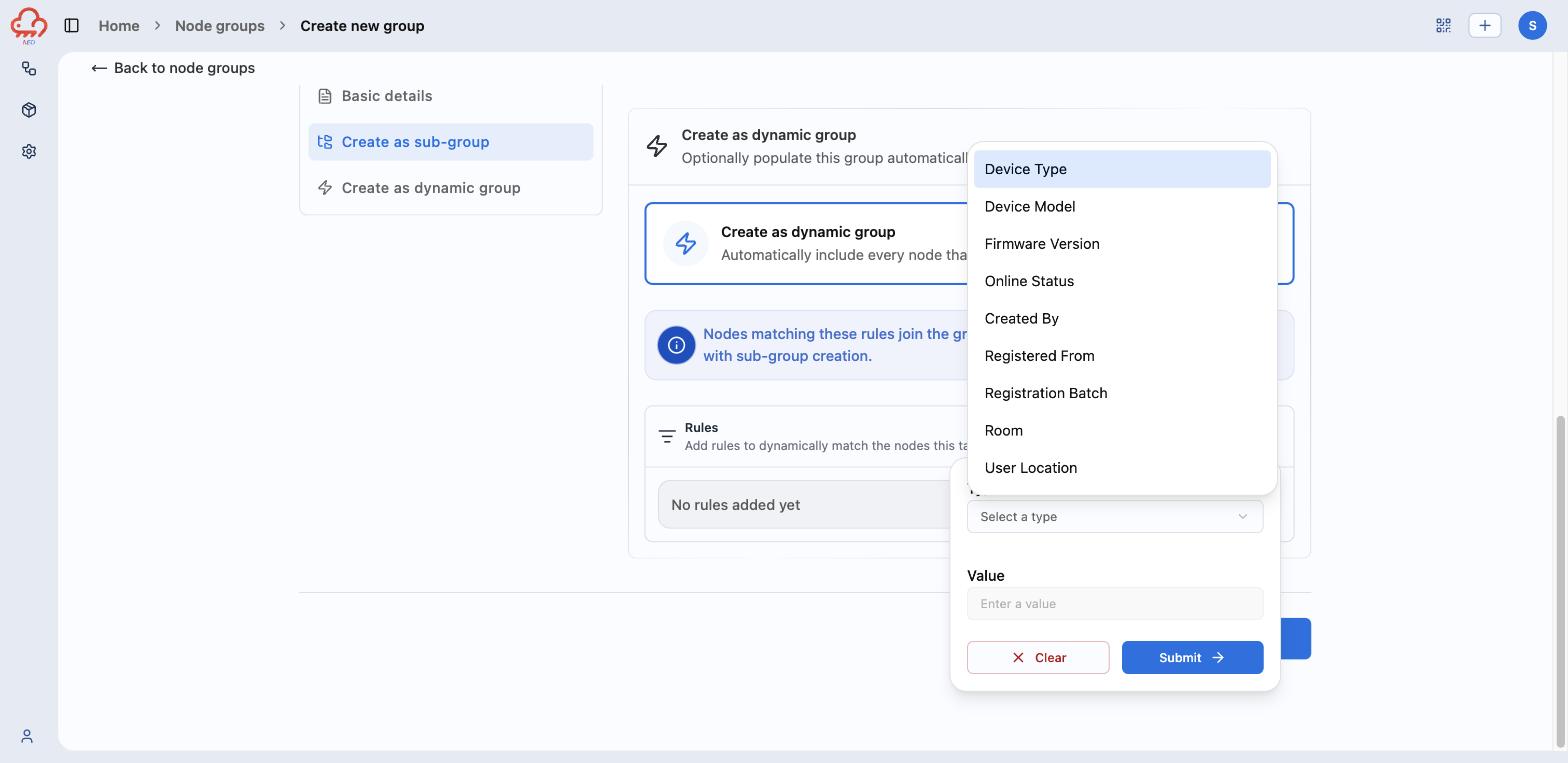
Types with a fixed set of values (Online Status) turn Value into a dropdown; the rest take free text, matched exactly.
Create node group finishes.
3. Fill a static group
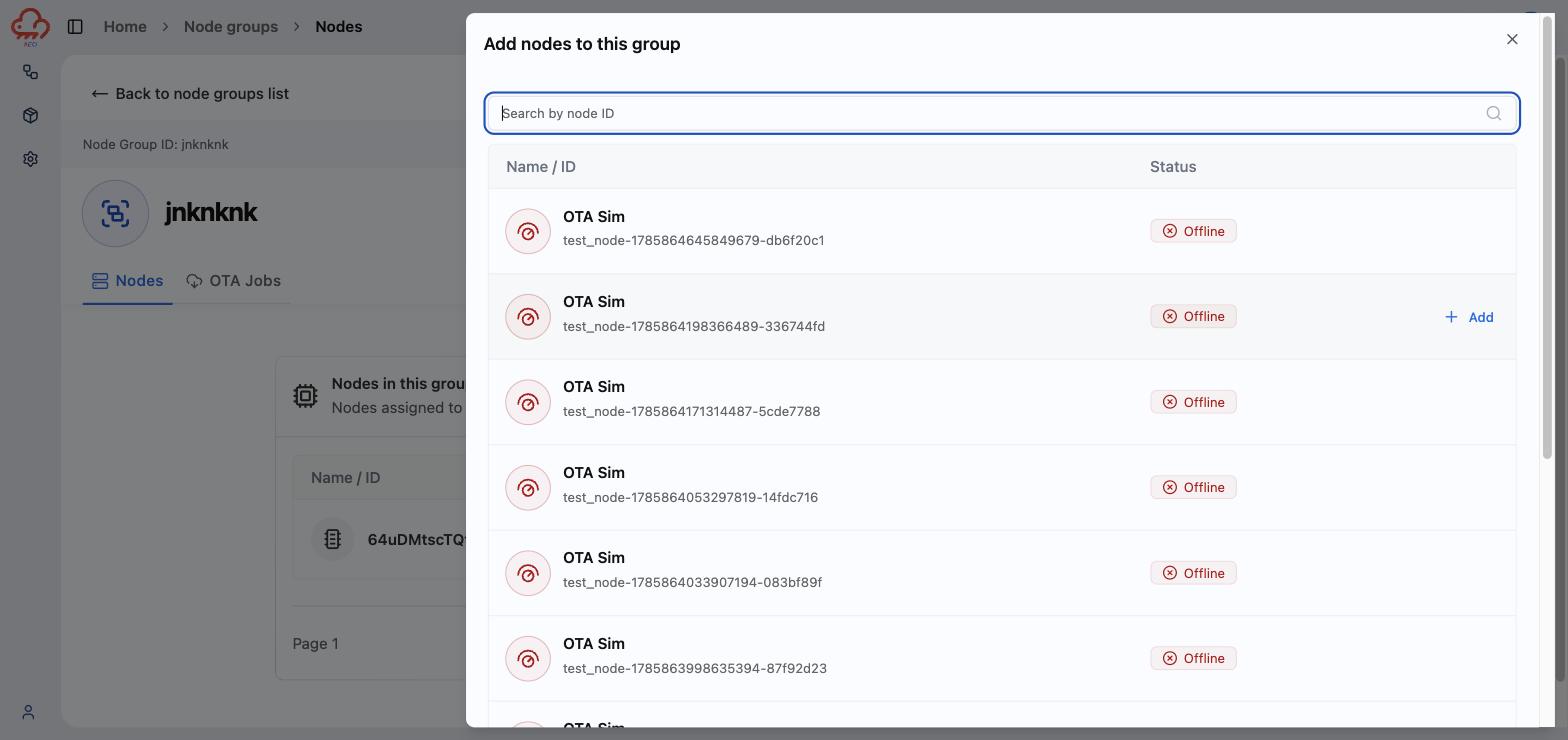
A static group's Nodes tab has Add nodes to this group, which opens a panel of every node in the deployment, searchable by node ID. Hover a row and hit Add. Nodes already in the group get a Remove on hover in the group's own table.
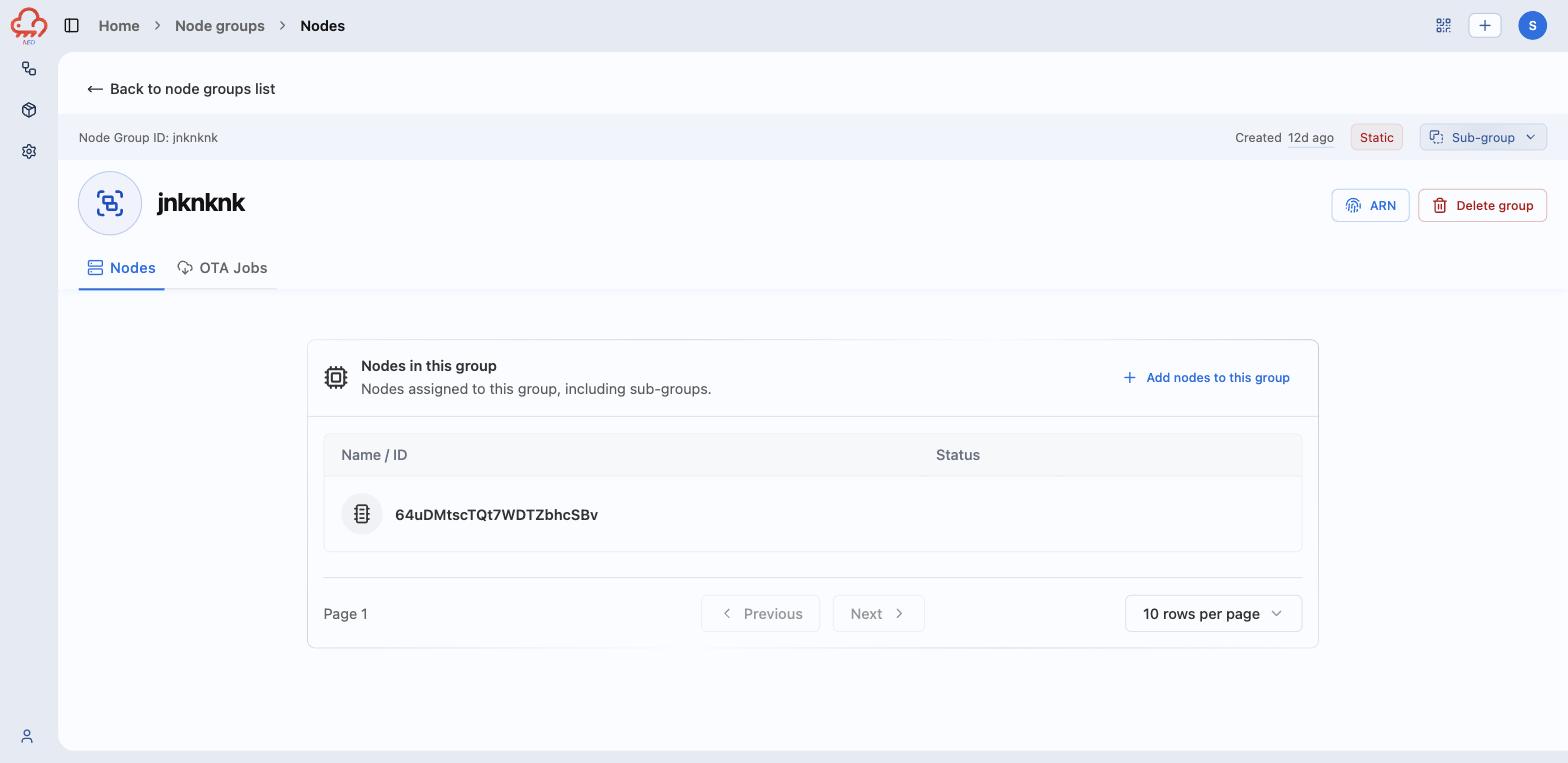
The header carries the group's identity and the two things worth checking at a glance: the Static or Dynamic badge, and a Sub-group chip that expands into the group's parent groups. ARN shows the group's AWS ARN; Delete group removes the group, not its nodes.
Dynamic groups run themselves
There is no Add nodes button on a dynamic group. Instead the Nodes tab explains that membership is managed automatically, and View rules shows the query behind it, with Copy query string if you want the same filter elsewhere. A live dynamic group carries an Active badge under its name.
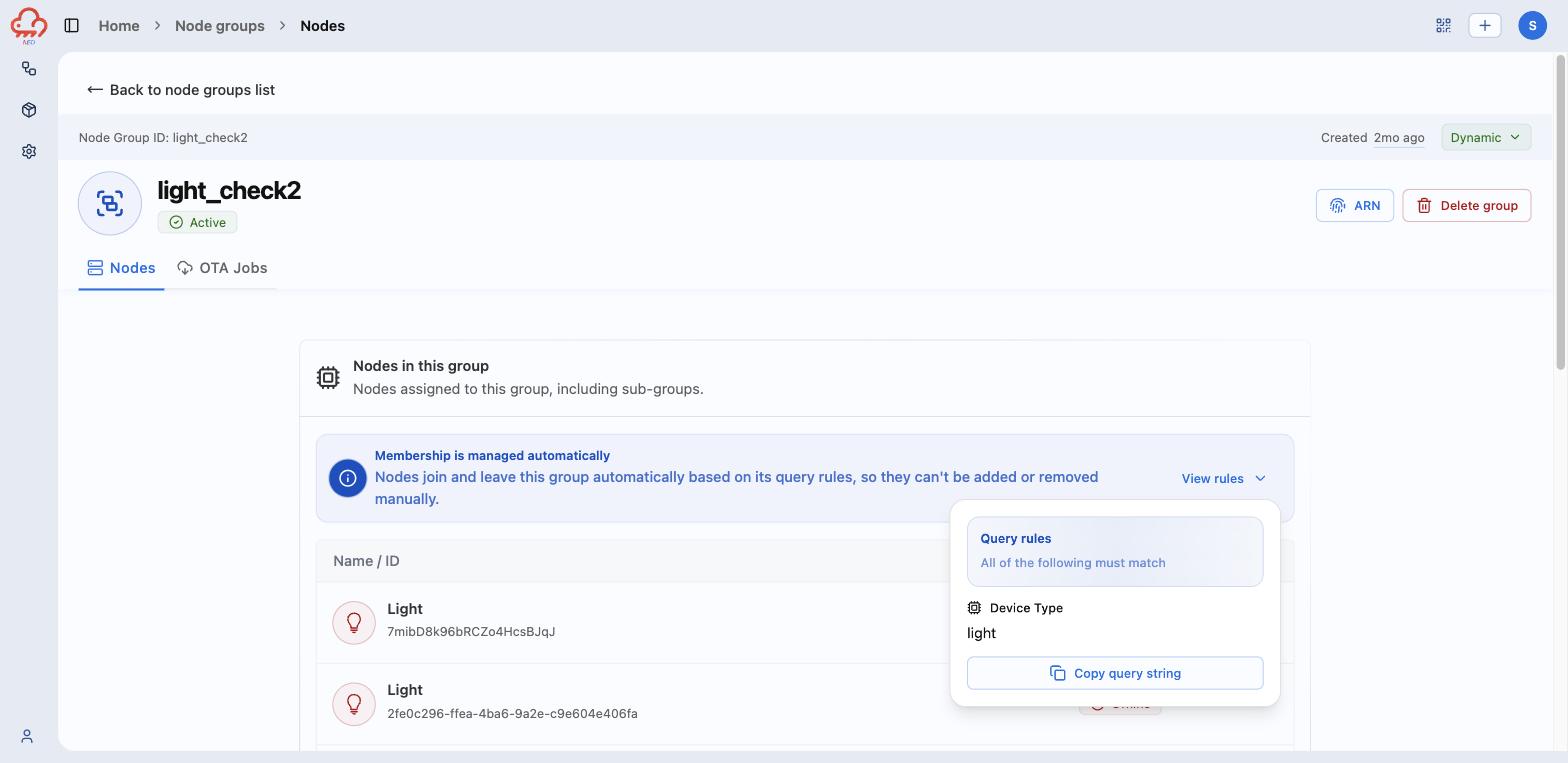
A node that stops matching leaves the group on its own — which is the point, and also the catch. A group defined as "firmware 1.4.0" empties itself as you roll out 1.5.0. If you want a stable list of the nodes you touched, use a static group.
Targeting a rollout at a group
The group's OTA Jobs tab lists every job that targeted it, with status and creation time — the group-scoped version of what OTA → Jobs shows for the whole deployment.
Rollouts are created from the OTA side, not from here: OTA → Jobs → Create OTA Job, then pick Node group as the target. See OTA.
One combination is worth knowing about. A job created against a node group can be marked Continuous, which keeps handing the image to nodes that match the target later. Point a continuous job at a dynamic group and you have a standing rule: any node that starts matching gets updated, with nobody clicking anything. Useful in production, and the reason to be sure of both the rules and the image first.