Phone app walkthrough
The same ESP RainMaker Home app you may already know runs against Neo too. Use ESP RainMaker Neo, or configure the app for your private deployment.
1. Install
Please use the installation links below to download the ESP RainMaker Home App according to your phone's operating system. (i.e. Android or iOS)

Reference repository
Release reference
2. Point the app at Neo
On first launch, pick a backend from the landing screen:
- Open the app to the landing screen.
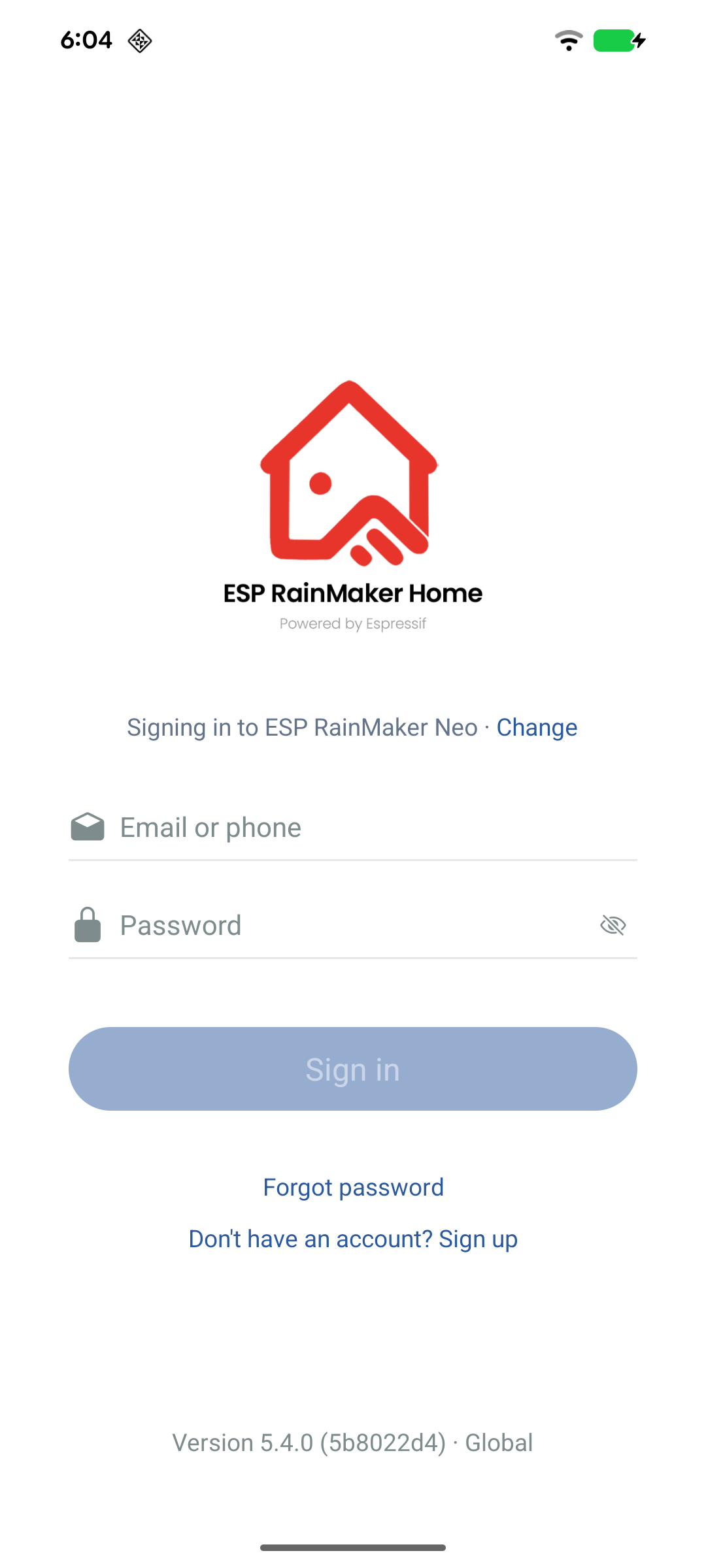
- For ESP RainMaker Neo, tap ESP RainMaker Neo. The login screen opens — no QR scan required.
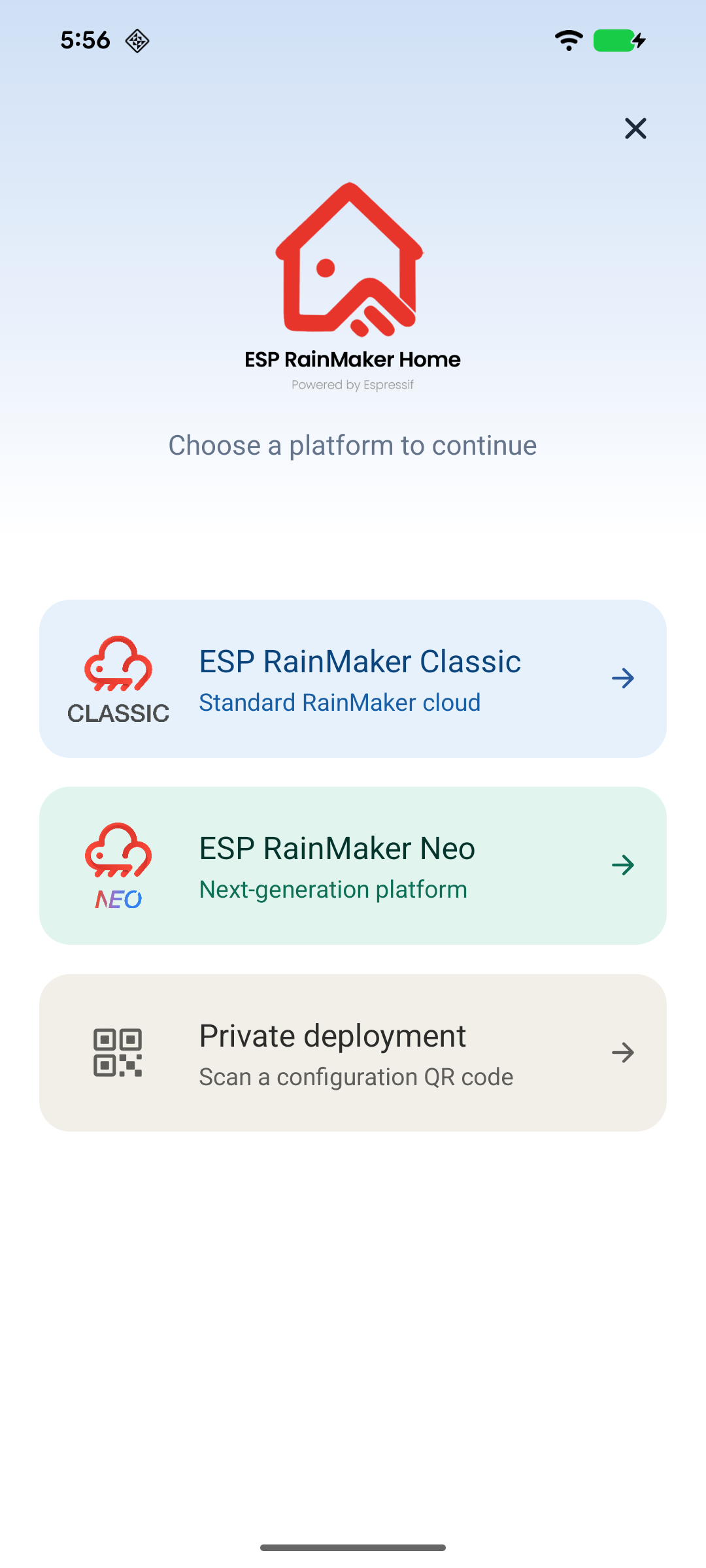
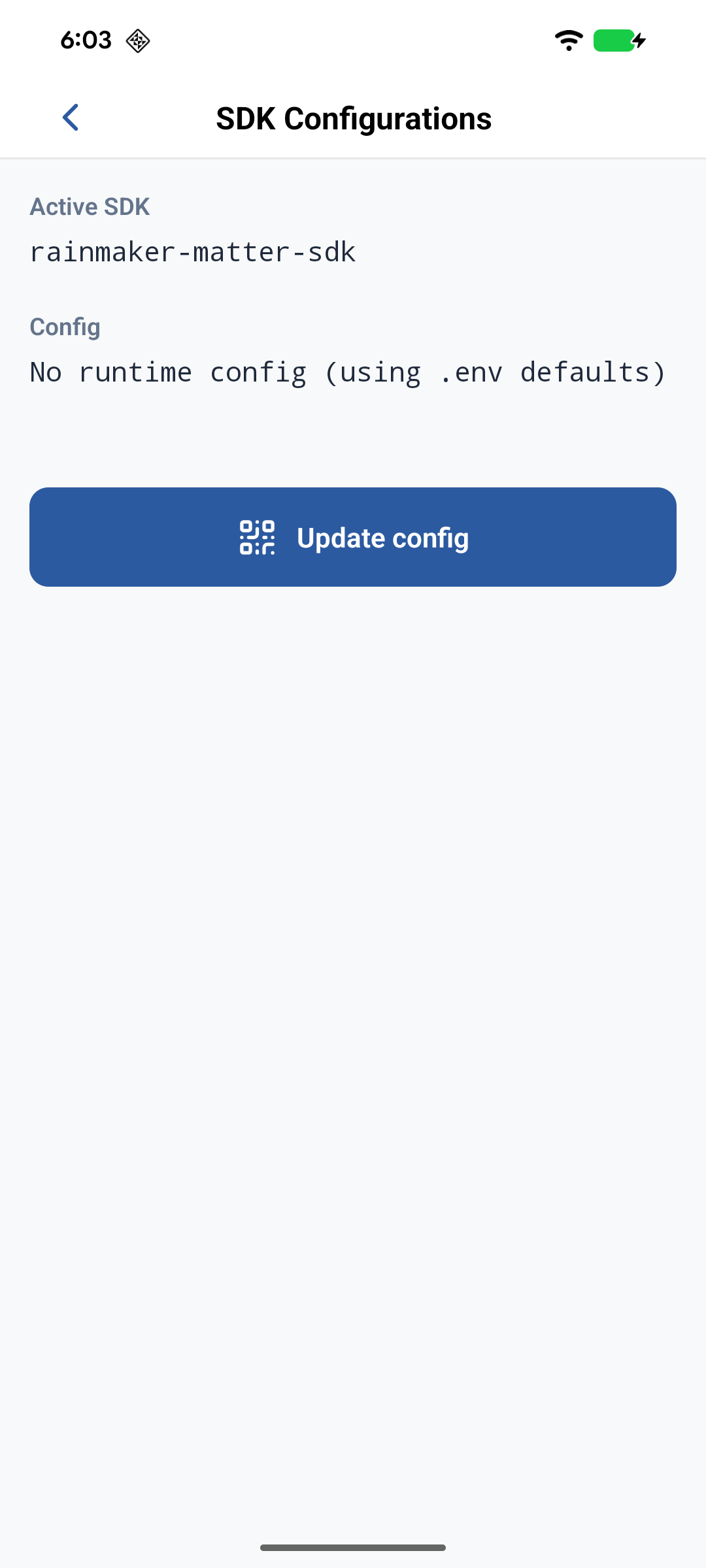
- For your own Neo deployment, tap Private deployment instead. On SDK Configurations, tap Update config, then scan the client integration QR code from the Admin Dashboard — see Deployment Details for where that QR is published. The app fetches and applies the JSON, then opens the login screen.
If you later need to change deployment from the login screen, use the deployment banner (Change) — it returns you to the same landing choices.
3. Sign up
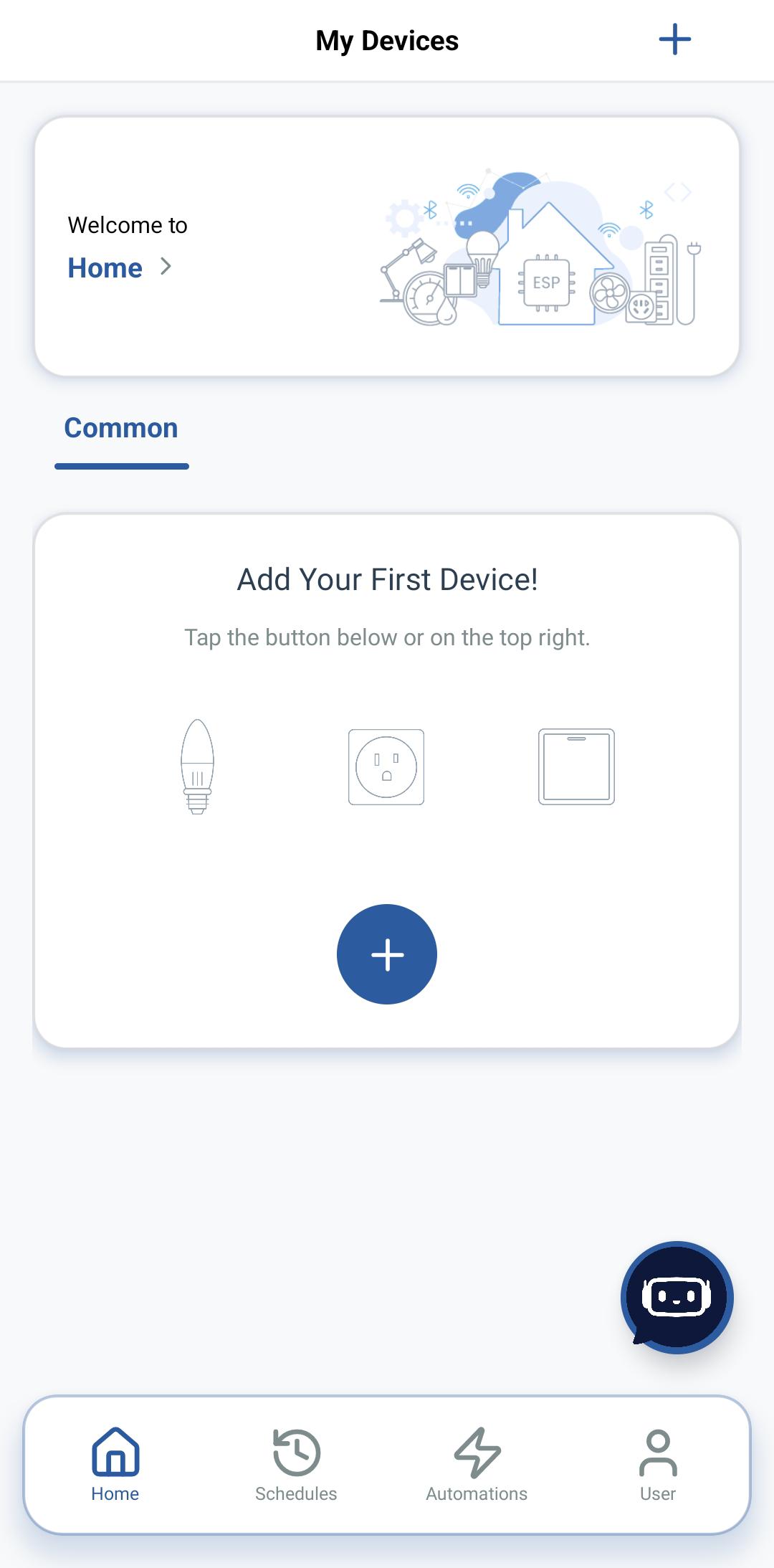
Use any non-admin email address to sign up. After signing in, the My Devices screen shows your default Home group (empty).
4. Add a device
-
Tap + (top-right or the large + in the centre).
-
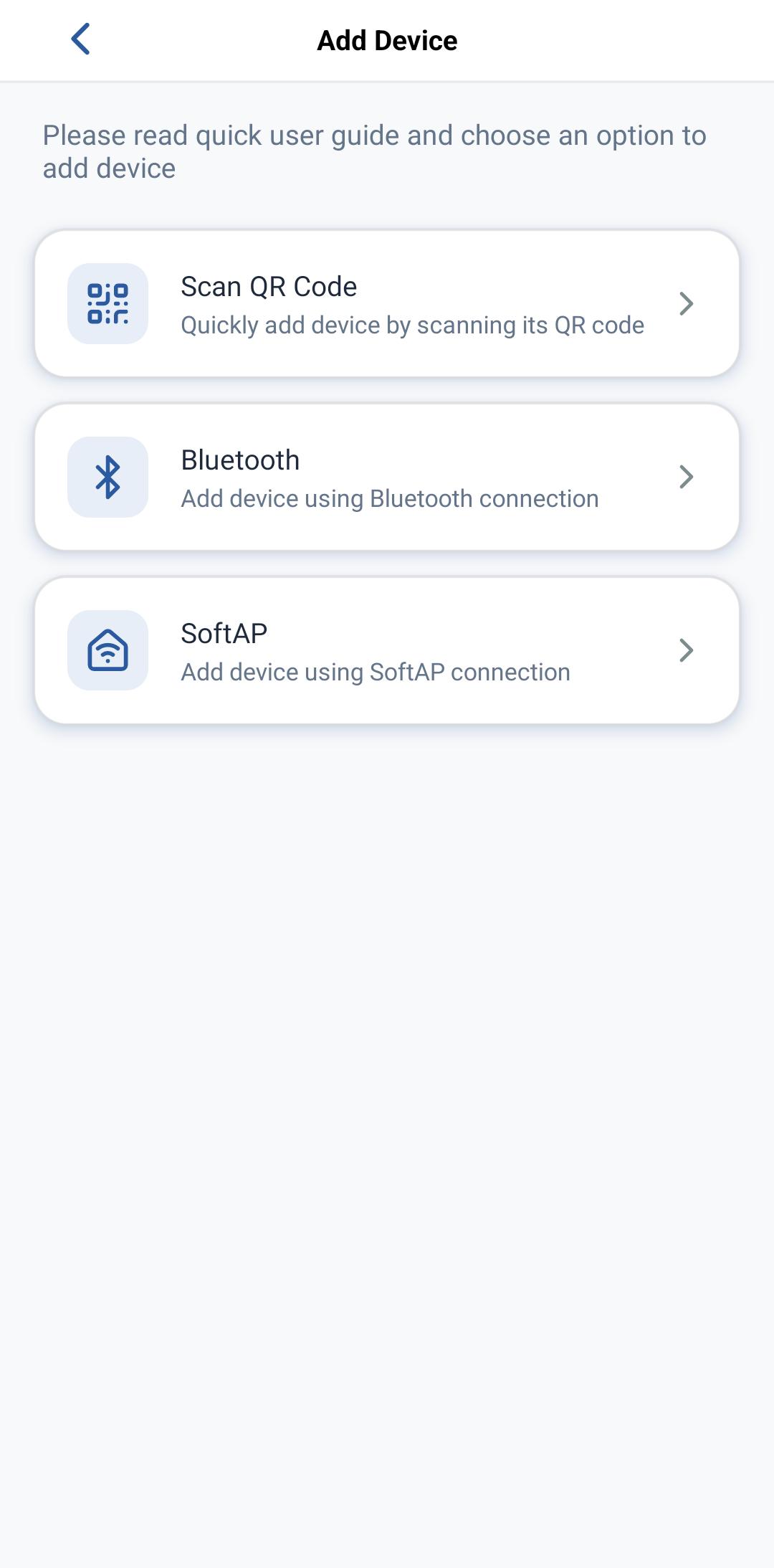
The Add Device screen appears with three options. Tap Scan QR Code.
-
Scan the QR shown in your device's serial console (the one ESP Launchpad printed after reset, or the output of
idf.py monitor). -
Walk through the on-screen prompts (Wi-Fi creds, etc.).
-
Pull-to-refresh the home screen if the node doesn't appear immediately.
5. Group control
Once you have more than one device of the same type added, you can drive them together as a group:
-
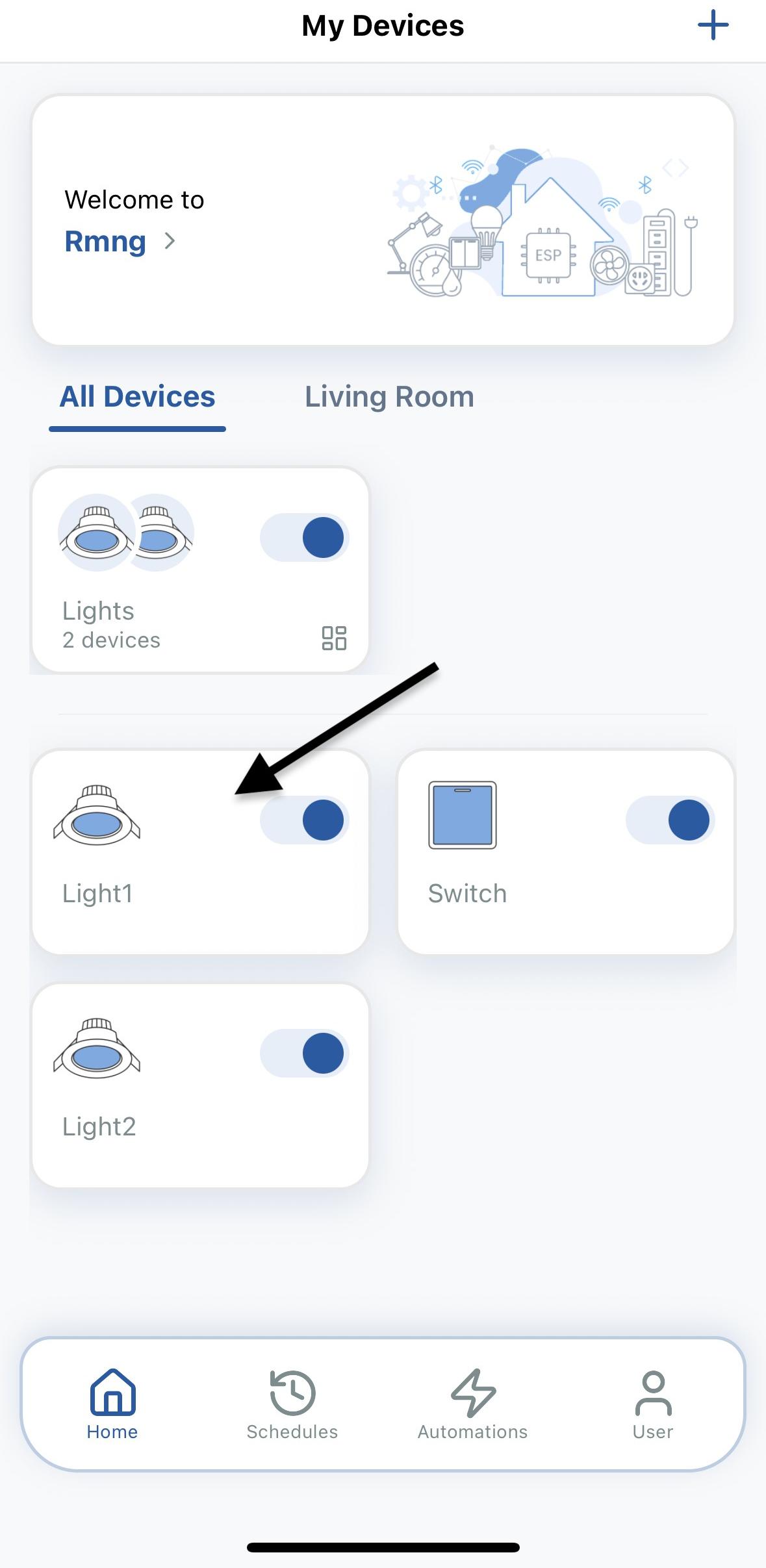
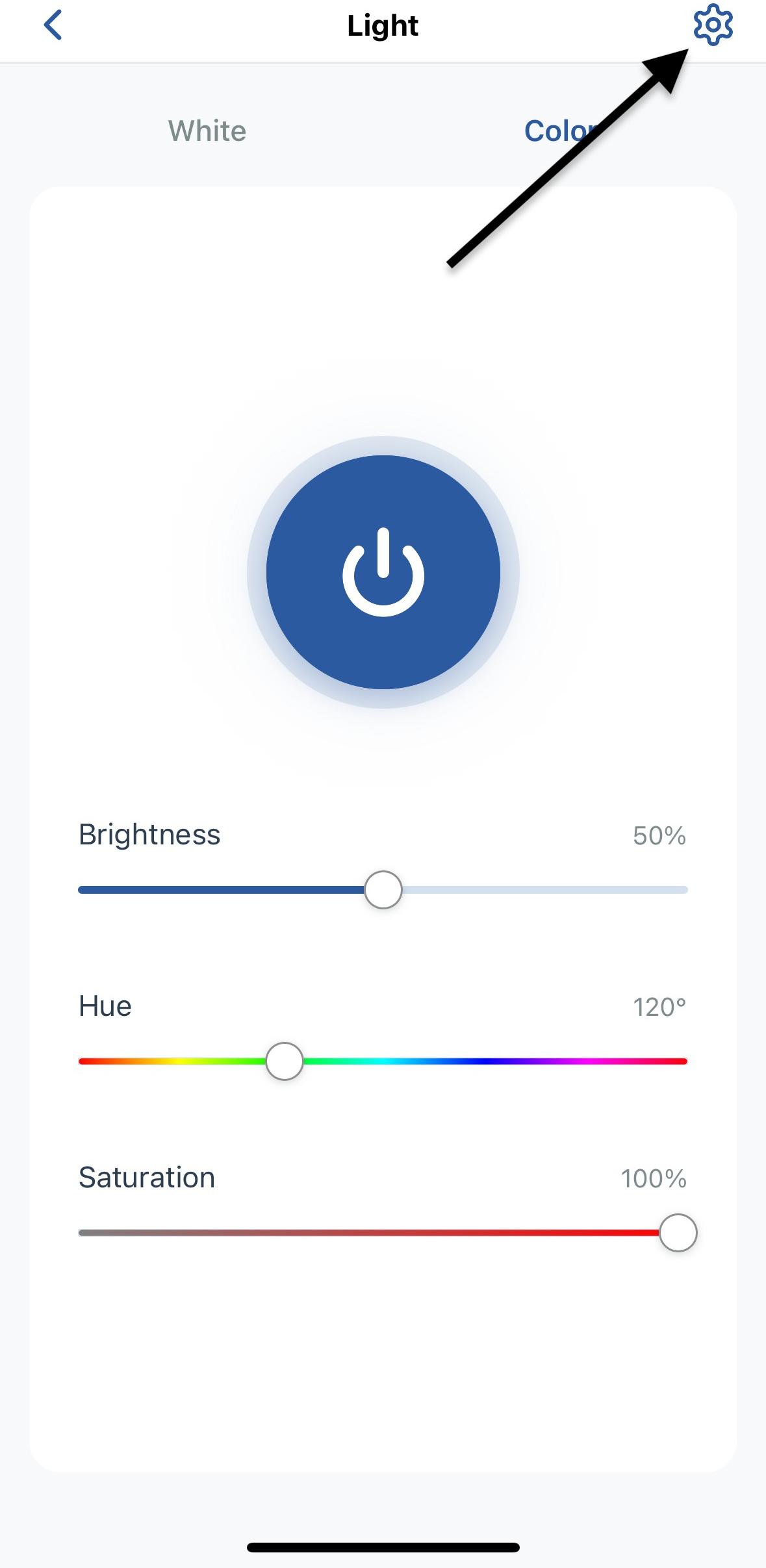
Open the device control screen for any device you want included.
-
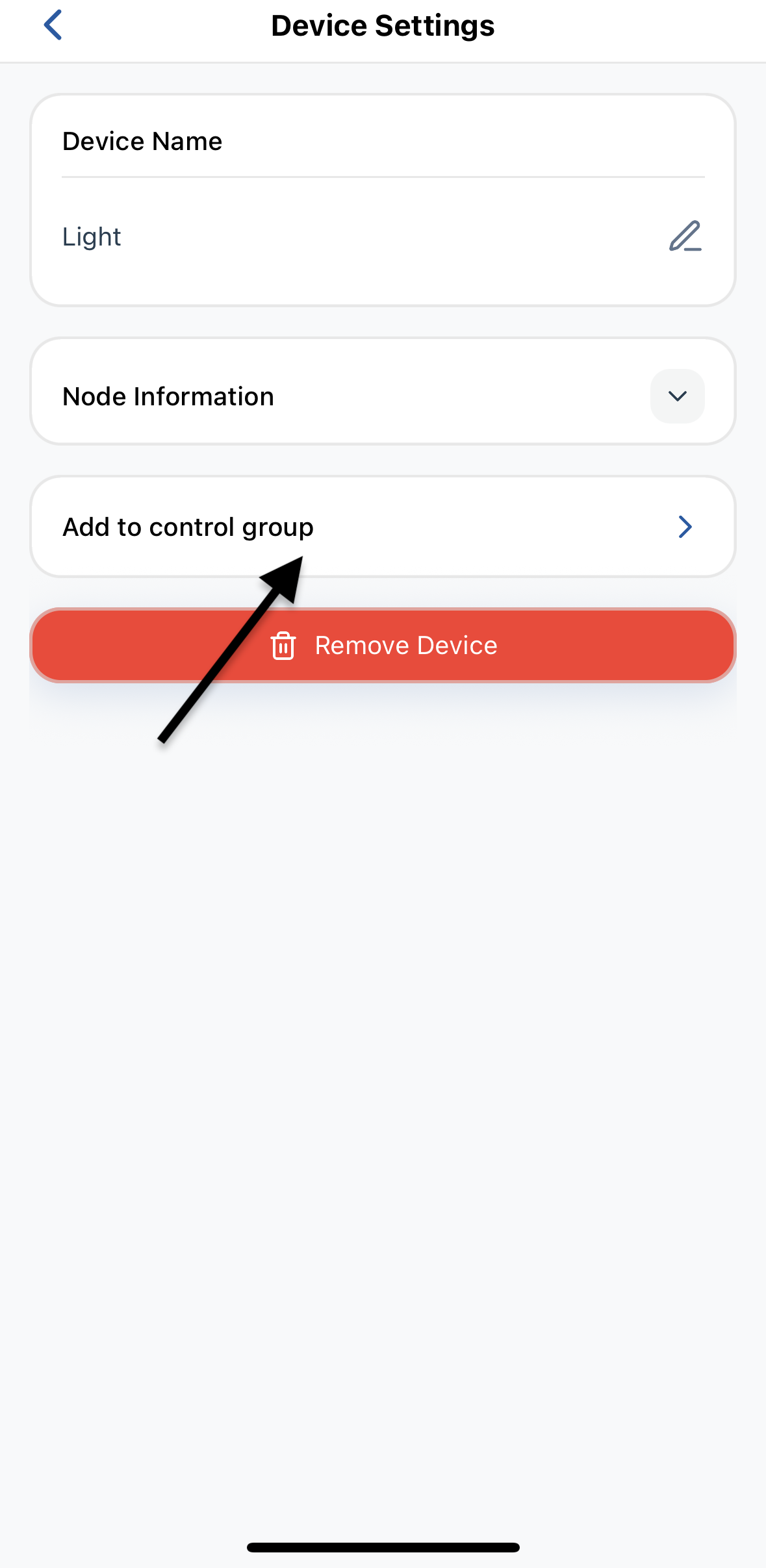
Open Device Settings, tap Add to Control Group, select the other devices.
-
Toggle/dim from a single control surface — every device in the group reflects the change.
6. Share a Home or Room
-
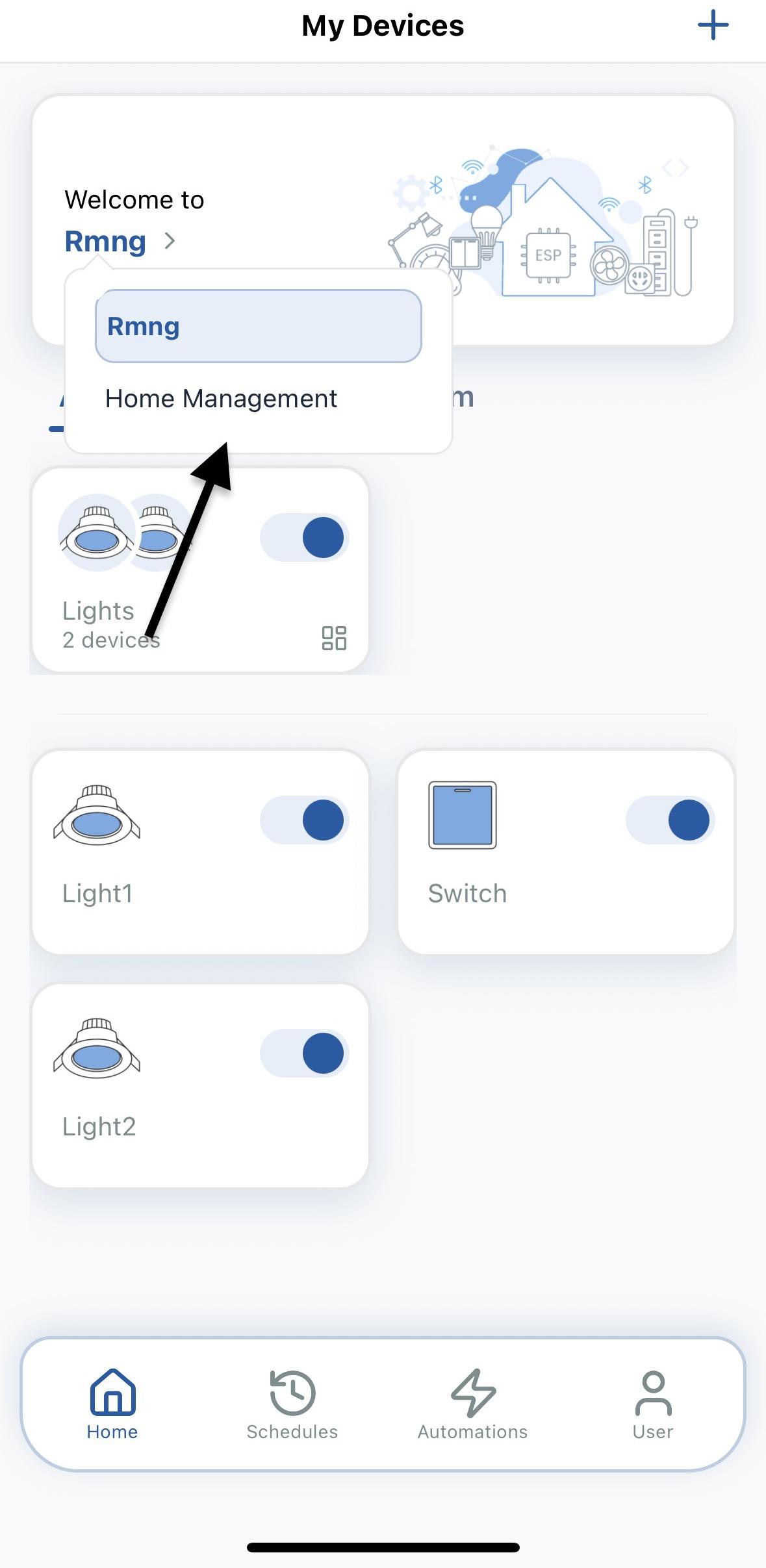
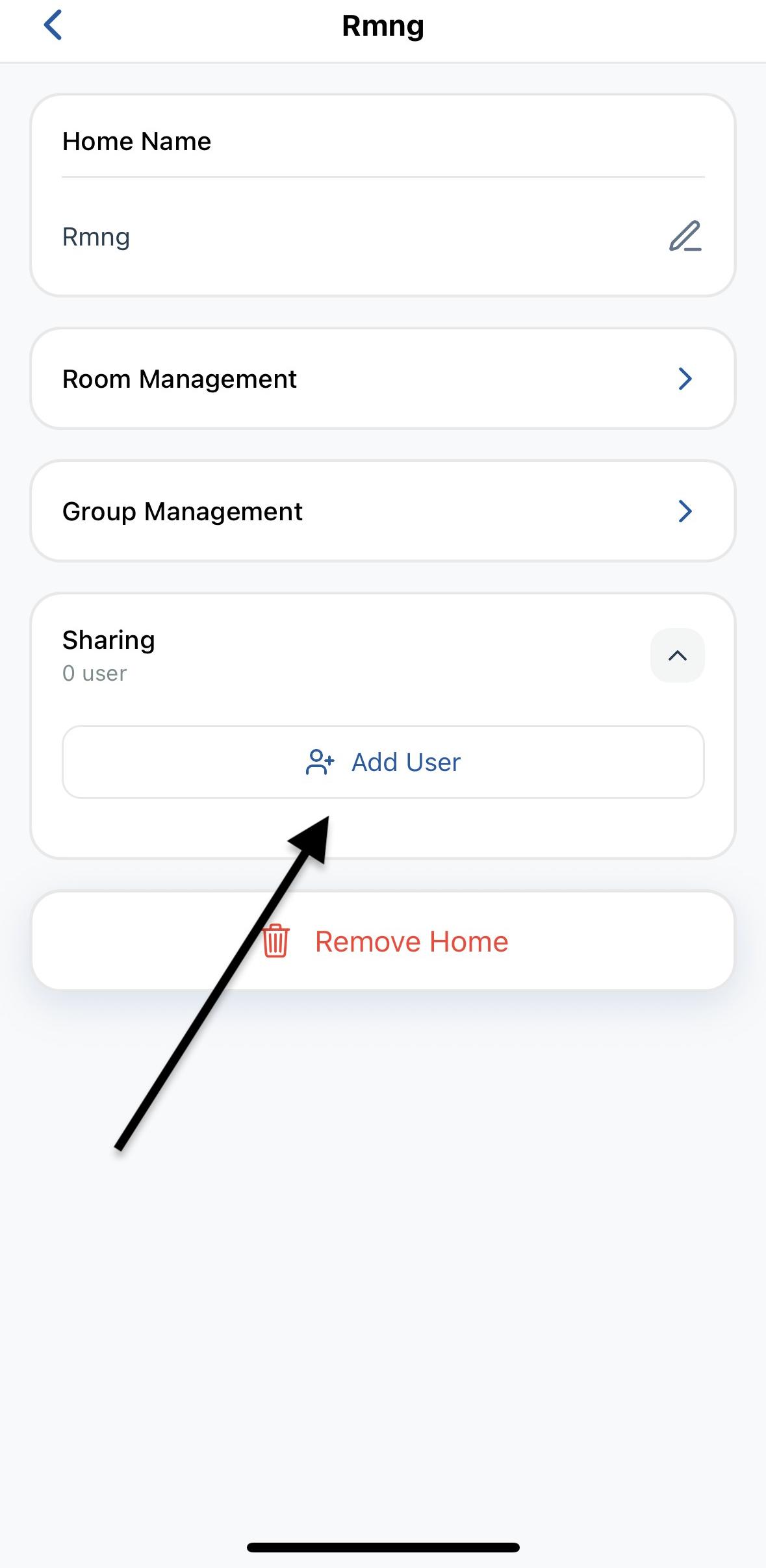
Open Home Management → pick the Home / Room.
-
Expand Sharing → Add User → enter the recipient's Username (for Neo, that is their sign-up email).
-
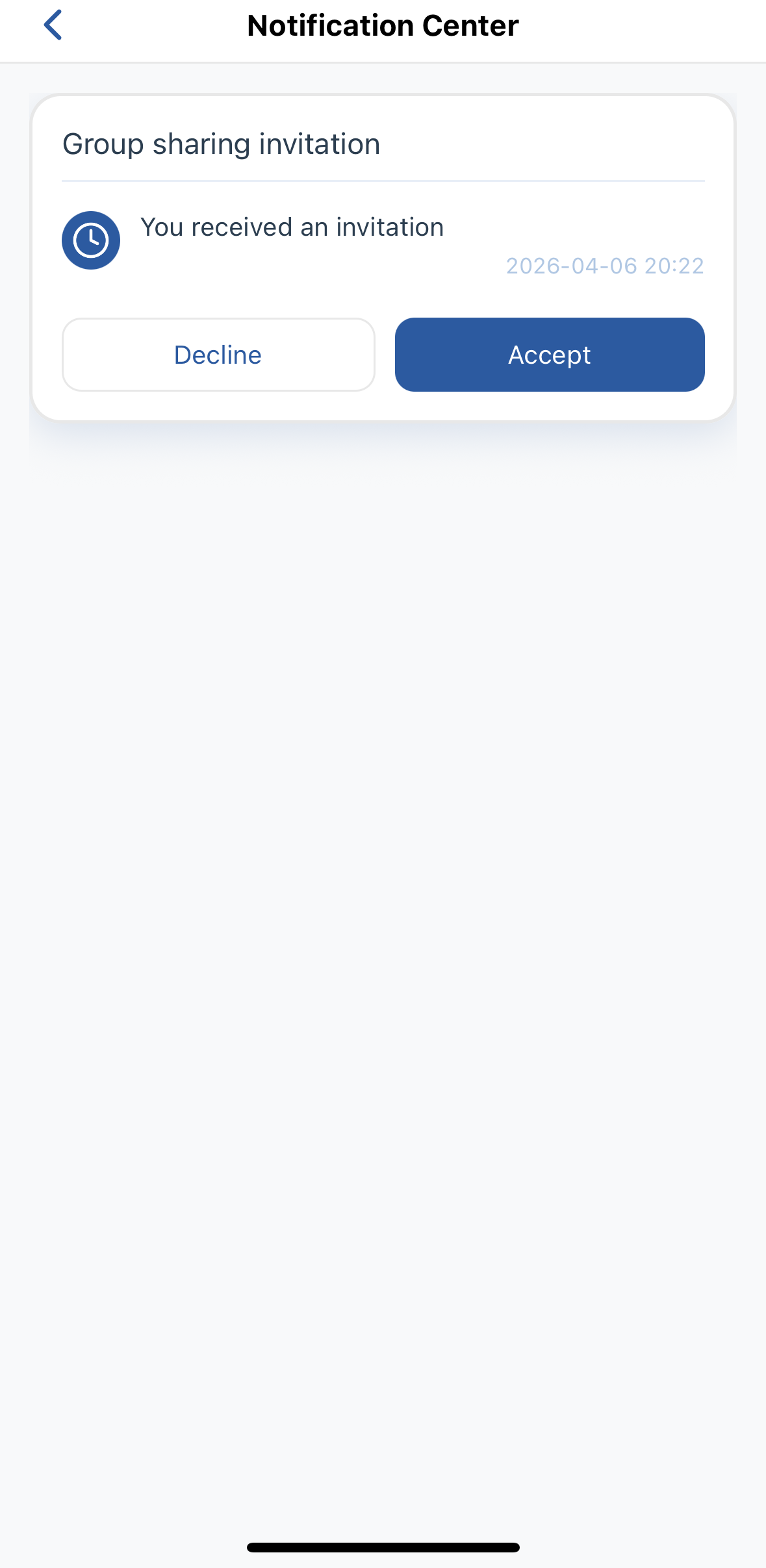
They accept from User → Notification Center.
For Schedules, Automations, rooms, and the rest of the app UI against Neo, see the full ESP RainMaker Home App usage guide.
Want voice control? Link Alexa →