Device control
Drive Nodes from the Home list or a device control screen — on/off, brightness, colour, fan speed, and other parameters. When the phone and Node share a Wi-Fi network, local control can apply without going through the cloud.
Device listing
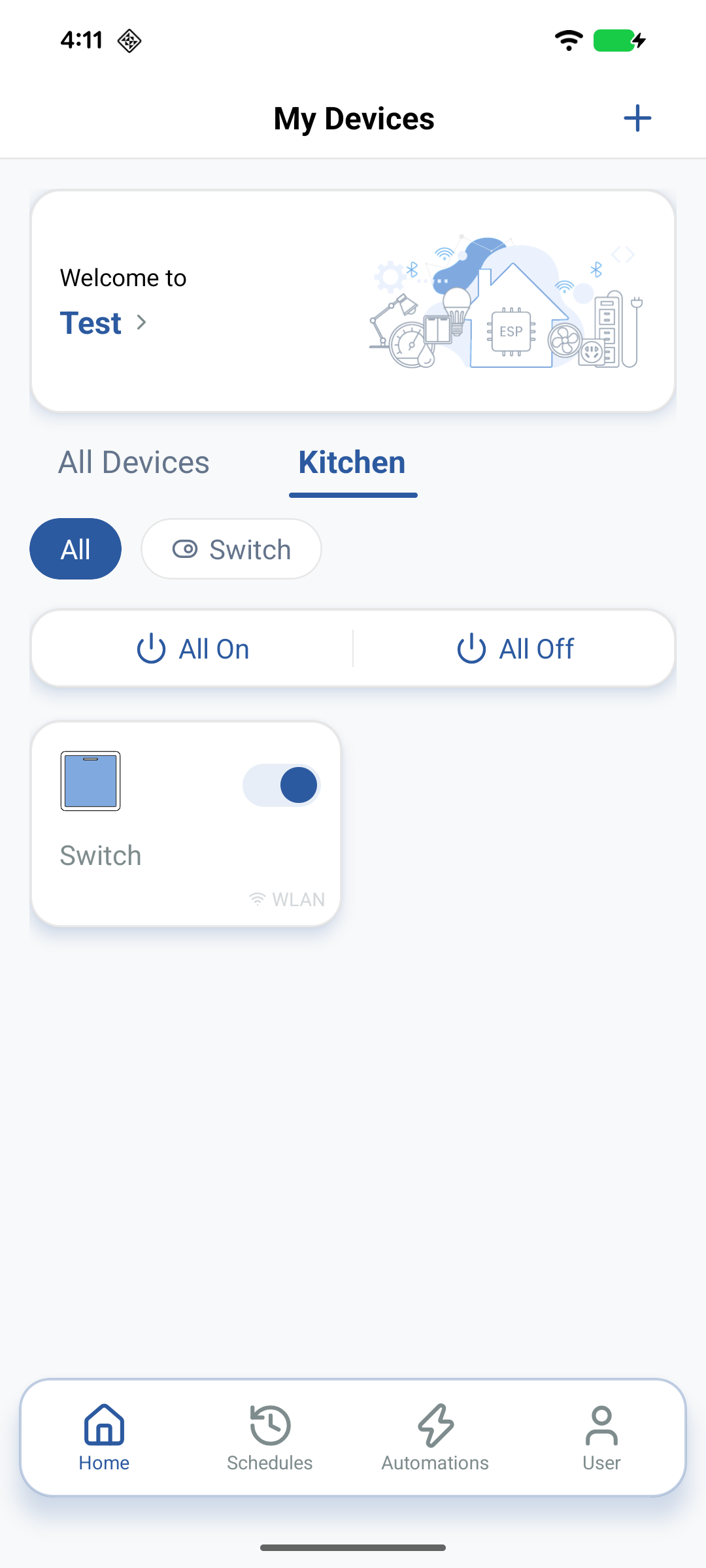
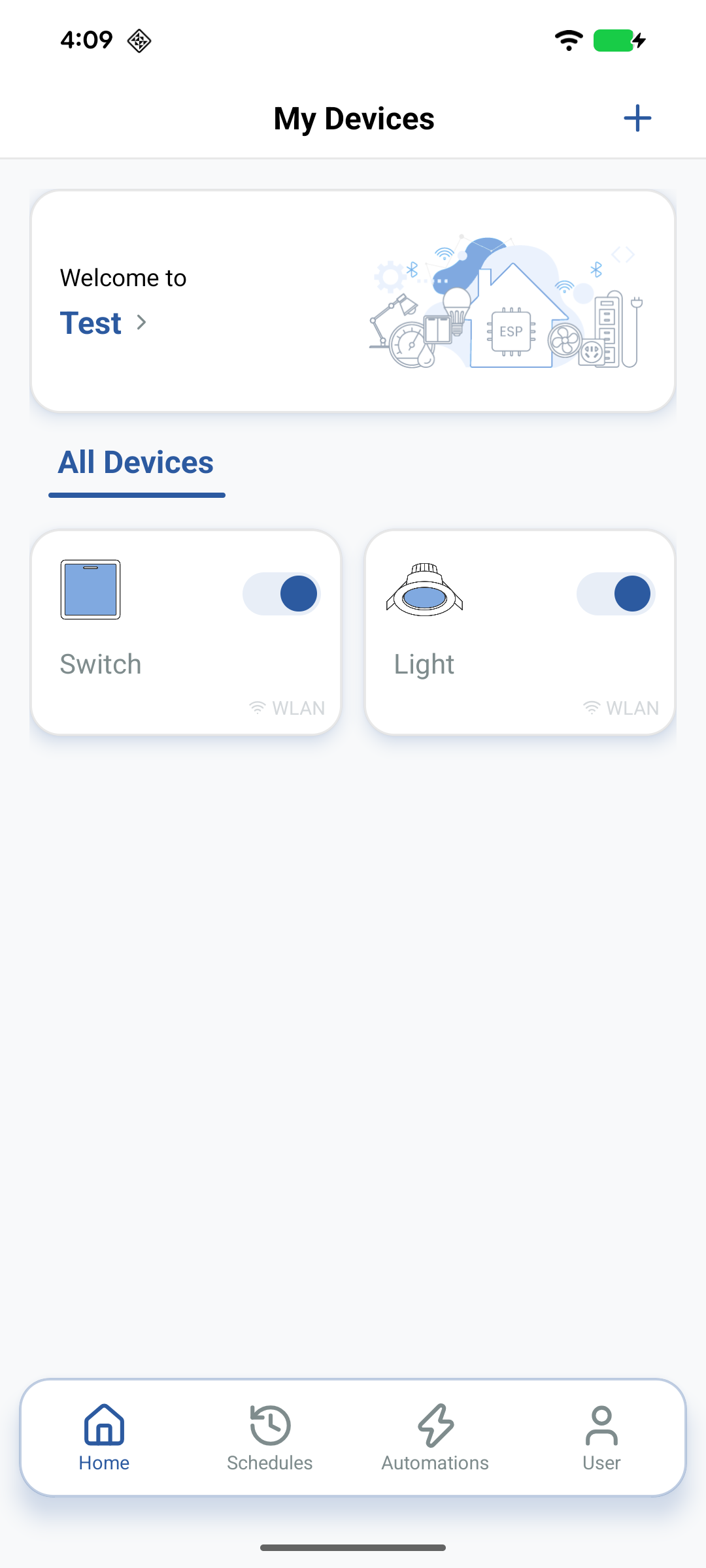
Devices are listed at the Home level. New Nodes appear under the All Devices tab by default. Create Rooms under the Home to organise them by location; room tabs appear next to All Devices.
Rooms on the Home screen
Created rooms show as tabs within the Home so you can filter the device list by location.
Creating rooms
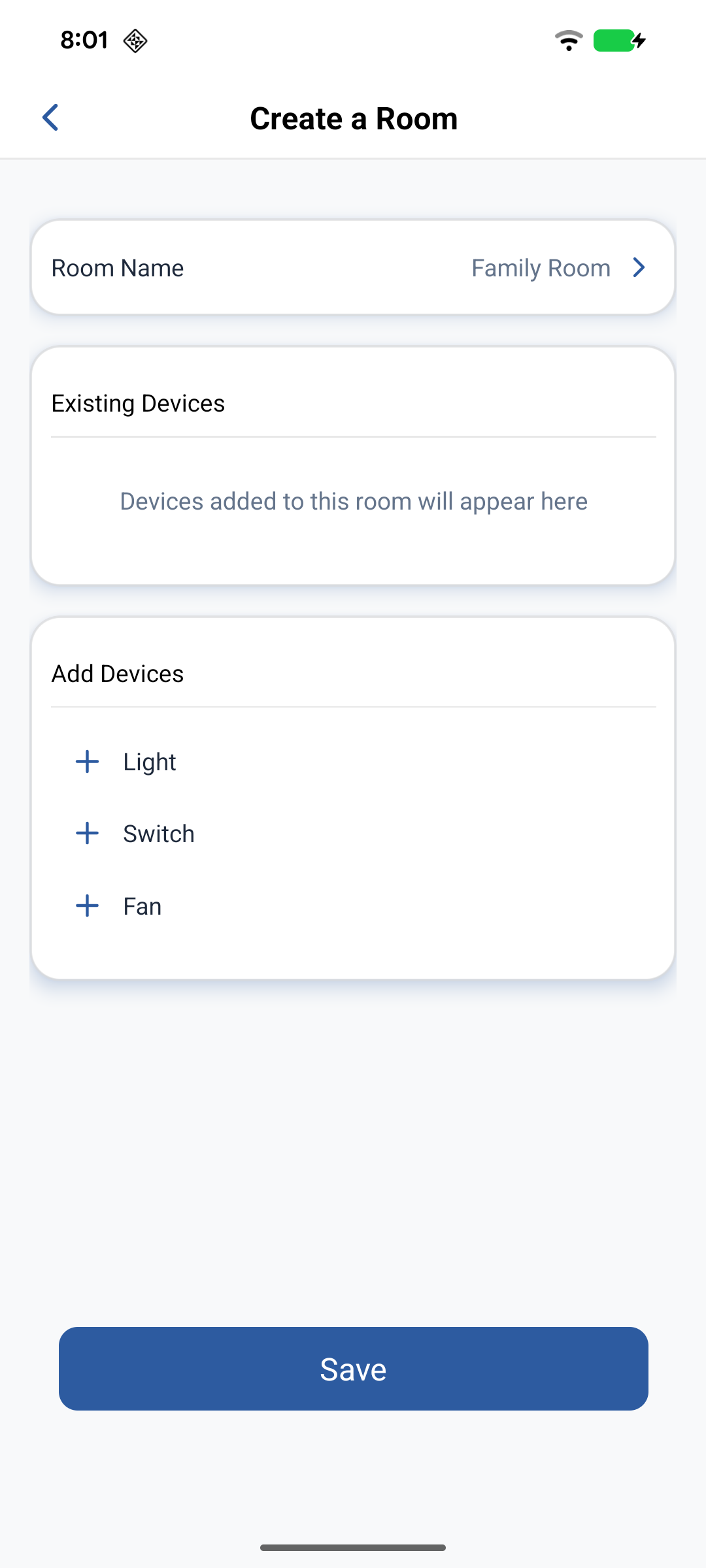
- Tap the home name → Home Management, select the Home, then open Room Management.
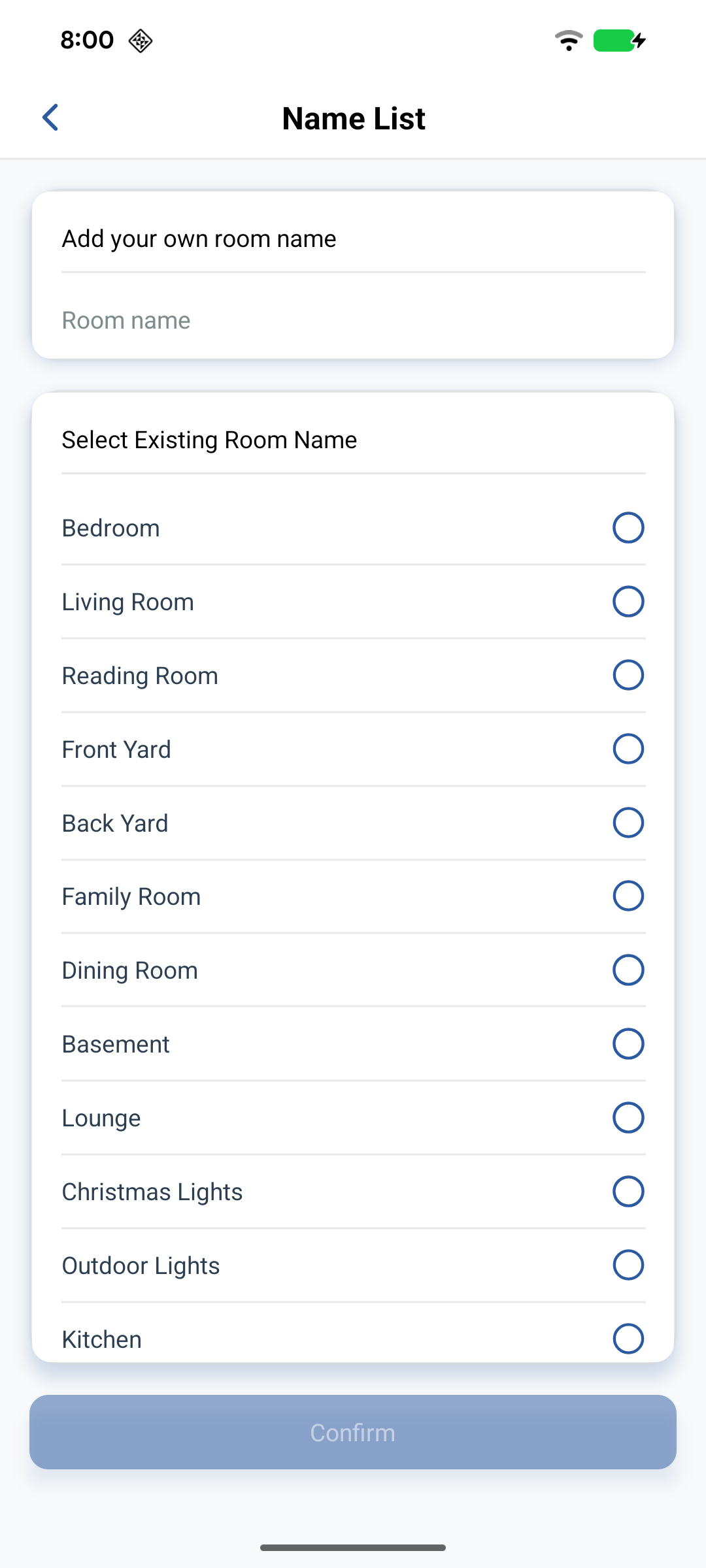
- Tap +, enter a name or pick a default type (Bedroom, Living Room, Kitchen, and so on).
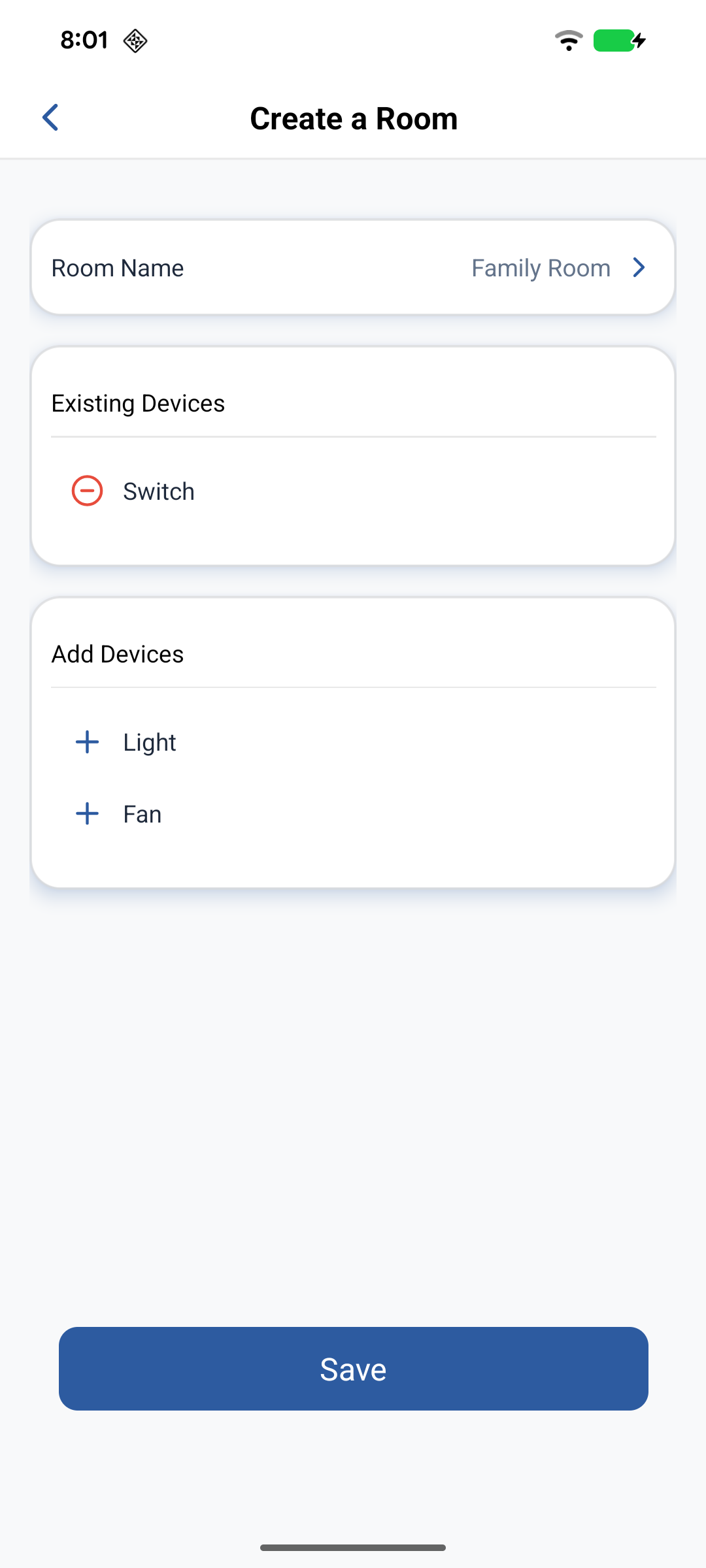
- Select devices to associate with the room and tap Save.
For the full room-edit flow, see Setting up devices.
Controlling a device
Switch on or off
- Toggle the switch on the device card in the room list or All Devices.
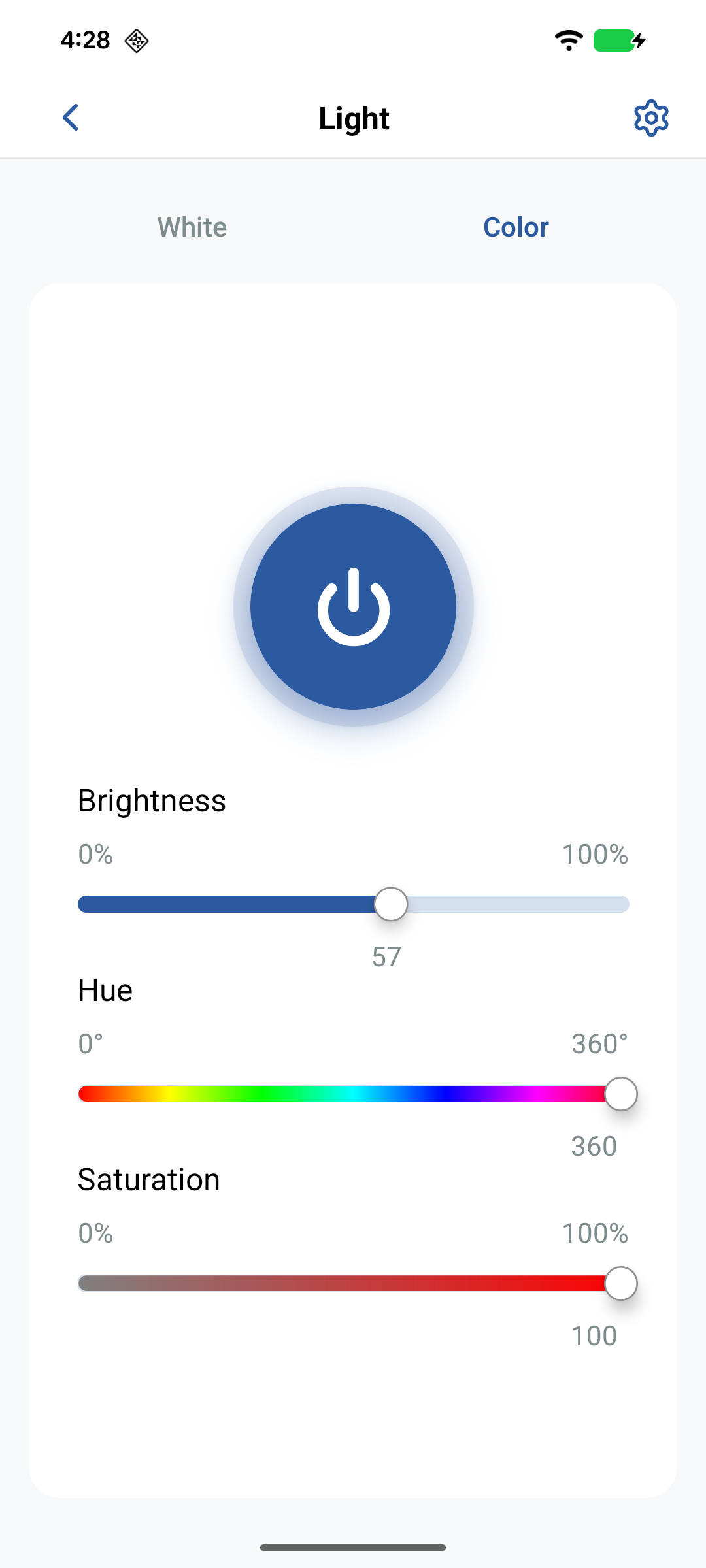
- Or open the device card and tap the central power control.
- For timed on/off, use the Schedules tab — see Schedules.
Local control
When the phone and the smart device are on the same Wi-Fi network, the app can control the Node locally. The local-control badge shows WLAN when that path is available.
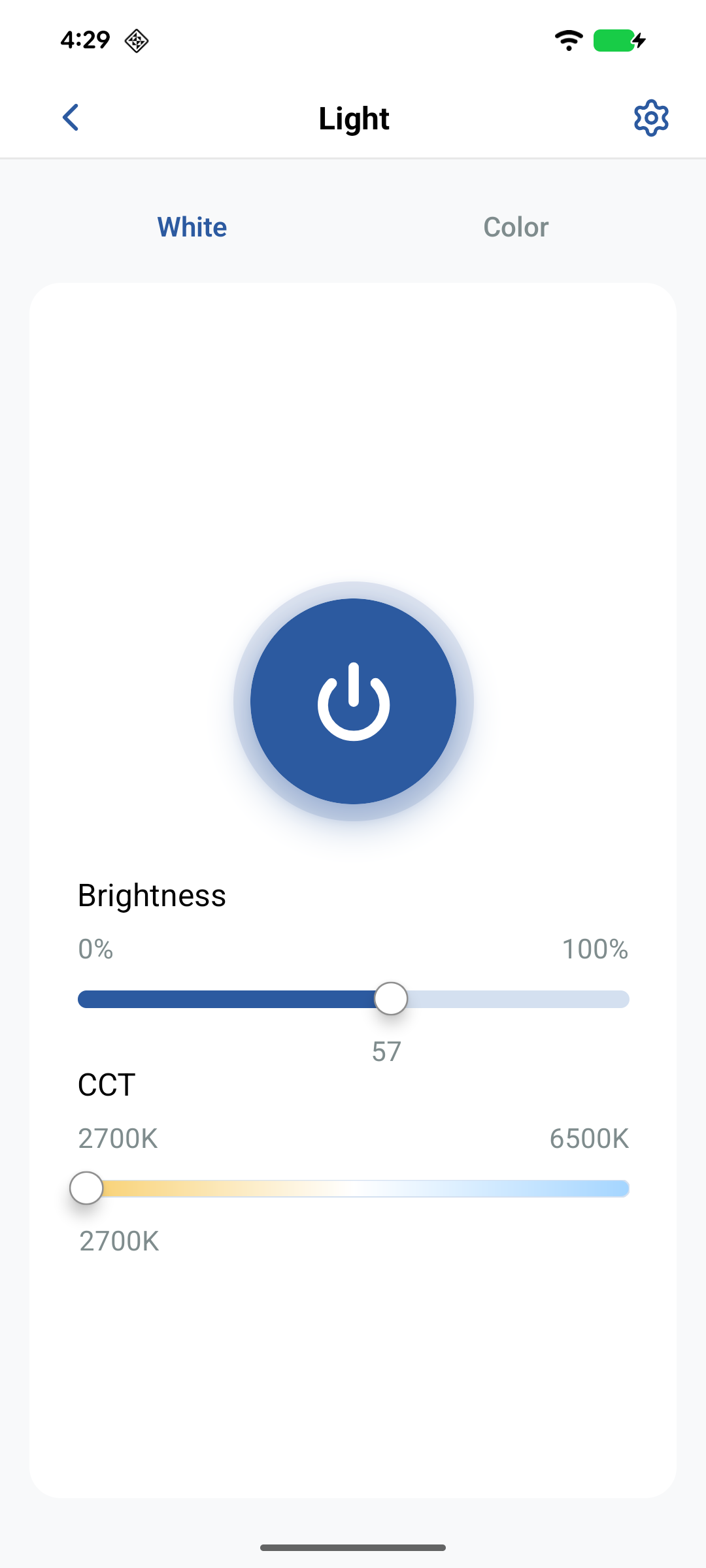
White light
- Tap a light device. The White tab is the default for white lights.
- Drag the Brightness slider right to increase intensity, left to decrease.
Colour light
- Tap a colour light and open the Color tab when available.
- Drag Hue to change colour.
- Drag Saturation to change colour intensity.
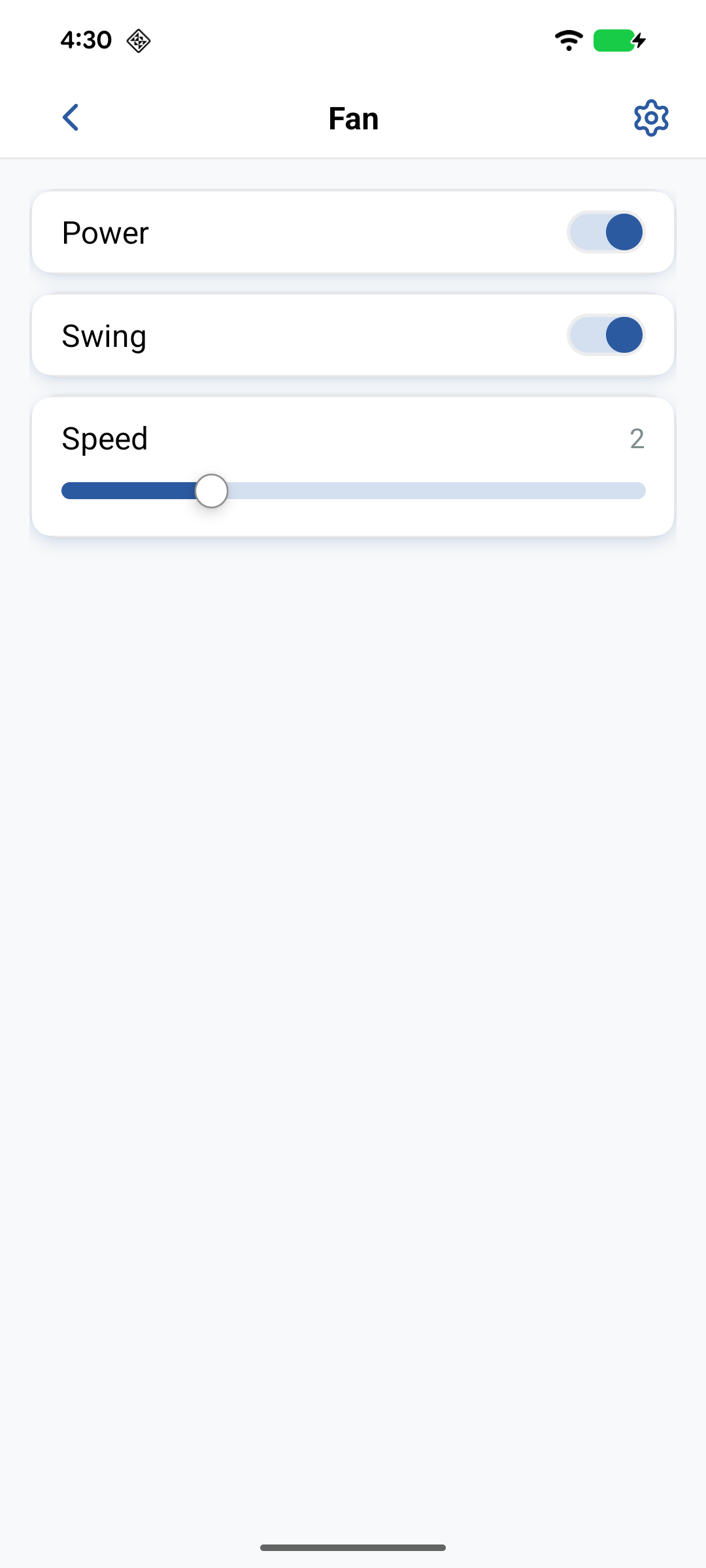
Fan
- Tap a fan device to open its control page.
- Drag the Speed slider left to right to increase speed.
Related
- Setting up devices — add Nodes and Rooms
- Schedules — time-based control
- Local control — how local control works on Neo