Schedules
A Schedule runs device actions at a chosen time and repeat pattern — for example lights on at 6 PM on weekdays, or everything off at midnight every day. Create and manage Schedules from the Schedules tab in the bottom navigation.
View Schedules
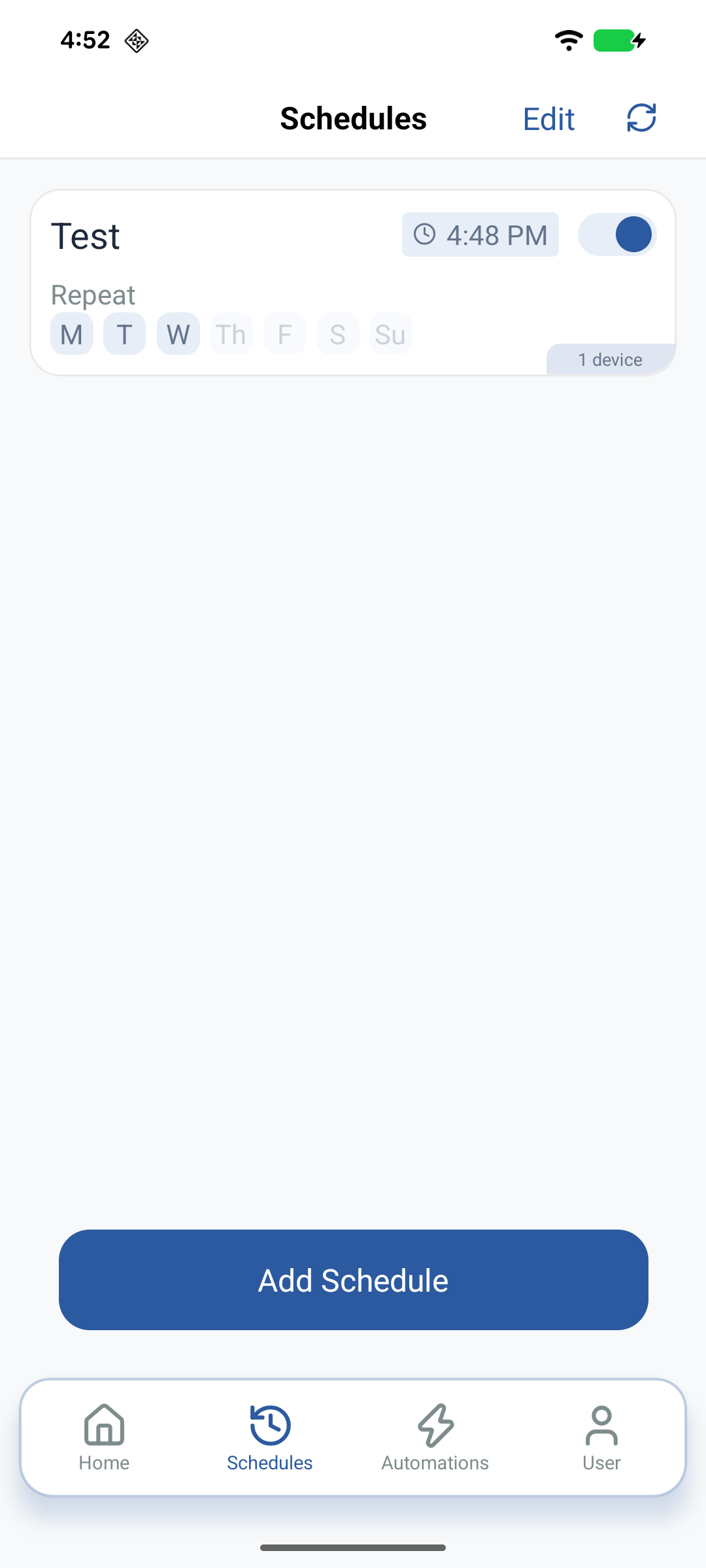
- Tap Schedules. Each card shows name, time (12-hour with AM/PM), repeat days (or Once), device count, and an enable toggle.
Create a Schedule
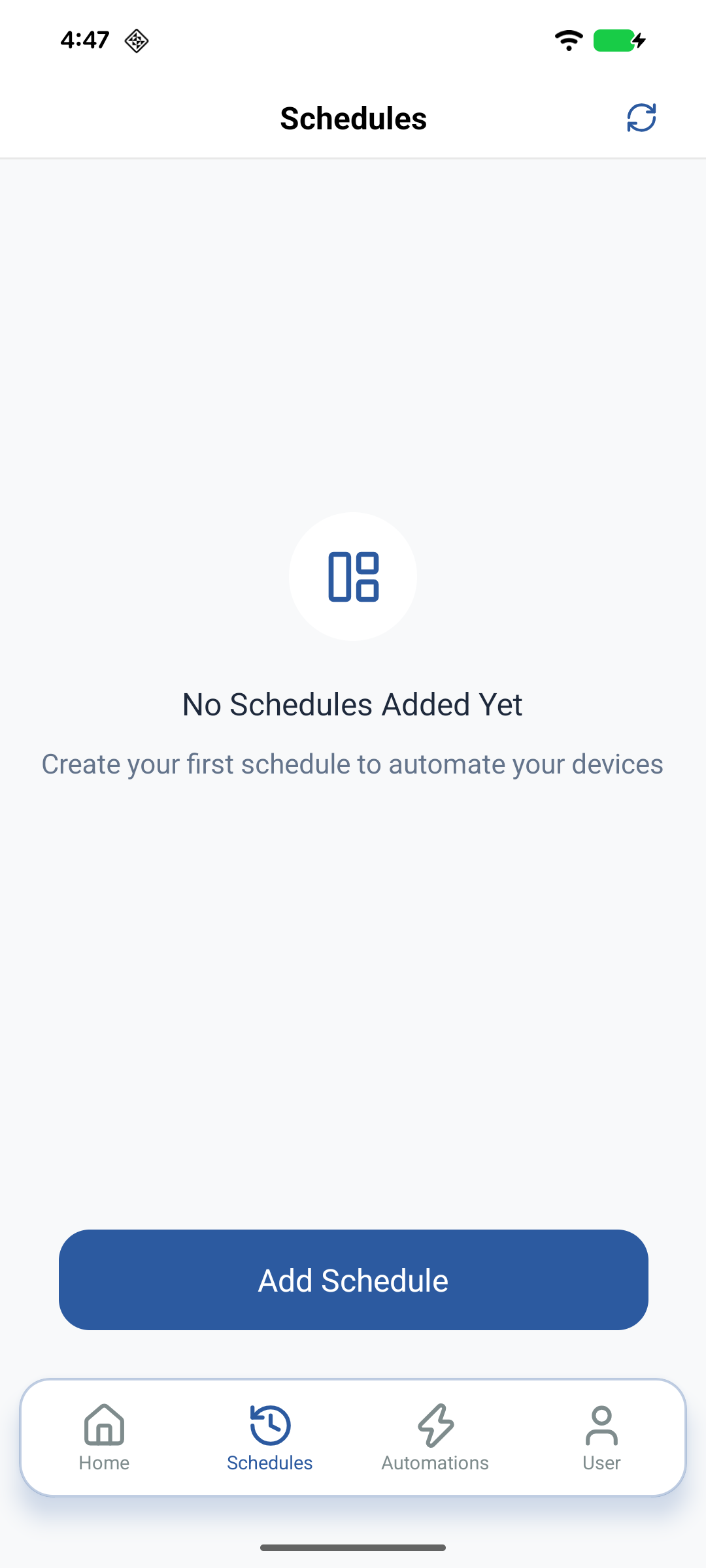
- On the Schedules page, tap +.
- Enter a name (for example Morning Lights) and tap Confirm.
Devices and actions
- On Create Schedule, tap + in the Actions section.
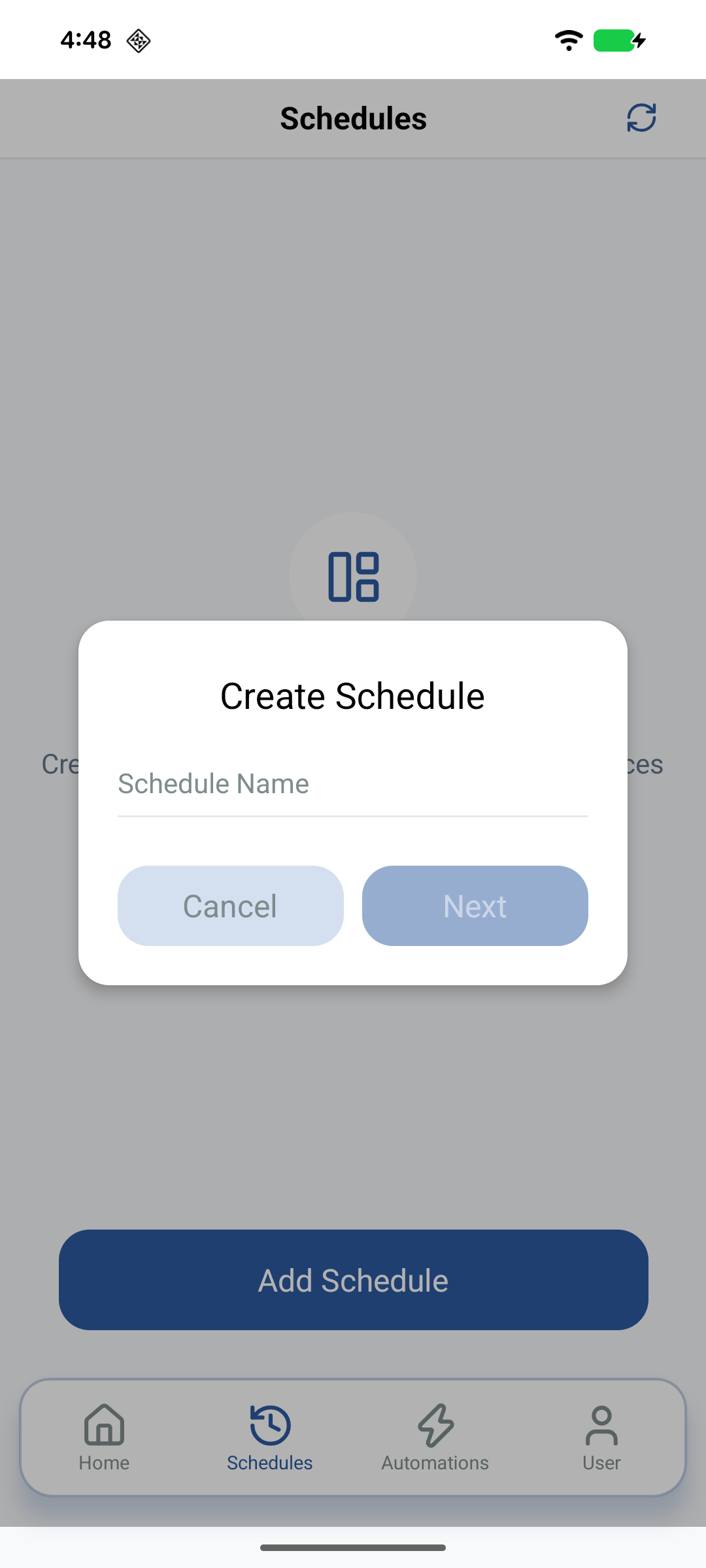
- Select one or more online devices in the current Home.
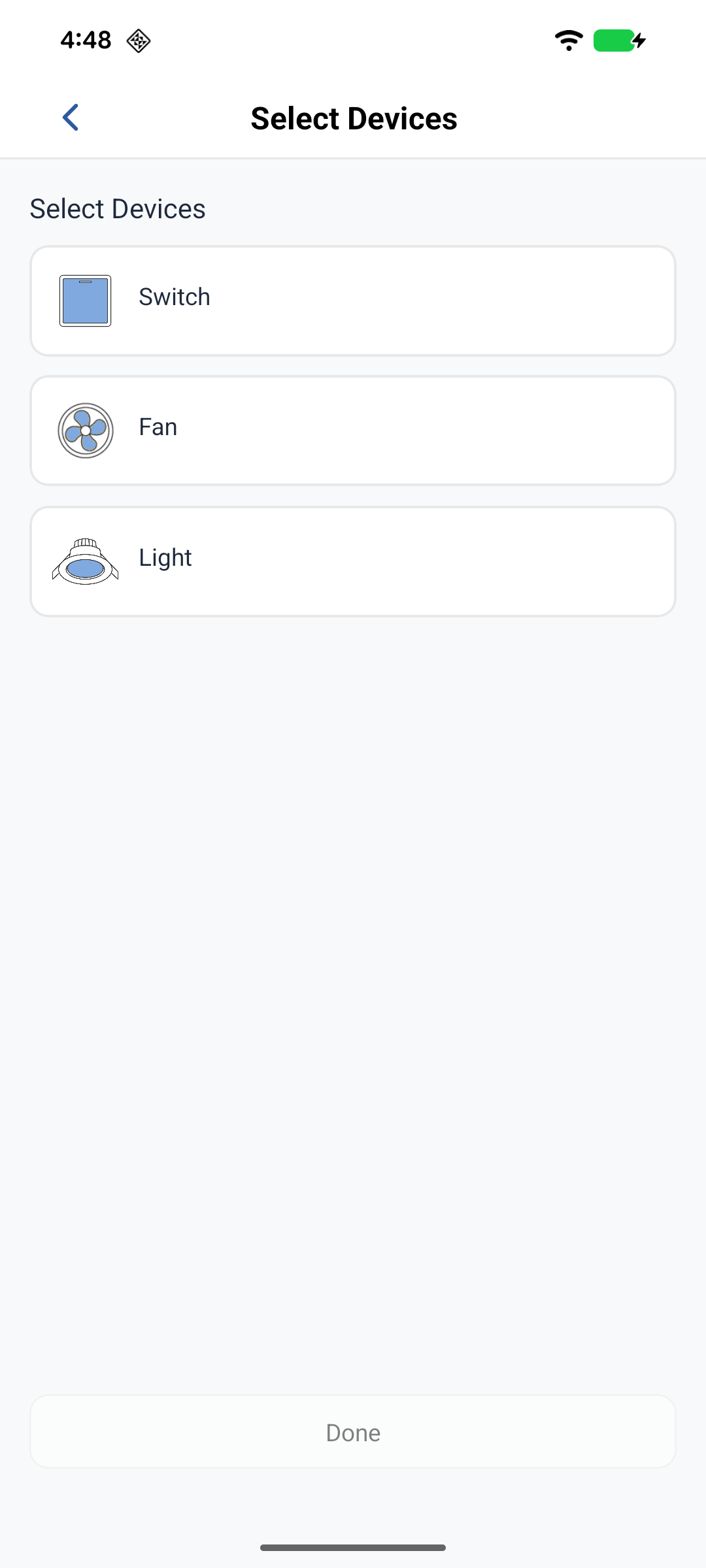
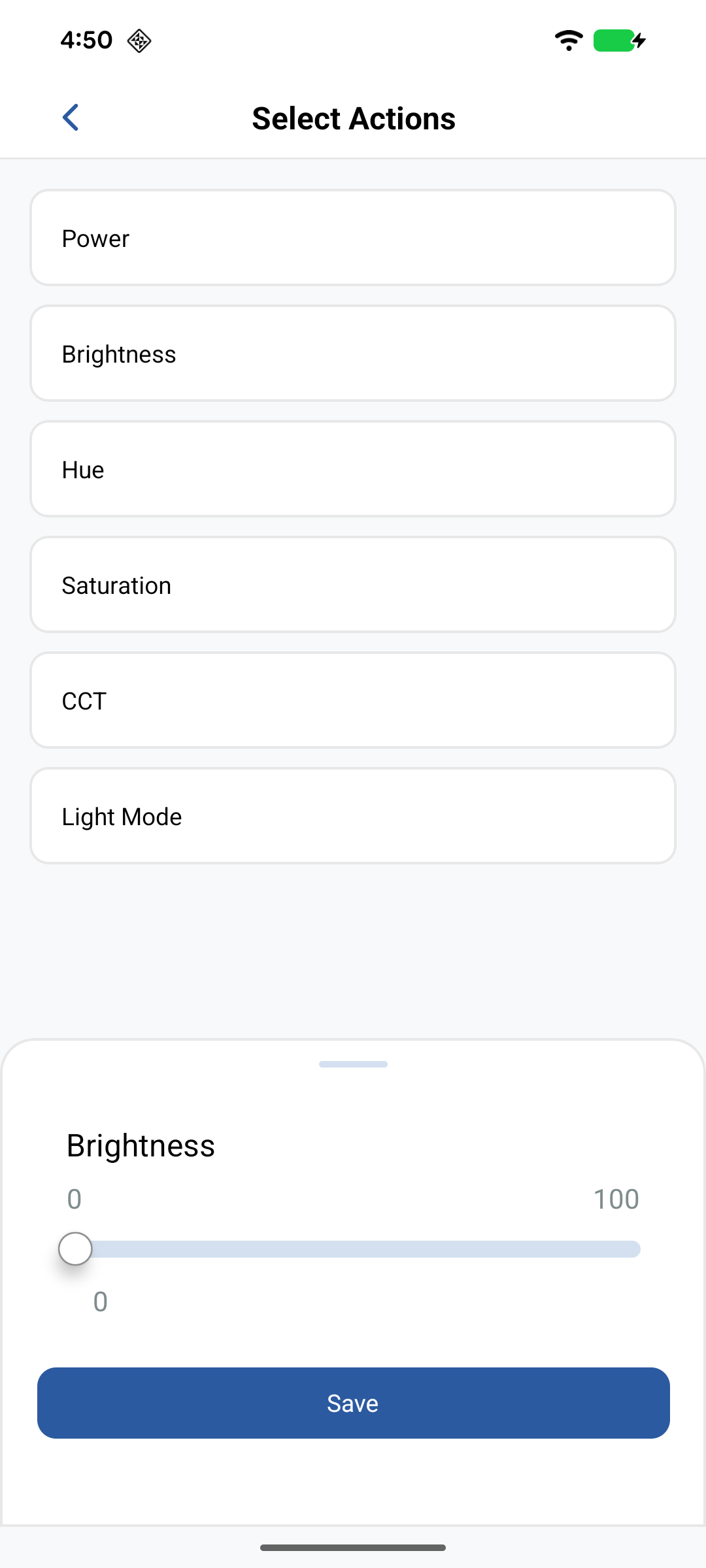
- Tap each selected device to set actions such as Power, Brightness, Colour Temperature, Colour, Saturation, or other device-specific parameters.
Time and repeat
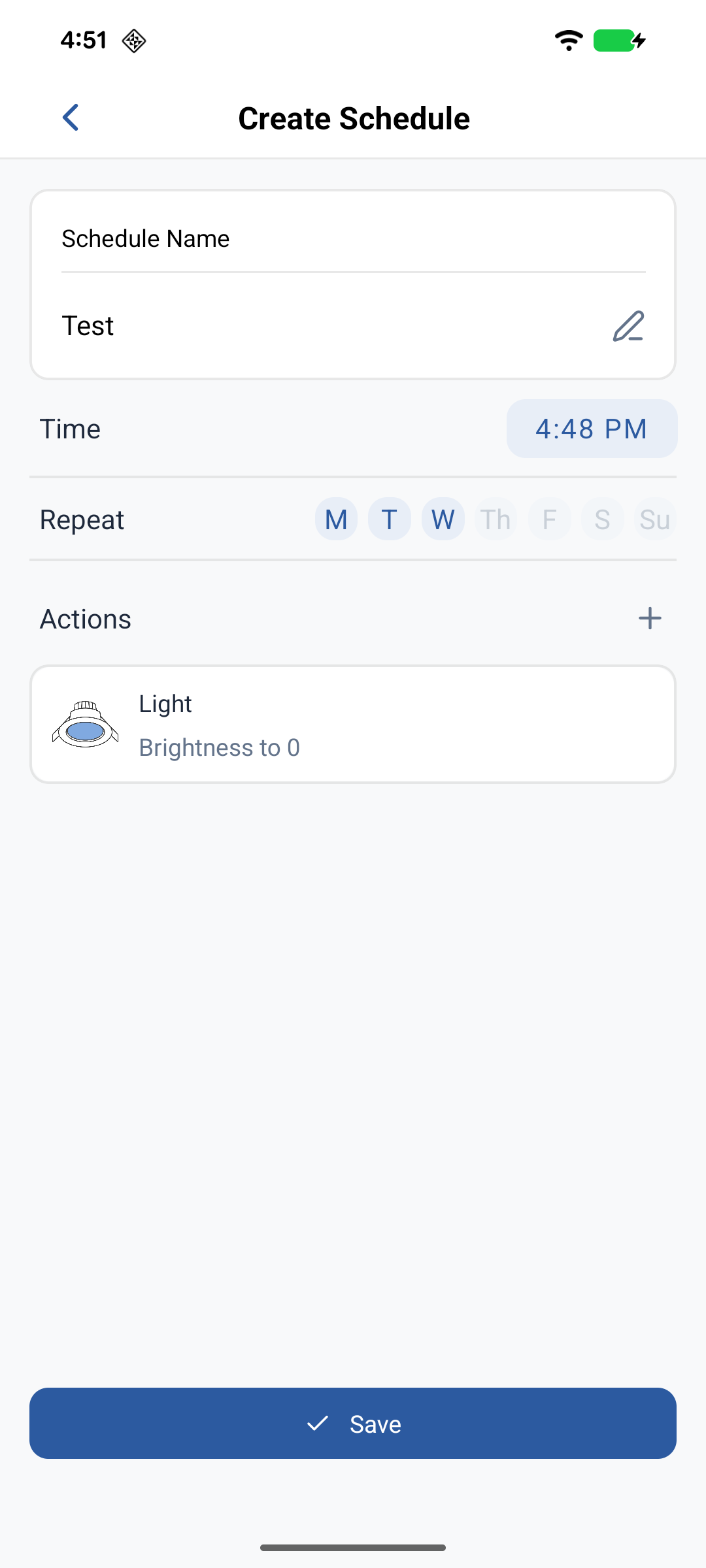
- Tap the time selector and set hour and minutes (12-hour AM/PM).
- Tap the days to repeat: M, T, W, Th, F, S, Su. With no days selected, the Schedule runs once.
- Tap Save. The Schedule appears in the list and runs at the configured times when enabled.
Manage Schedules
Enable or disable
Use the switch on a Schedule card. Enabled Schedules run at the configured times; disabled ones stay paused.
Edit
- Tap Edit in the upper-right corner of the Schedules page.
- Tap the Schedule card to change.
- Update name, time, days, or actions, then tap Update.
Delete
- Tap Edit on the Schedules page.
- Tap the trash icon on the card to remove.
- Confirm if prompted. The Schedule no longer runs.
Examples
Good Morning — 7:00 AM, weekdays (M–F): bedroom light at 50% brightness.
Evening Ambiance — 6:00 PM daily: living-room lights on, warm white.
Bedtime — 10:00 PM daily: all lights off, night light at 10%.
Related
- Device control — manual parameter changes
- Device automation — condition-based rules
- Schedules — how Schedules work on Neo