Get started
Install ESP RainMaker Home, point it at ESP RainMaker Neo or your private deployment, then create an account and manage the basics — sign-in, password, nickname, and sign-out.
Download ESP RainMaker Home
Please use the installation links below to download the ESP RainMaker Home App according to your phone's operating system. (i.e. Android or iOS)



Reference repository
Release reference
Point the app at Neo
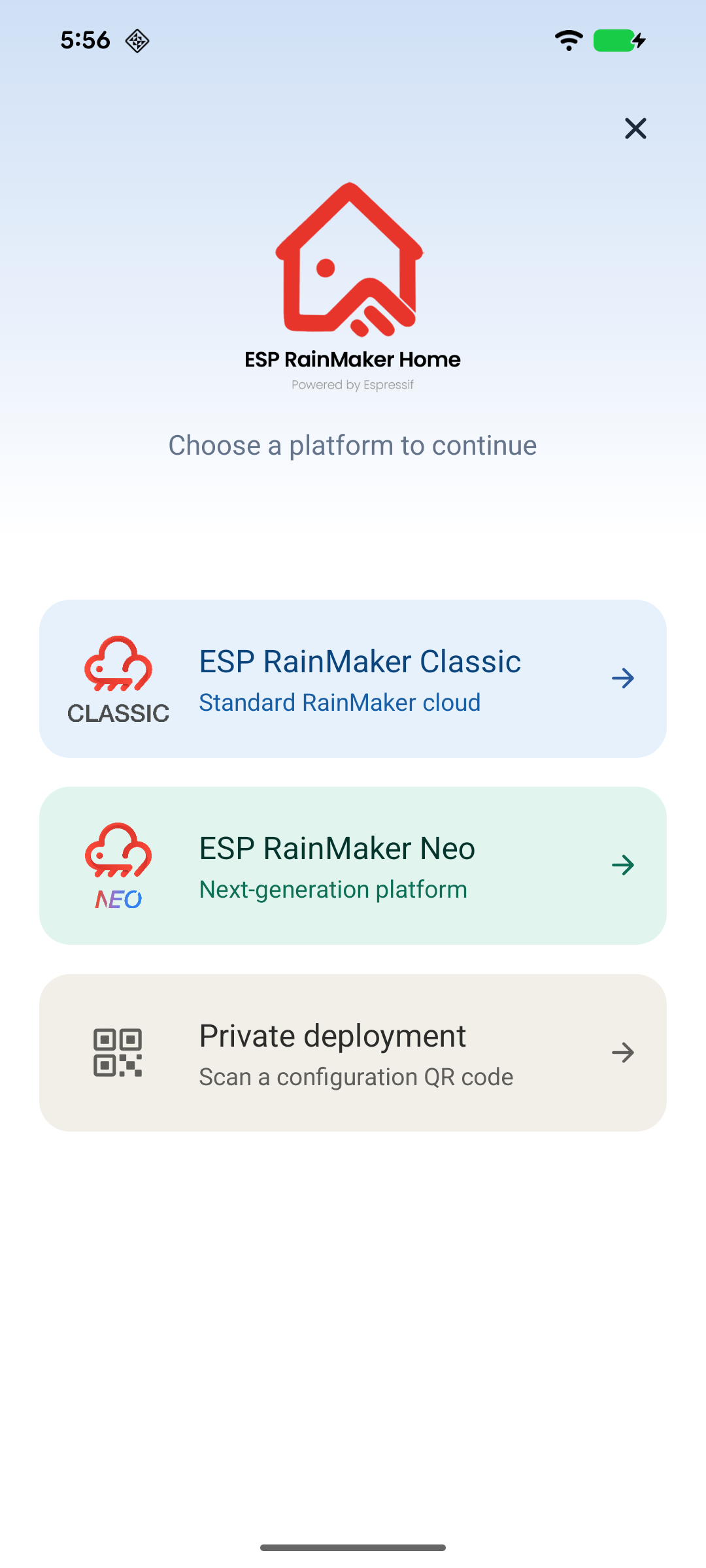
On first launch, pick how the app should reach Neo:
- Open the app to the landing screen.
- Choose one:
- ESP RainMaker Neo — Espressif's Neo deployment. The login screen opens immediately; no config QR needed.
- Private deployment — your own Neo cloud. Tap Update config, scan the client integration QR from the Admin Dashboard, then sign in.
Step-by-step screenshots for the private-deployment QR path, and how to change deployment later from the login screen, are in RainMaker Home phone app.
Sign in
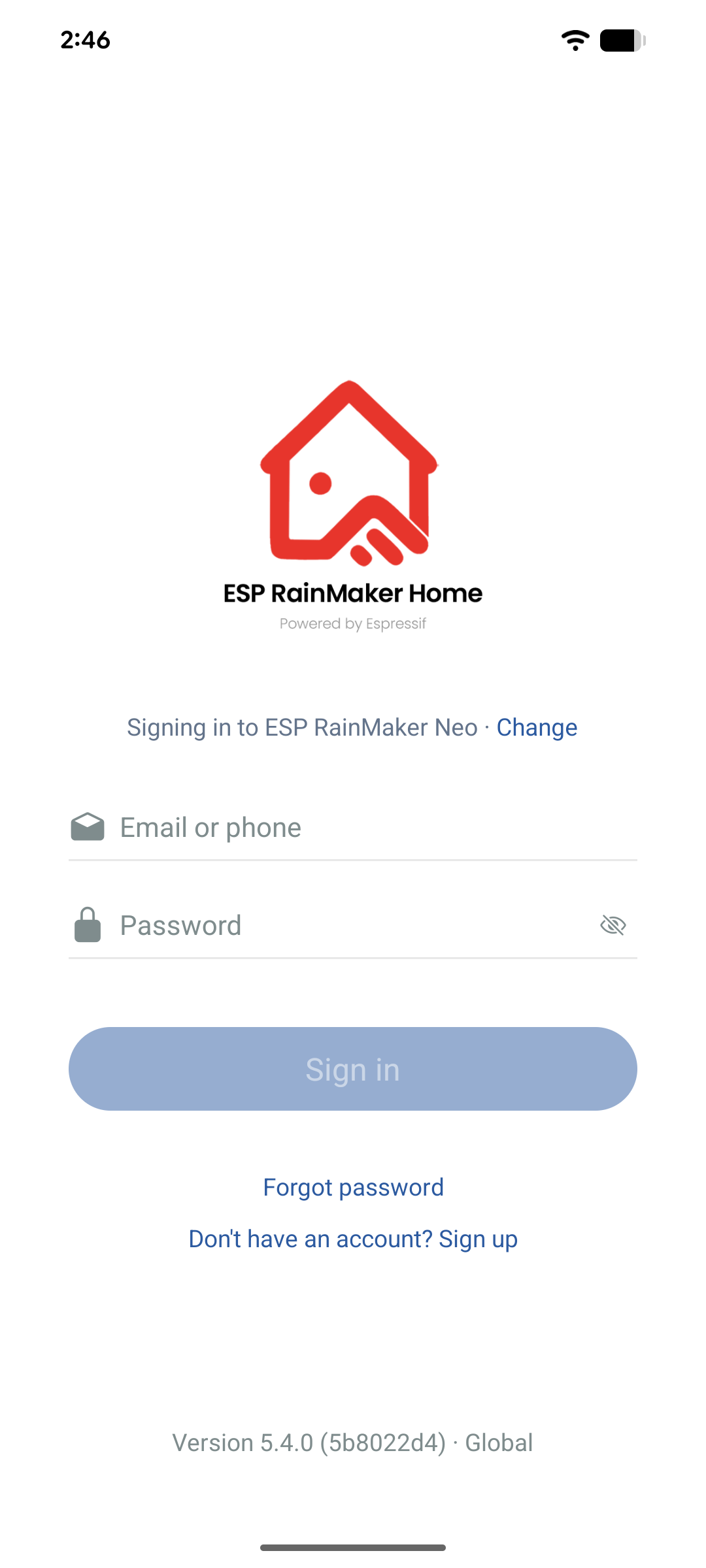
- On the login screen, enter your registered email and password.
- Tap Sign in.
Against Neo, the stock app does not offer Apple or Google sign-in.
Sign up
- On the login screen, tap Don't have an account? Sign up.
- Enter your email address, password, and confirm password.
- Agree to the Terms of Use and Privacy Policy.
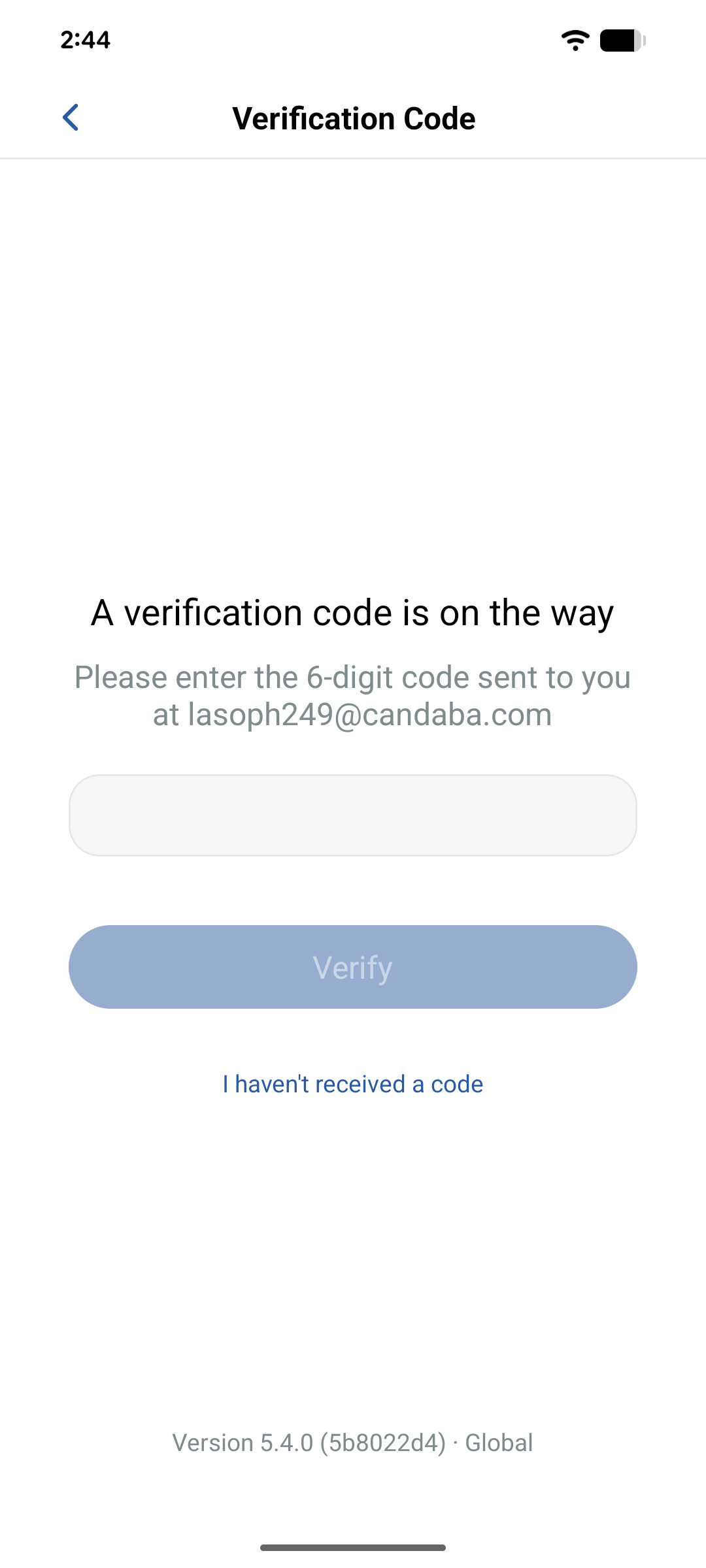
- Tap Confirm — the app sends a 6-digit verification code to your email.
- Enter the code, then tap Verify. You are signed in after a successful verification.
The country or region follows the phone settings and can be changed only during registration. You cannot change it later.
Password rules: 8–20 characters, with at least one uppercase letter, one lowercase letter, and one digit. If the code does not arrive, tap I haven't received a code.
Change password
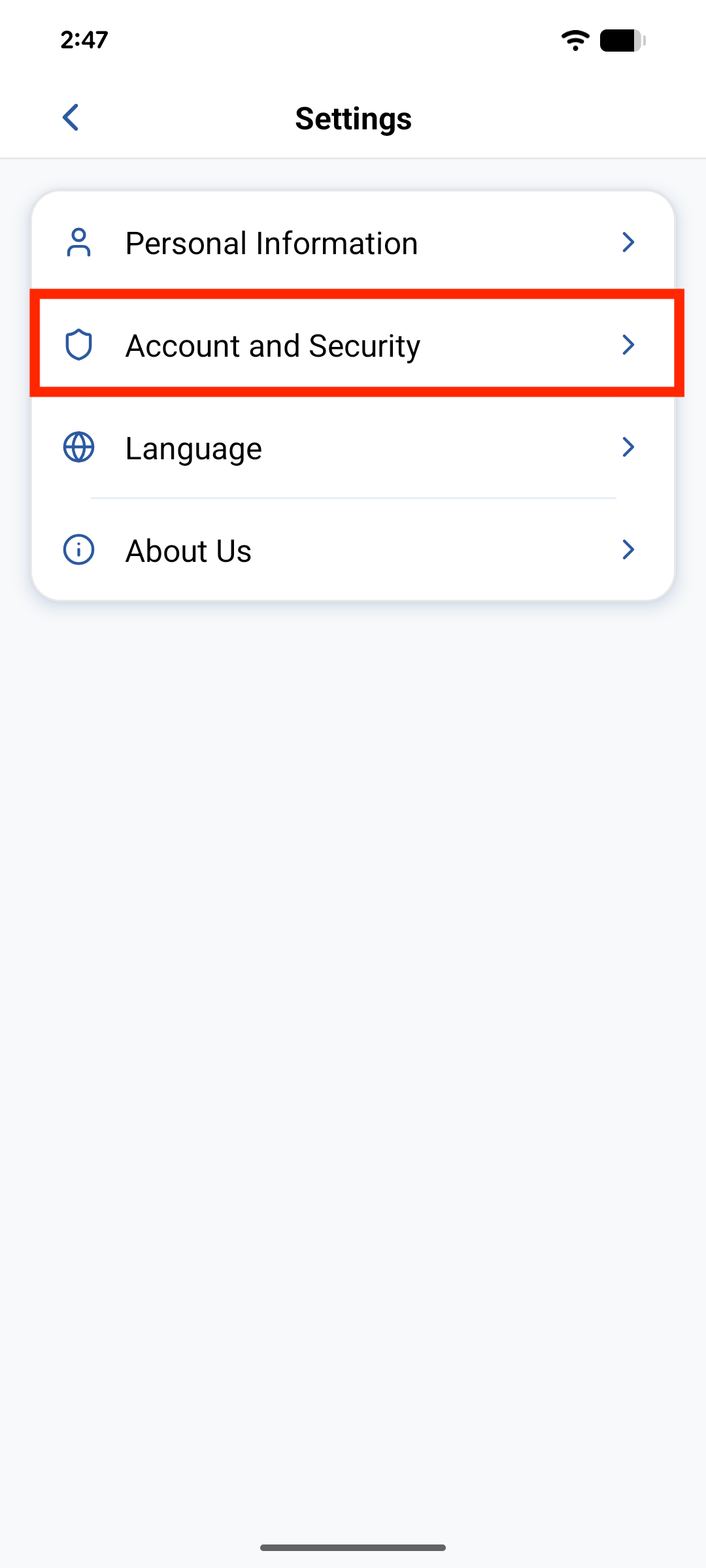
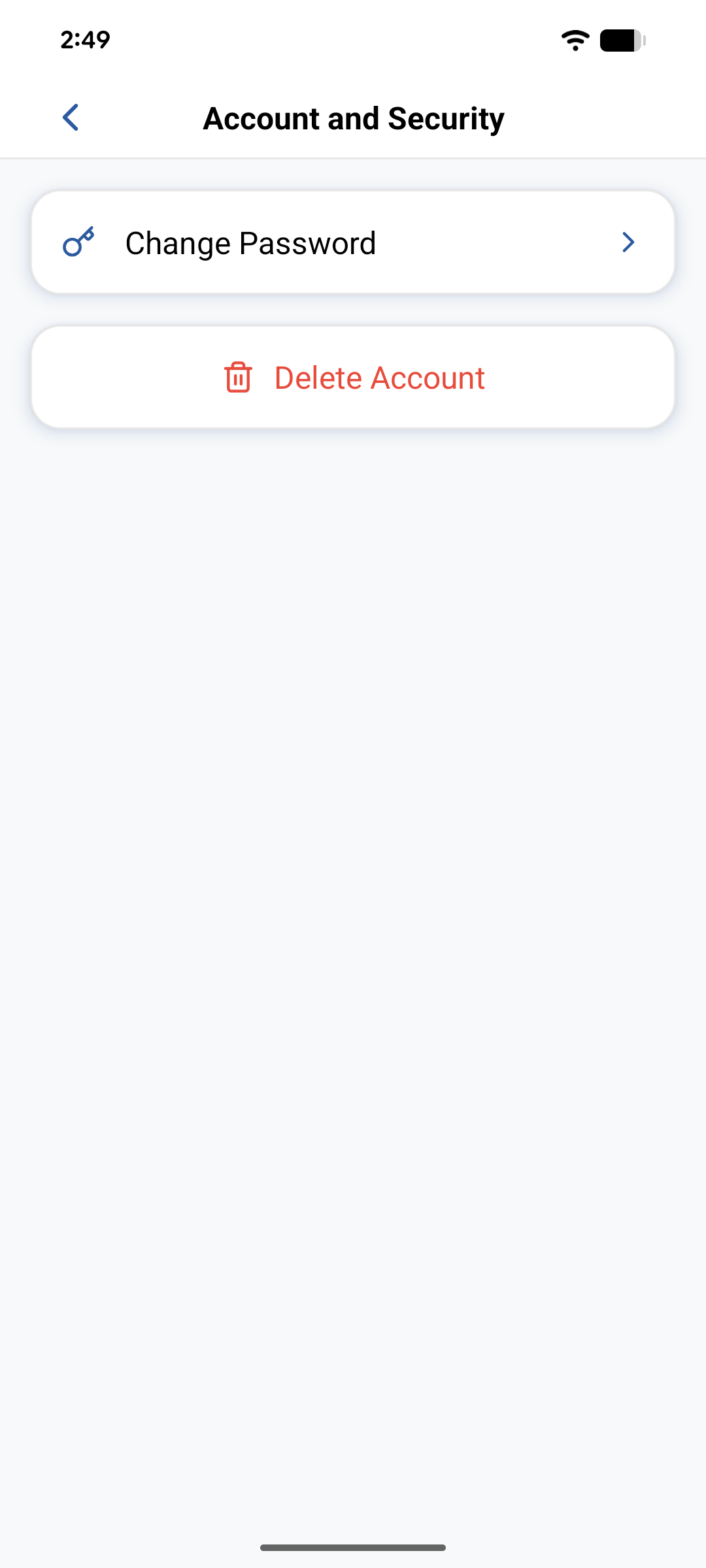
- Tap User → Settings → Account and Security → Change Password.
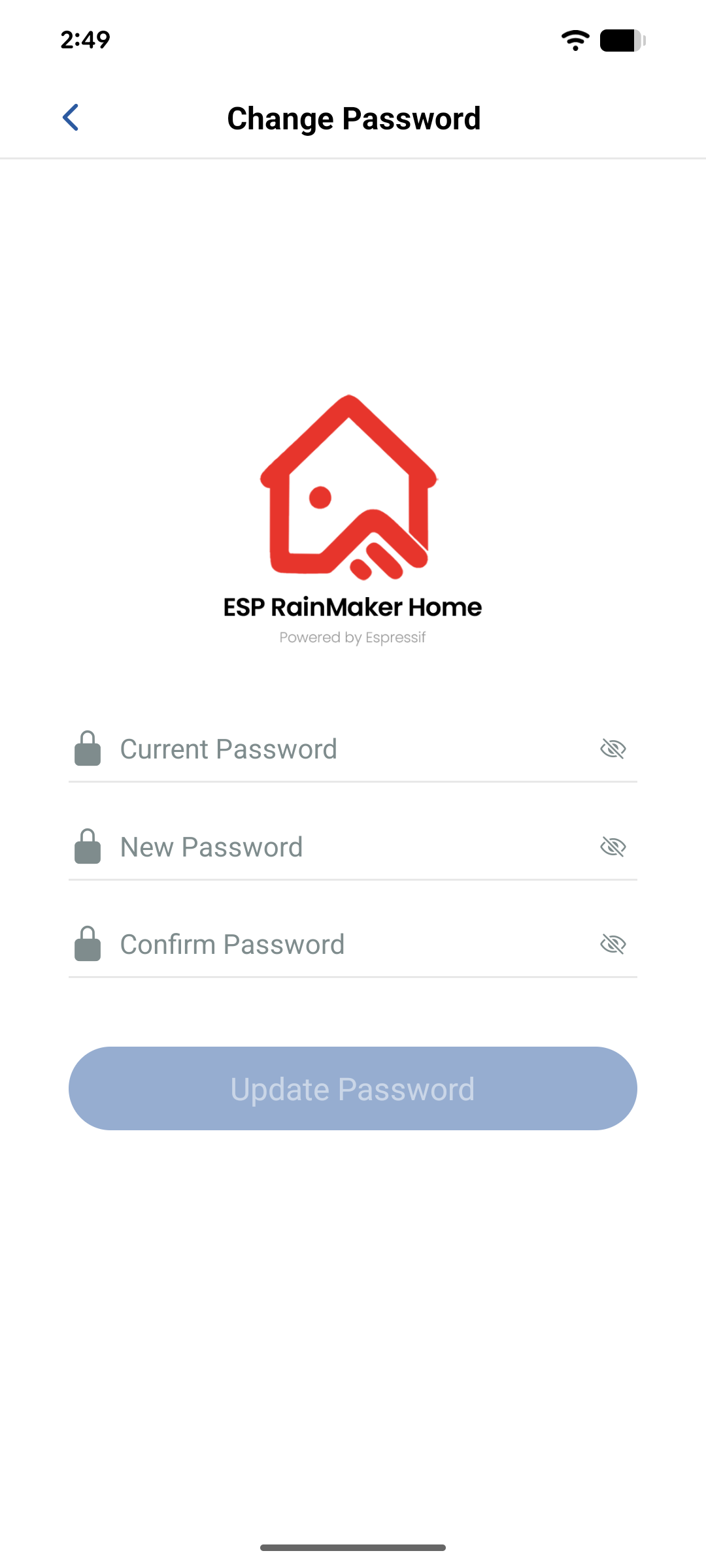
- Enter the current password, the new password, and confirm the new password.
- Tap Update Password. The app signs you out and returns you to the login screen.
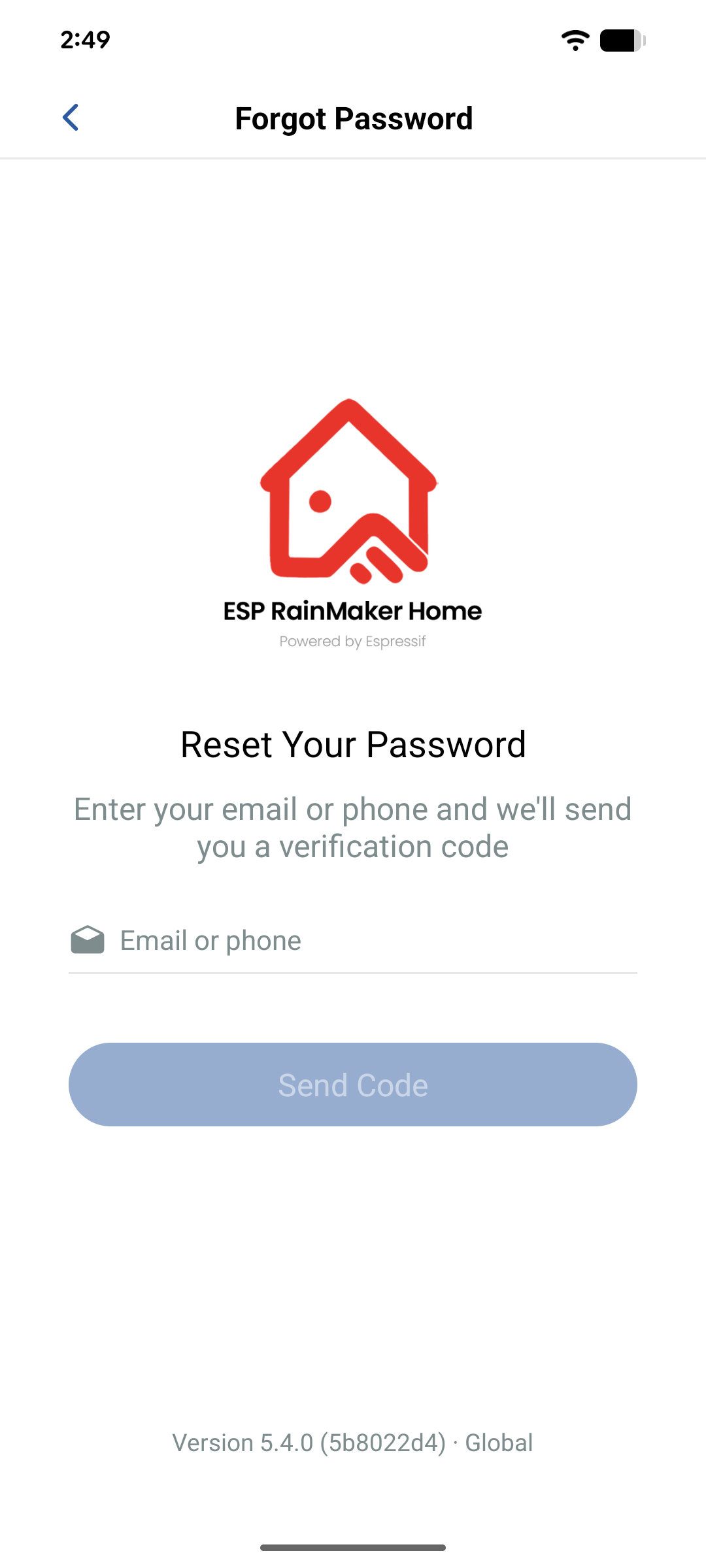
Forgot password
- On the login screen, tap Forgot password.
- Enter your registered email and tap Send Code.
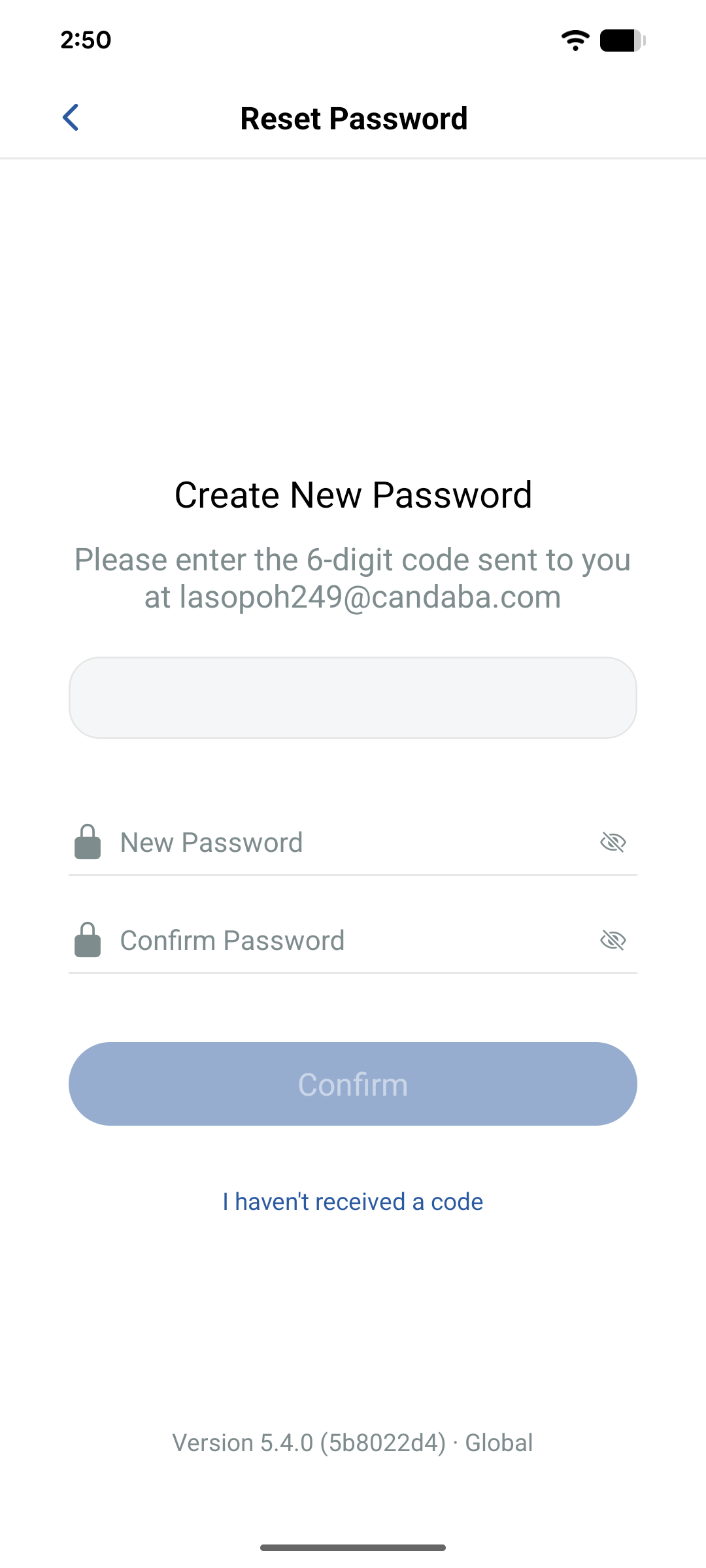
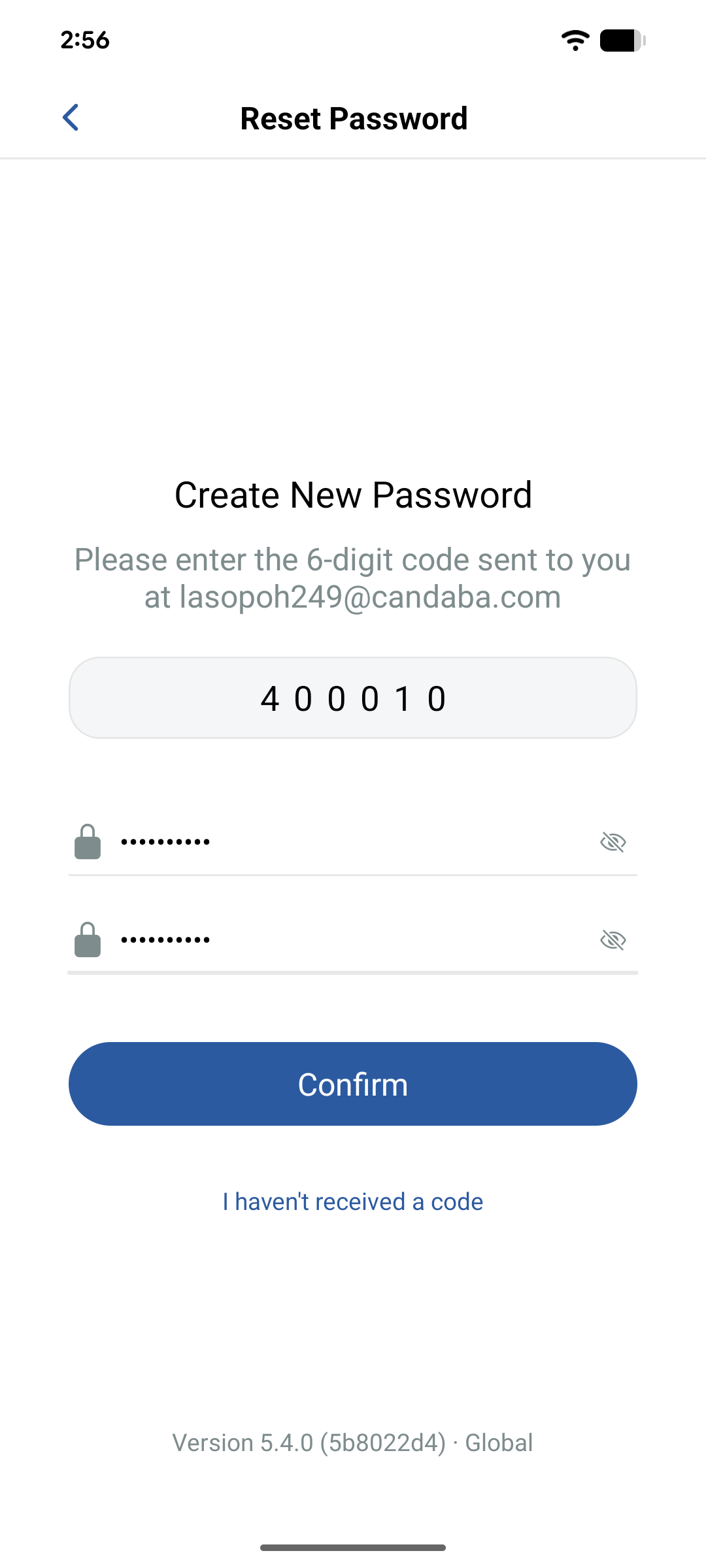
- Enter the 6-digit code, your new password, and confirm password.
- Tap Confirm, then sign in from the login screen with the new password.
If the code does not arrive, tap I haven't received a code (cooldown applies).
Change nickname
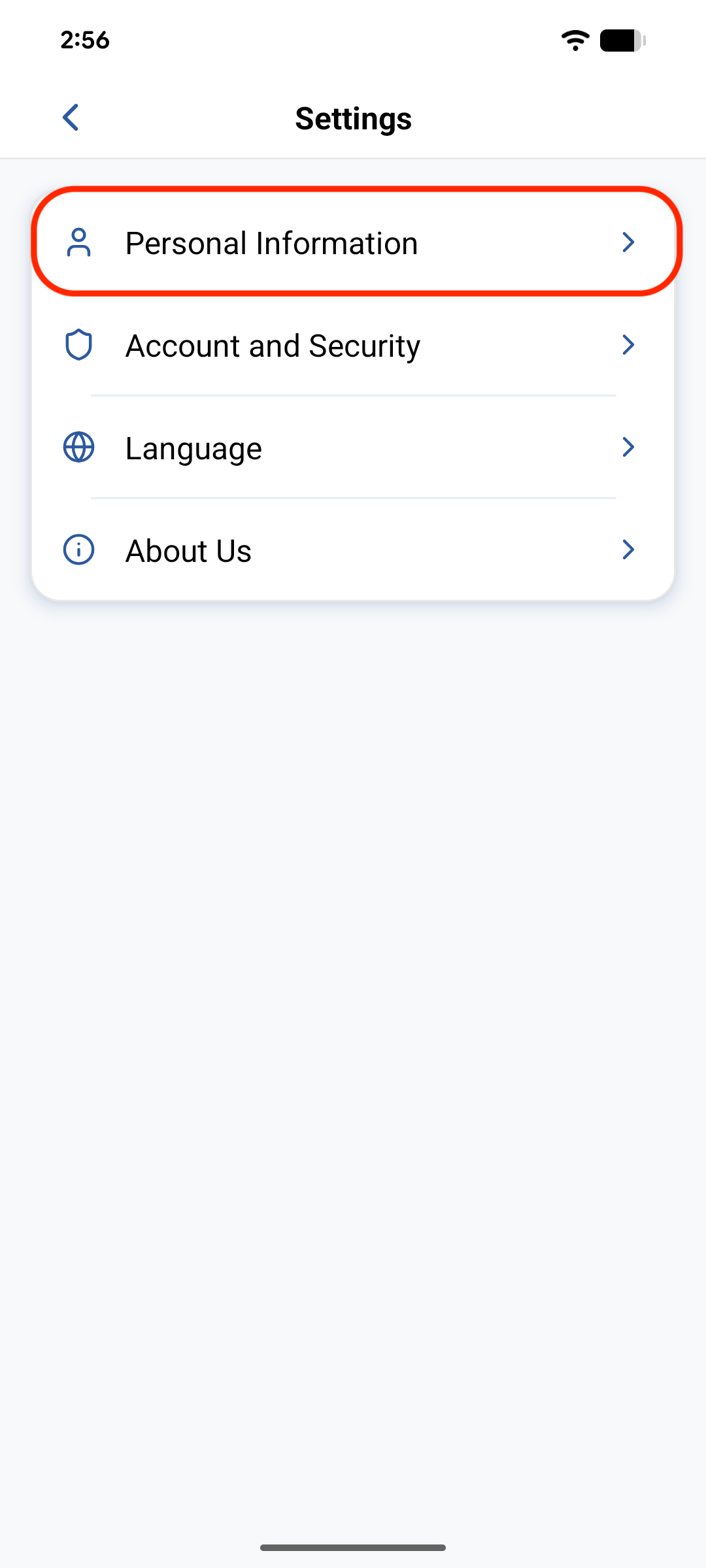
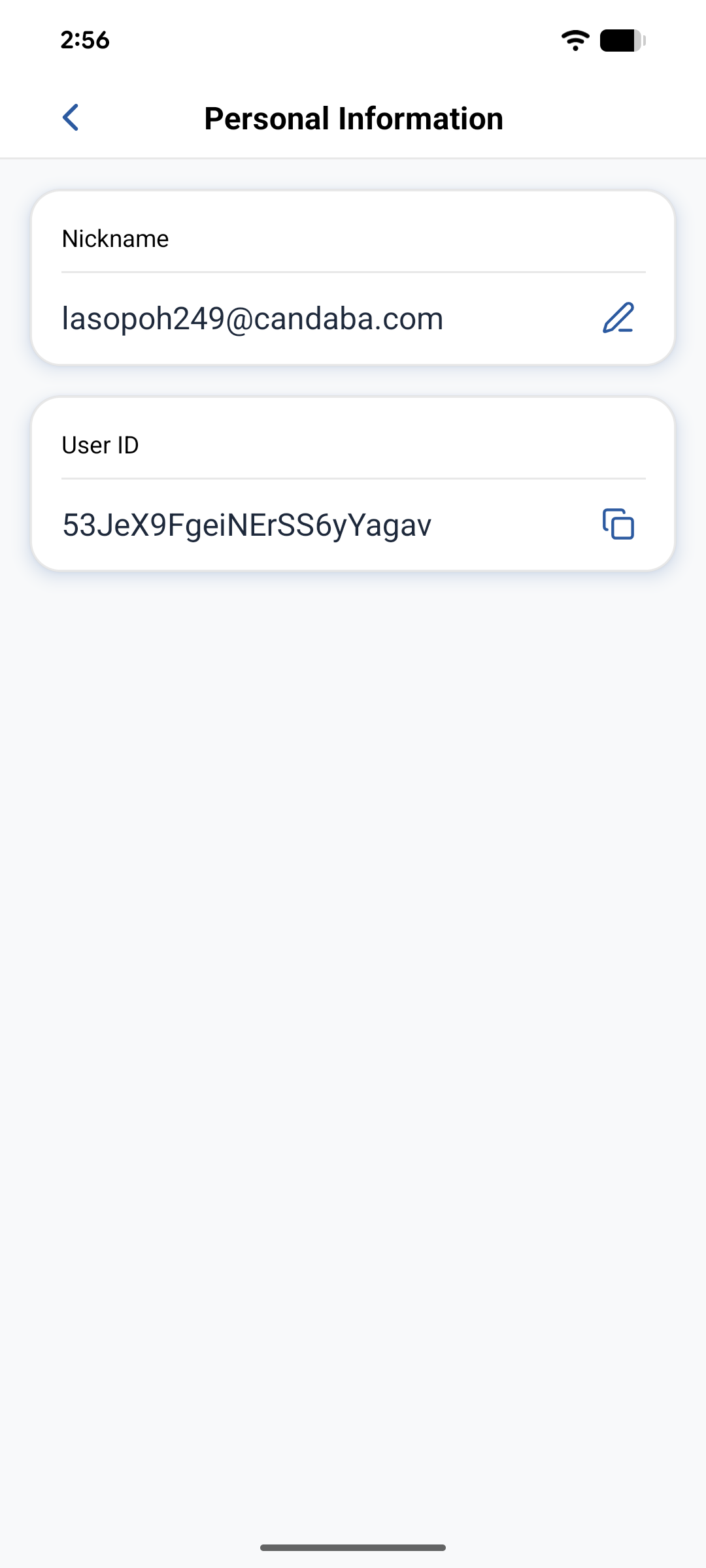
- Tap User → Settings → Personal Information.
- Tap the edit icon next to your nickname.
- Enter a new nickname (maximum 30 characters) and tap Confirm.
Log out
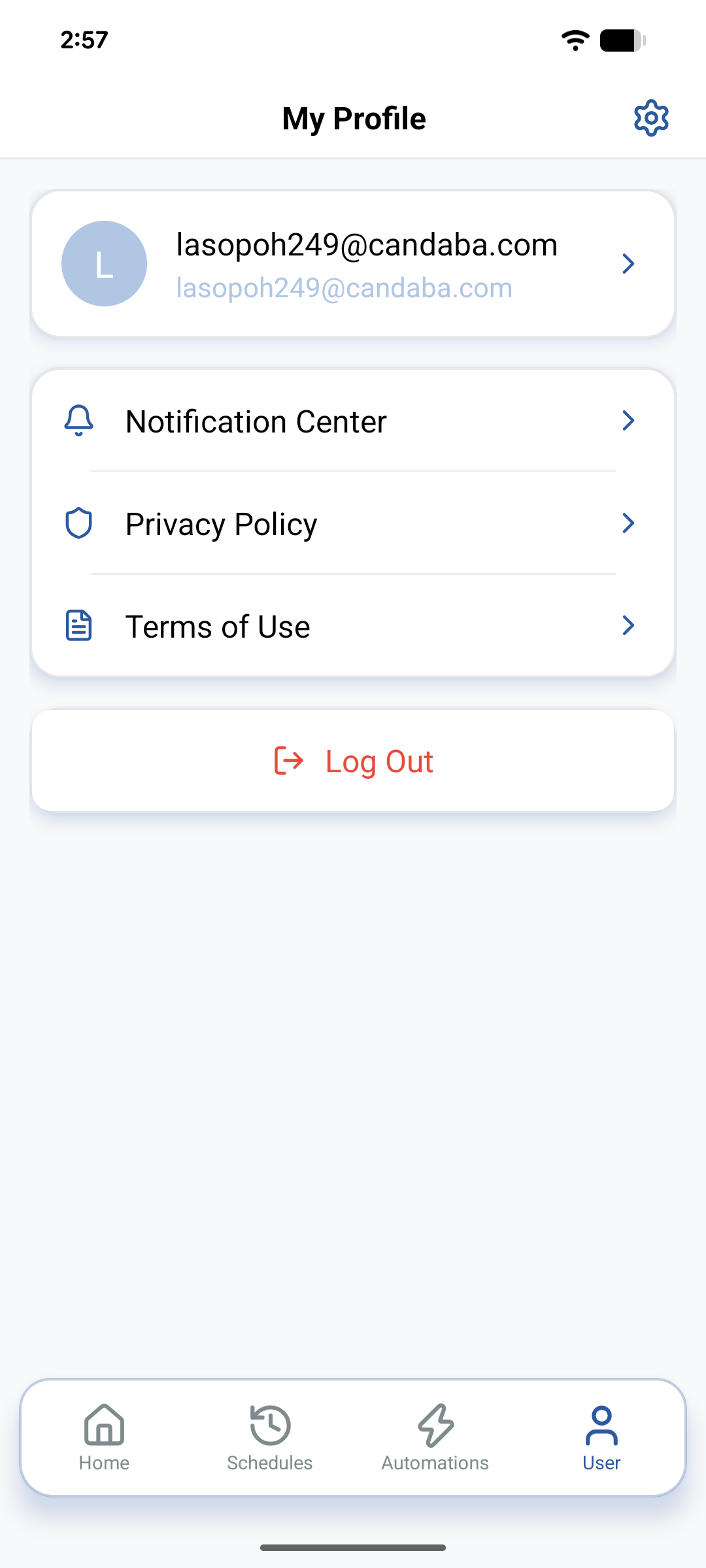
- Tap User in the bottom navigation.
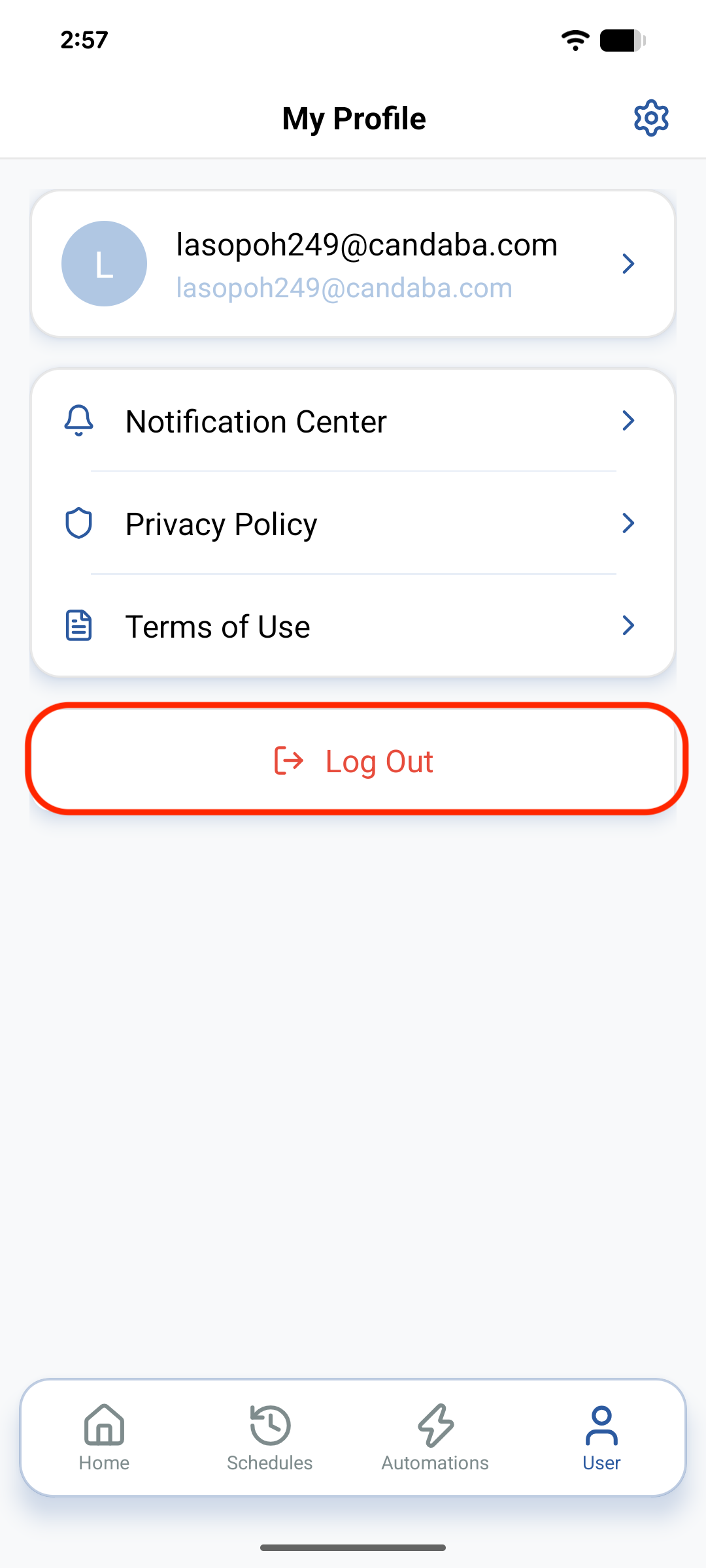
- Scroll down and tap Log Out.
- Confirm in the dialog. Local data is cleared and you return to the login screen.
Related
- ESP RainMaker Home App — guide overview
- Setting up devices — add and organise Nodes
- RainMaker Home phone app — Neo config QR and first device