Link Alexa
Connect your ESP RainMaker Neo user to Alexa so "Alexa, turn off the kitchen light" works against your devices.
1. Install Amazon Alexa app
If you don't have it already, install the Amazon Alexa app on your phone and sign in with one of the voice-assistant beta accounts. (For the eval programme, ask your contact to add an account if you need one.)
2. Find the skill
A published skill can be found by searching for its name in the Alexa app. A skill that has not been published is visible only to the developer account that owns it and to the beta testers it is shared with, and it never appears in search.
- Open More → Skills & Games.
- Scroll to Your Skills and open the Dev tab. Your skill is listed with Account linking required.
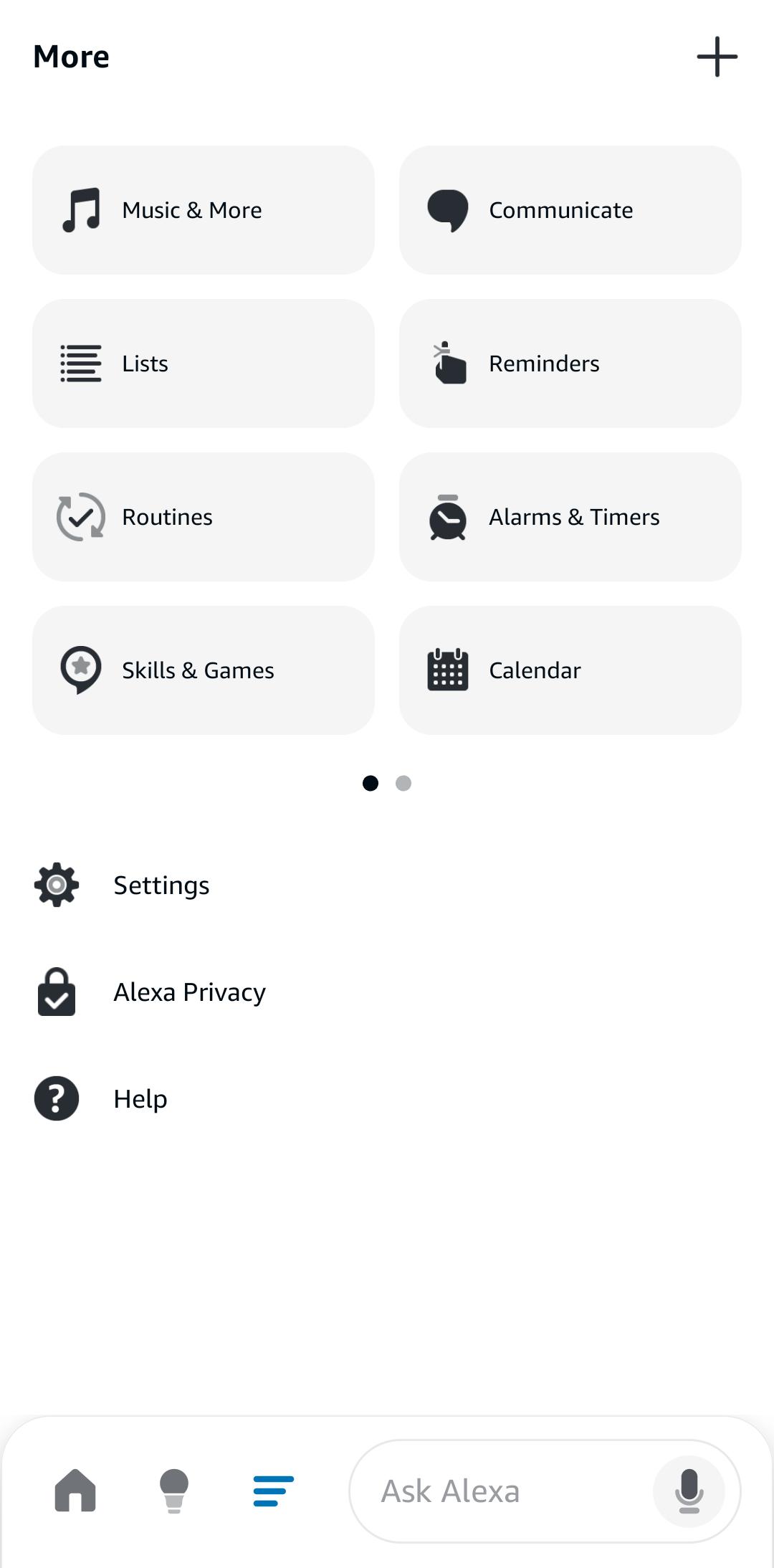
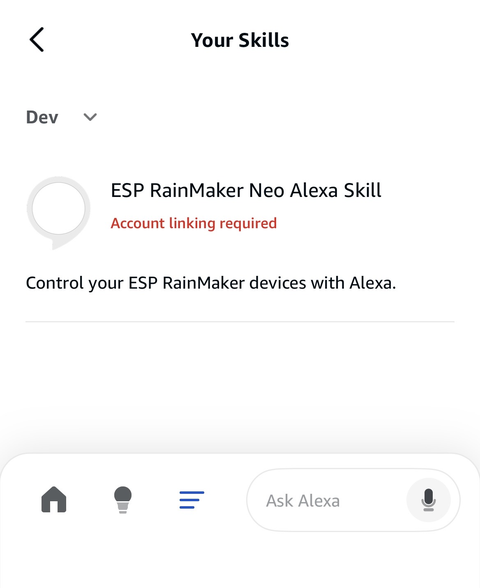
If the skill is not in the Dev tab:
- Different account. The Alexa app must be signed in with the developer account that owns the skill, or with a beta tester account it is shared with.
- Different country. A skill is offered only in the countries of its languages. A skill created in English (US) does not appear for an account registered in India. In the Alexa developer console, add the matching language, for example English (IN). See Alexa setup.
3. Enable and link
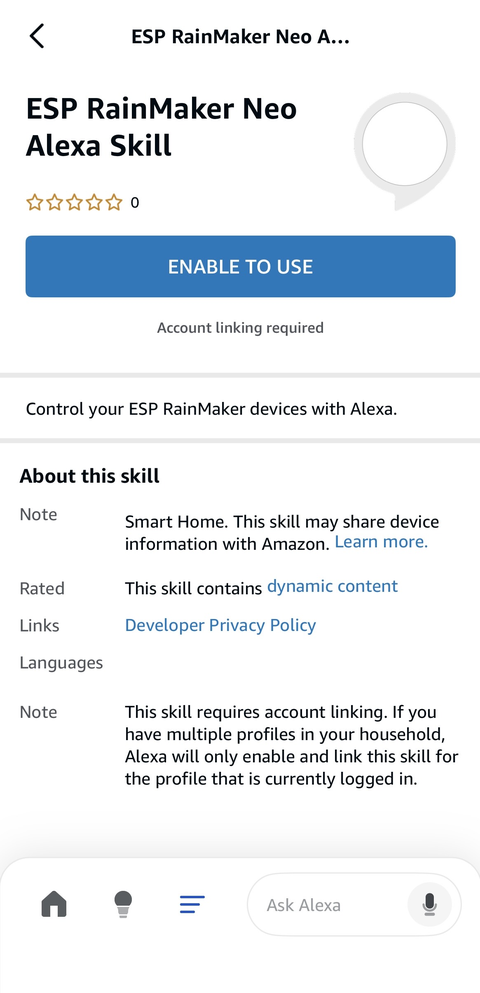
- Open the skill and tap ENABLE TO USE.
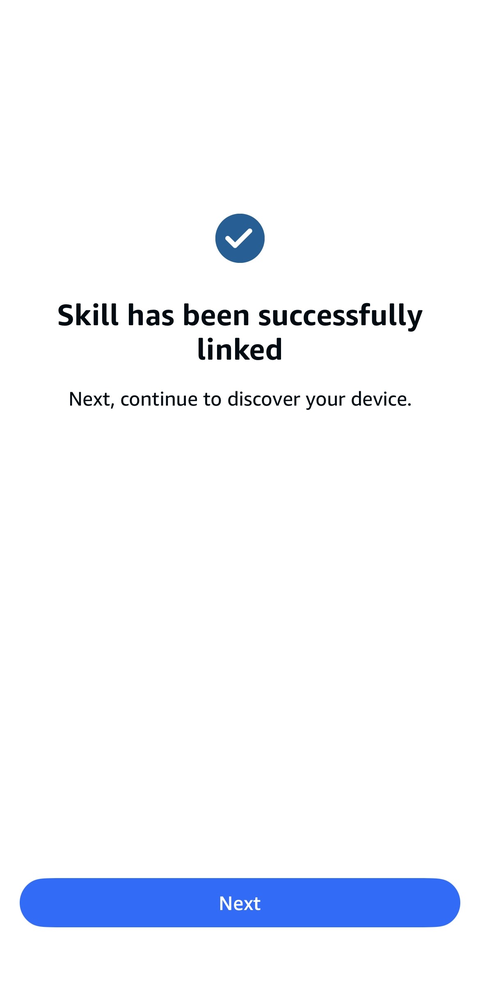
- Sign in with the same user you used in the phone app. The app confirms Skill has been successfully linked.
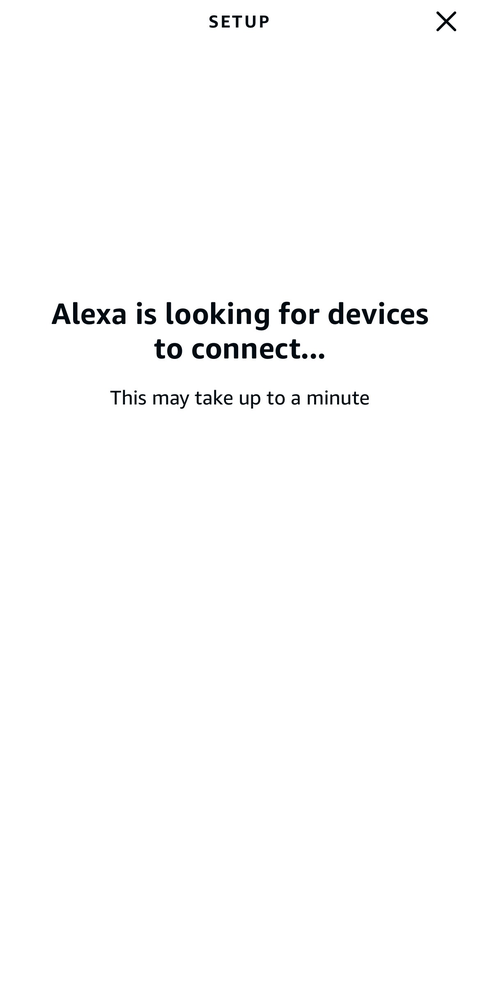
- Tap Next. Alexa looks for your devices, which takes up to a minute.
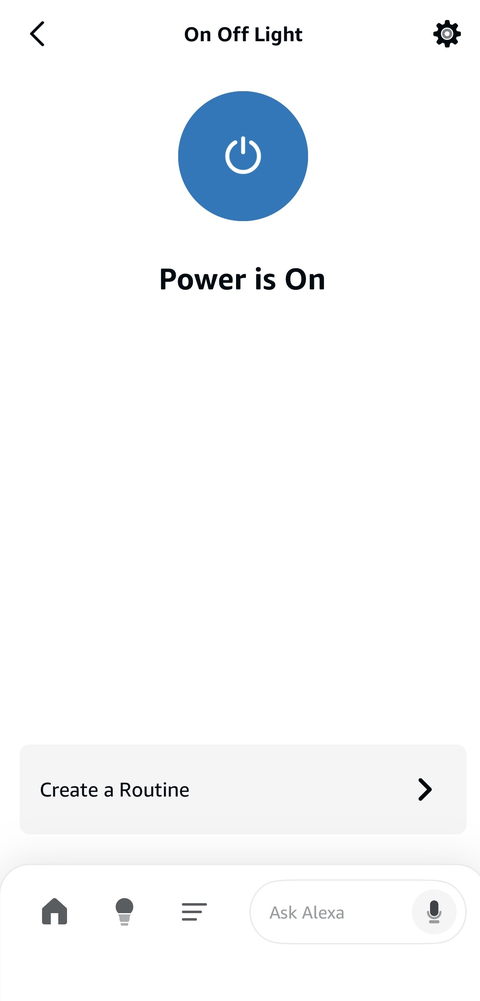
- Open a discovered device and tap its power button. The device follows, and the app shows the new state.
To discover devices added later, tell Alexa: "Alexa, discover my devices."
Related
- Alexa setup — create the skill and connect it to your deployment