Link SmartThings (coming soon)
Connect your ESP RainMaker Neo user to SmartThings so your devices appear in the SmartThings app and can be controlled from it, from routines, or from Bixby.
1. Install the SmartThings app
If you don't have it already, install the SmartThings app on your phone and sign in with your Samsung account.
Important. Add at least one device in the ESP RainMaker Home app before linking. Linking against an empty account gives SmartThings nothing to discover, and you have to unlink and link again.
2. Find the integration
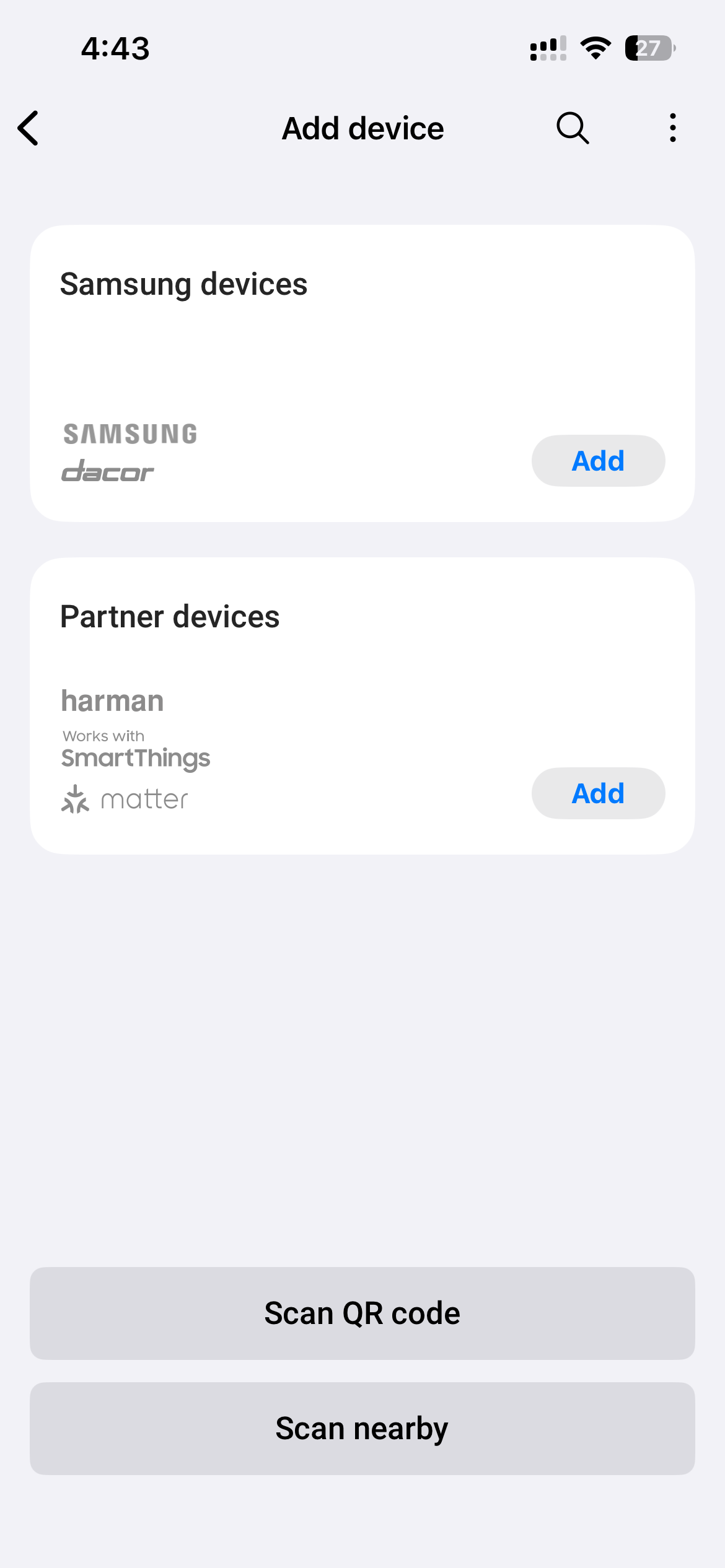
Go to the Devices tab, tap + (Add device), then Partner devices.
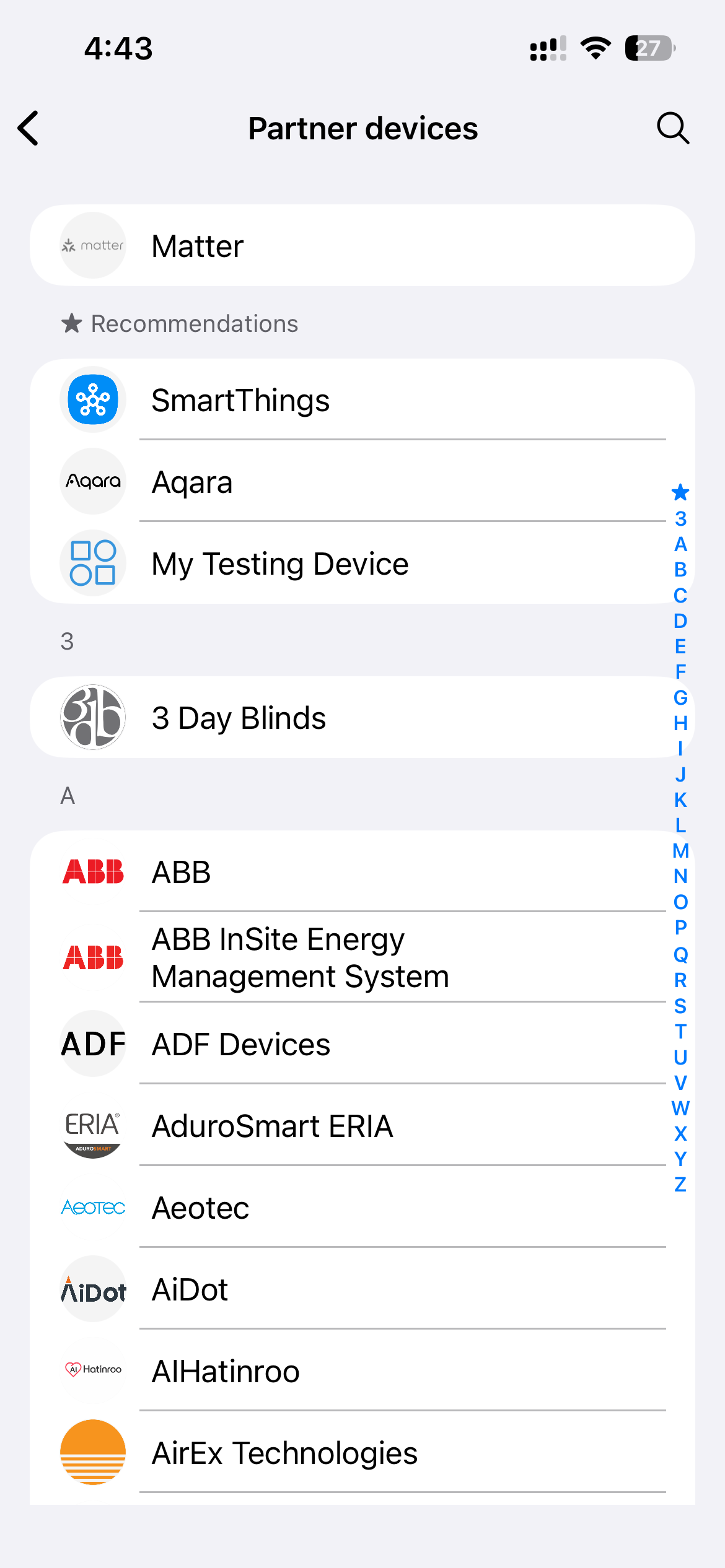
Until Samsung certifies the integration it is not in the public A–Z list. It shows up in Recommendations at the top, under whatever name the connector was given in the Developer Workspace — "My Testing Device" in the screenshot below.
3. Link your account
- Tap the integration.
- Sign in with the same user you use in the phone app.
- SmartThings discovers your devices and adds them to the room you choose.
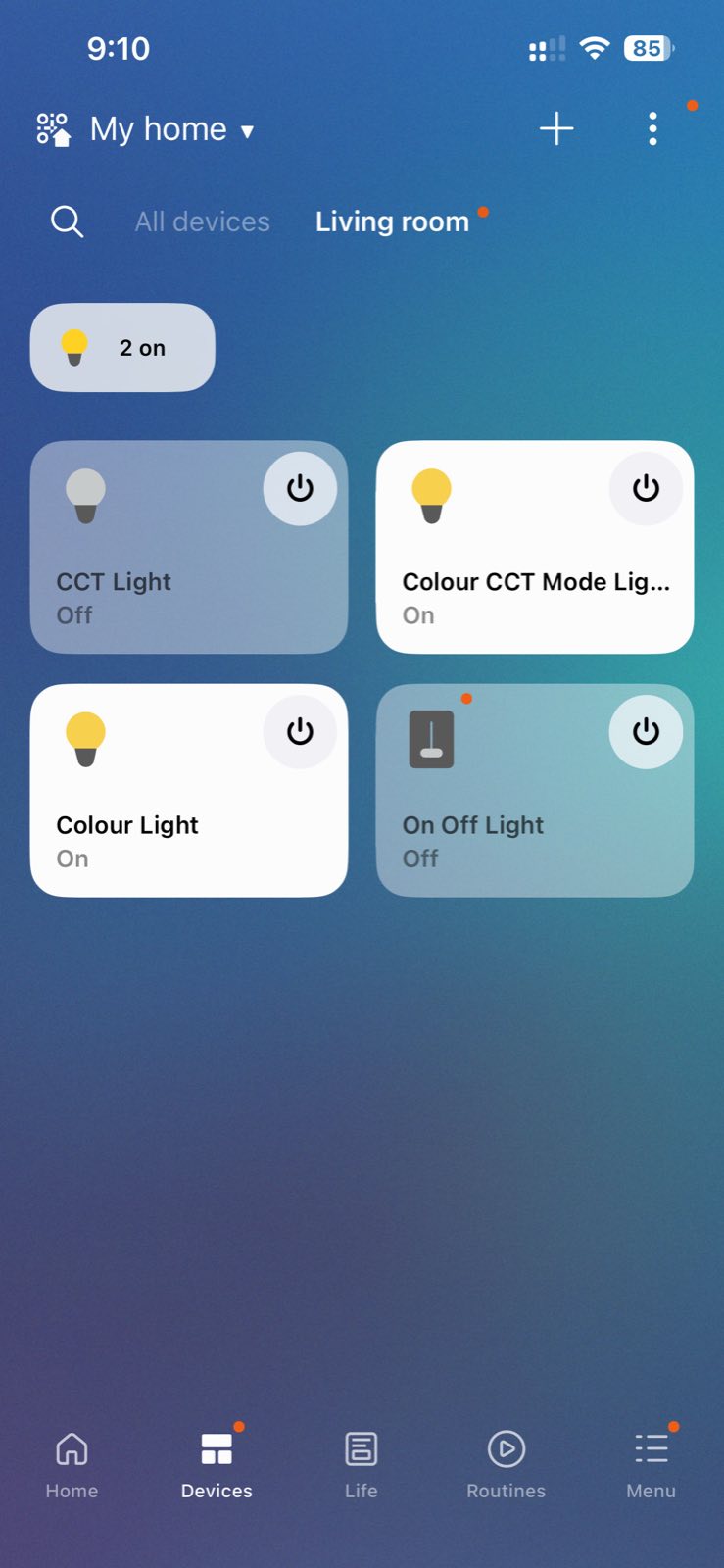
Devices appear once discovery finishes, typically within a few seconds. State changes made on the device or in the Home app show up in SmartThings without a refresh.
What you can control
Lights (on/off, brightness, colour, colour temperature), fans (on/off, speed) and thermostats (setpoint). Every device also reports online/offline status, so SmartThings shows it as unavailable when the device loses its connection.
Related
- Voice assistants — what the integration covers, and its limits
- Post-Deployment Configuration — wiring up your own connector
- Phone app walkthrough — adding the first device