Alexa
The dashboard's Alexa tab connects your deployment to a Smart Home skill you create in the Alexa developer console, so your users can control their devices from the Alexa app. To set one up by hand, you need an Amazon developer account and admin access to the dashboard.
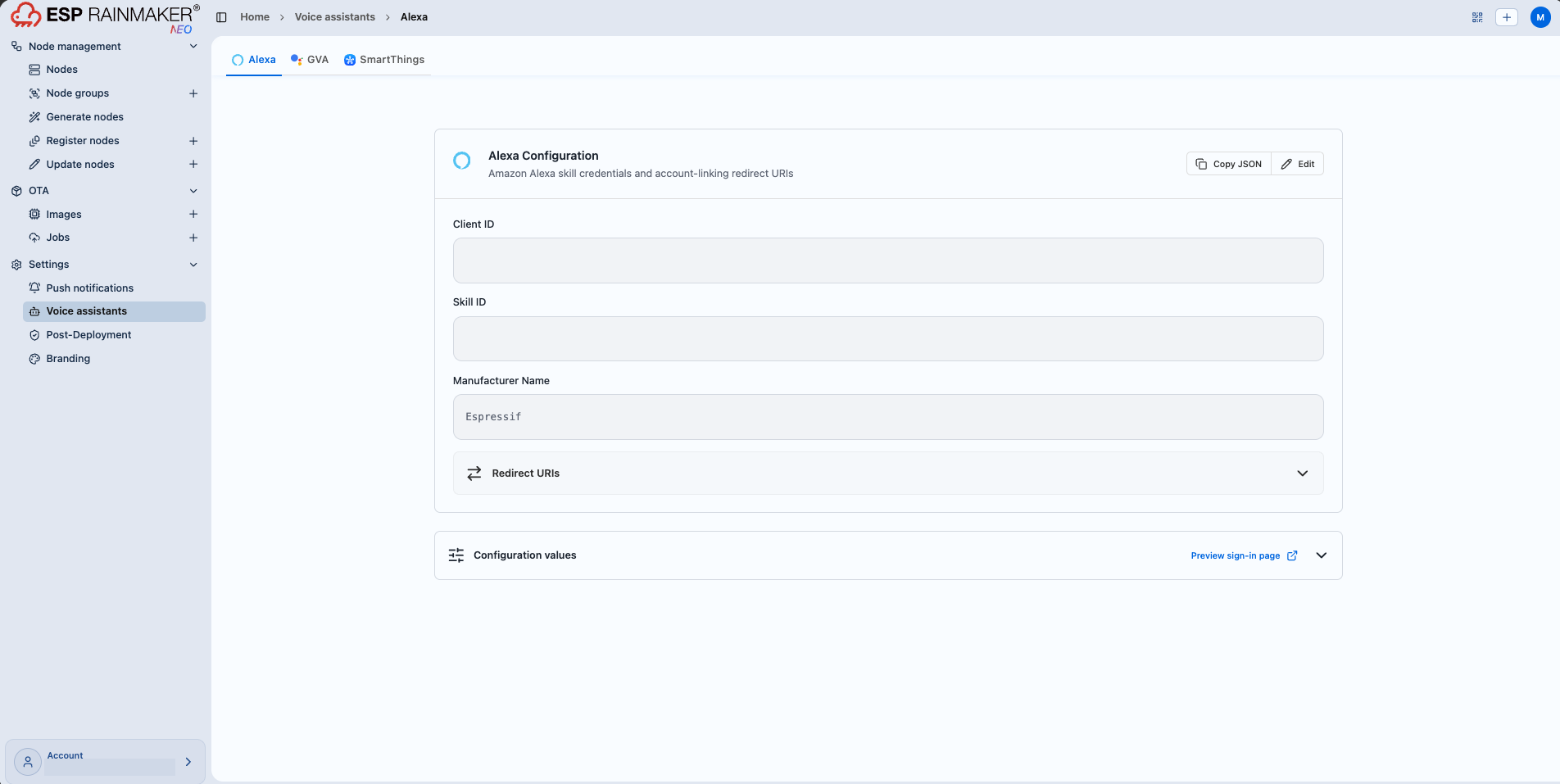
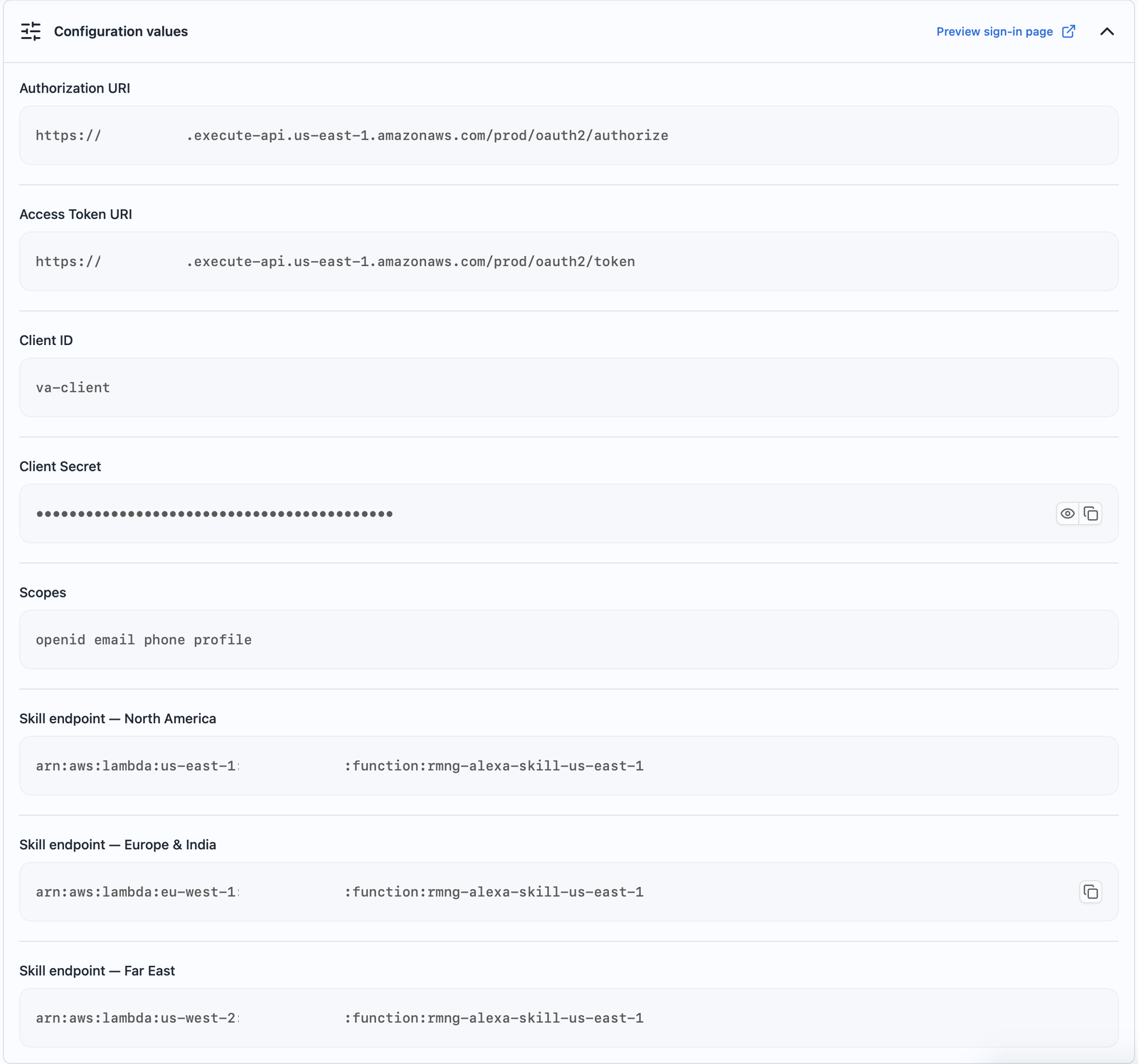
The work moves from the Alexa developer console to the dashboard, back to the console, and ends in the Alexa app. Keep the dashboard open at Settings → Voice assistants → Alexa and expand Configuration values: it lists every value the console asks for.
1. Create the skill
-
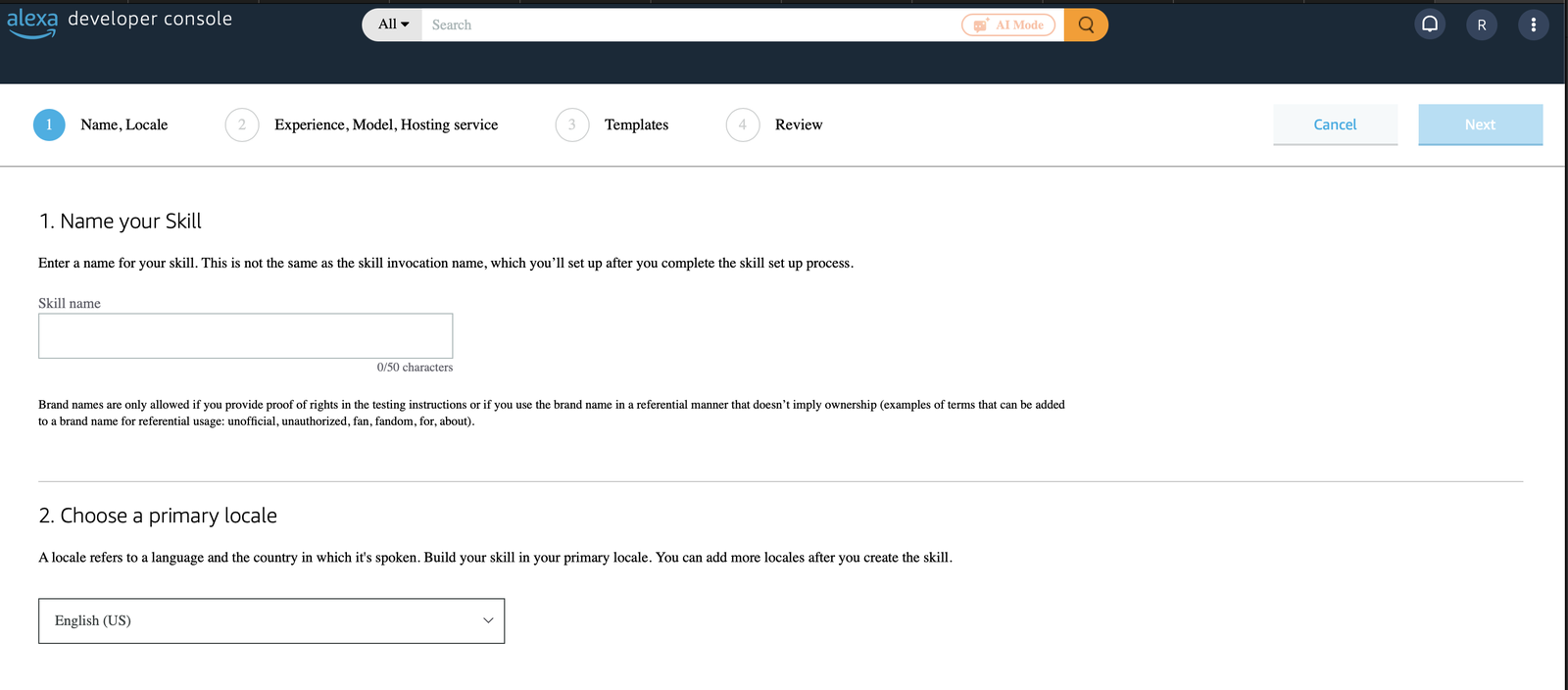
Open the Alexa developer console and click Create Skill.
-
Enter a skill name, choose the primary locale, and click Next. Pick the language of the country where your users' Amazon accounts are registered, for example English (IN) for India. The skill is offered only in the countries of its languages, so a skill created in English (US) does not appear in the Alexa app for an account registered in India. Add a language for each further country in step 5.
-
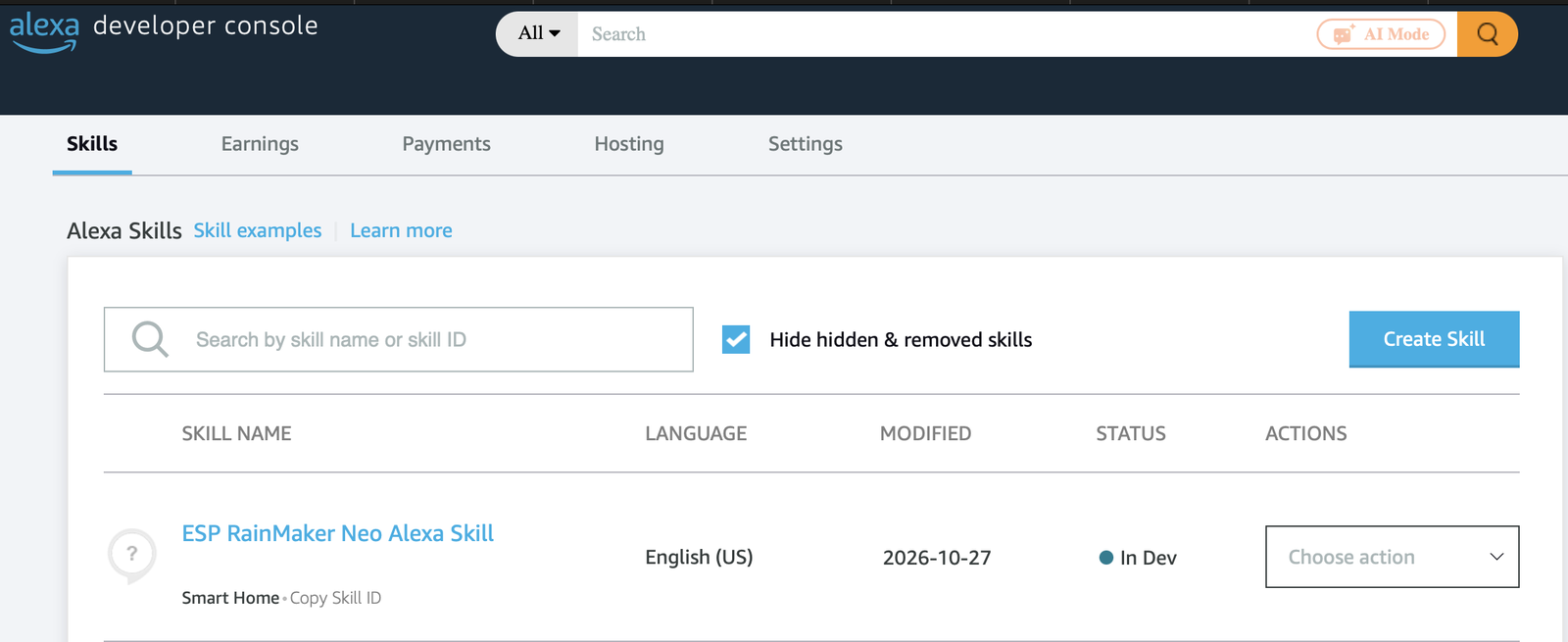
Choose the Smart Home model and finish creating the skill. It appears in the skill list as In Dev.
-
Open the skill, go to Build → Smart Home, and copy Your Skill ID (
amzn1.ask.skill.<id>). Leave the endpoint fields empty for now. -
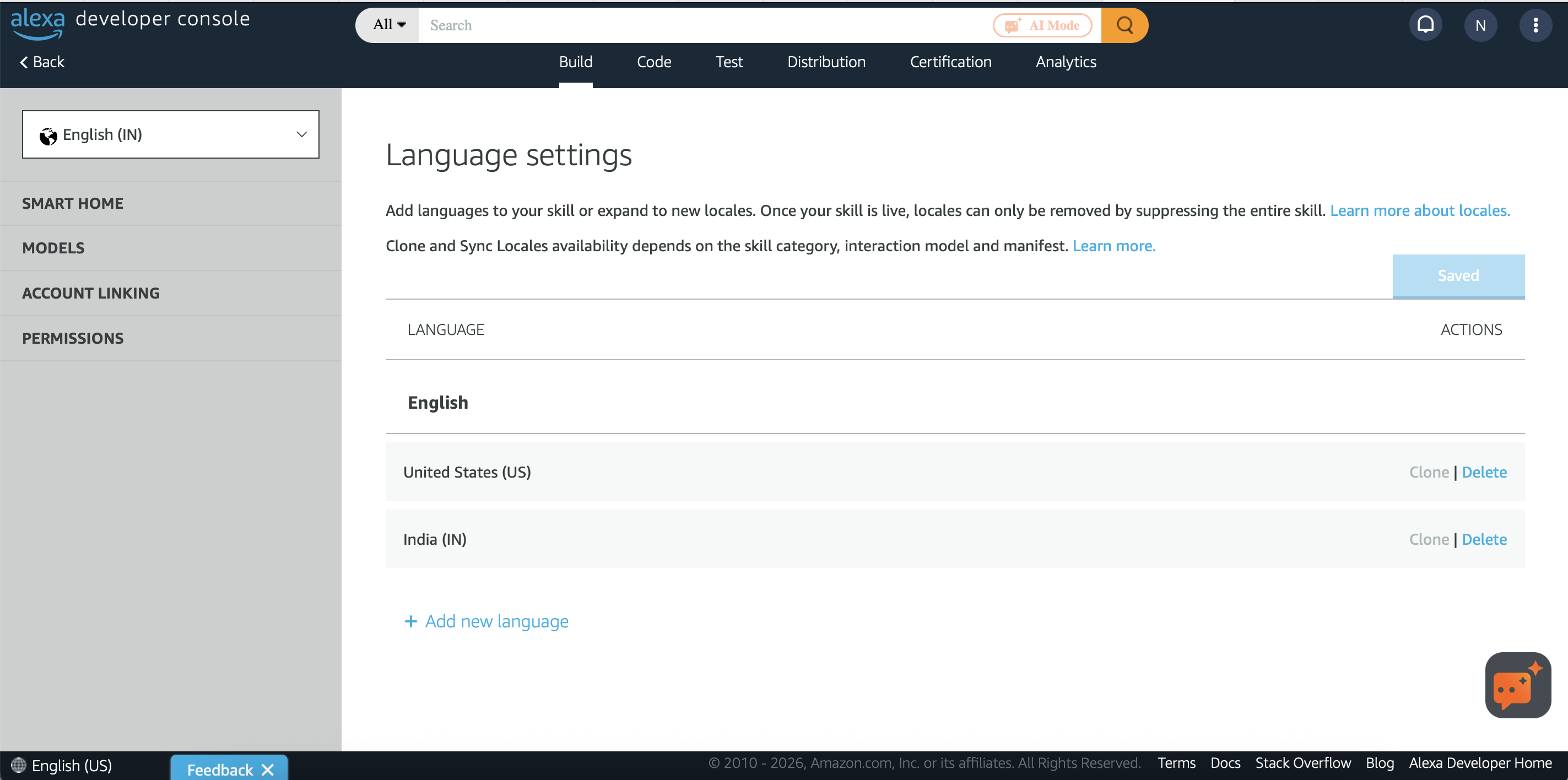
To offer the skill in another country, open the language dropdown at the top left of the Build tab, choose Language settings, click Add new language, pick the language, for example English (IN), and click Save.
2. Set up account linking
-
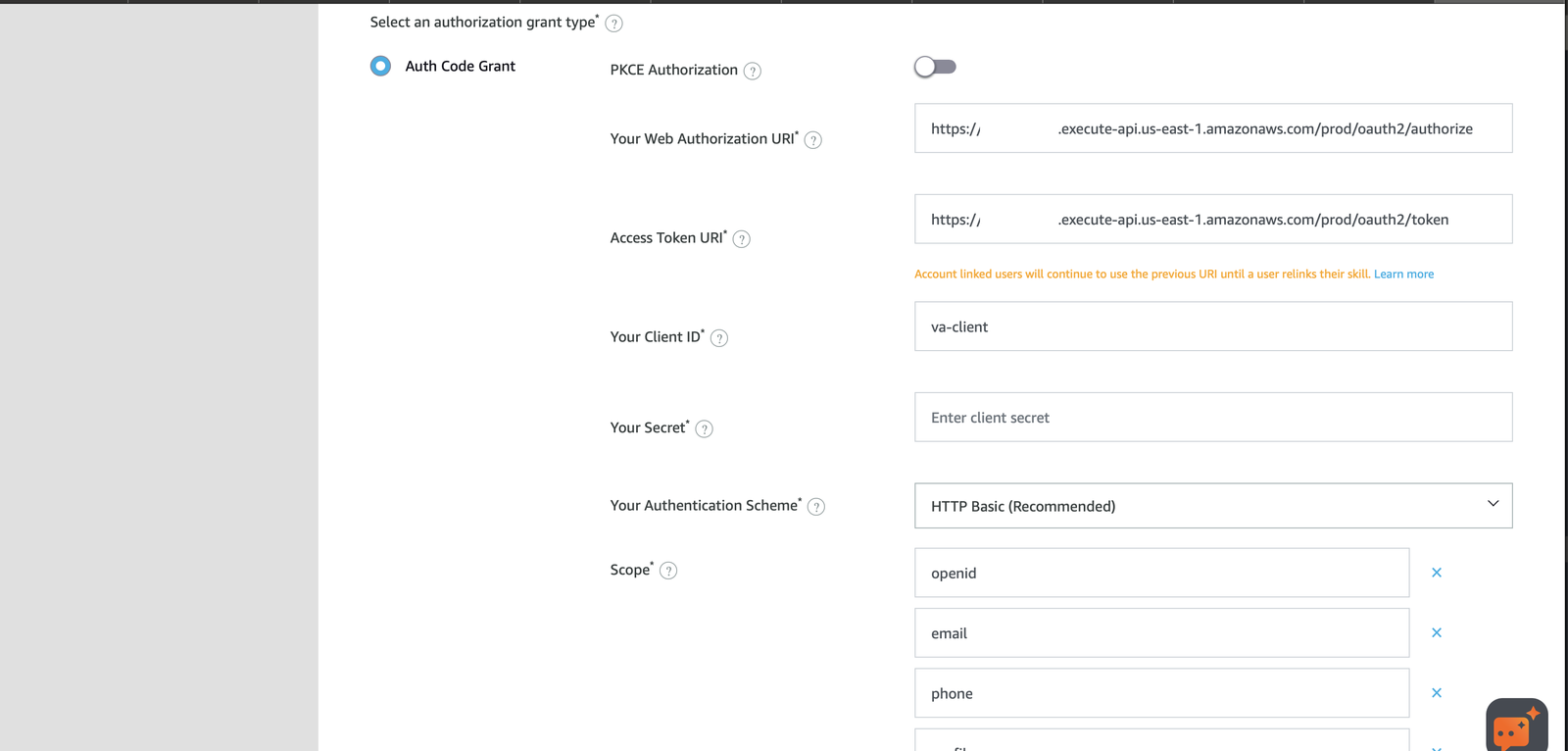
Open Build → Account Linking and select Auth Code Grant.
-
Fill in the fields from Configuration values:
- Your Web Authorization URI: Authorization URI
- Access Token URI: Access Token URI
- Your Client ID: Client ID (
va-client) - Your Secret: Client Secret
- Your Authentication Scheme: HTTP Basic (Recommended)
- Scope: one entry per value in Scopes
-
Save the page, then copy the three Alexa Redirect URLs listed at the bottom. The dashboard needs them in step 4.
3. Turn on Alexa events
-
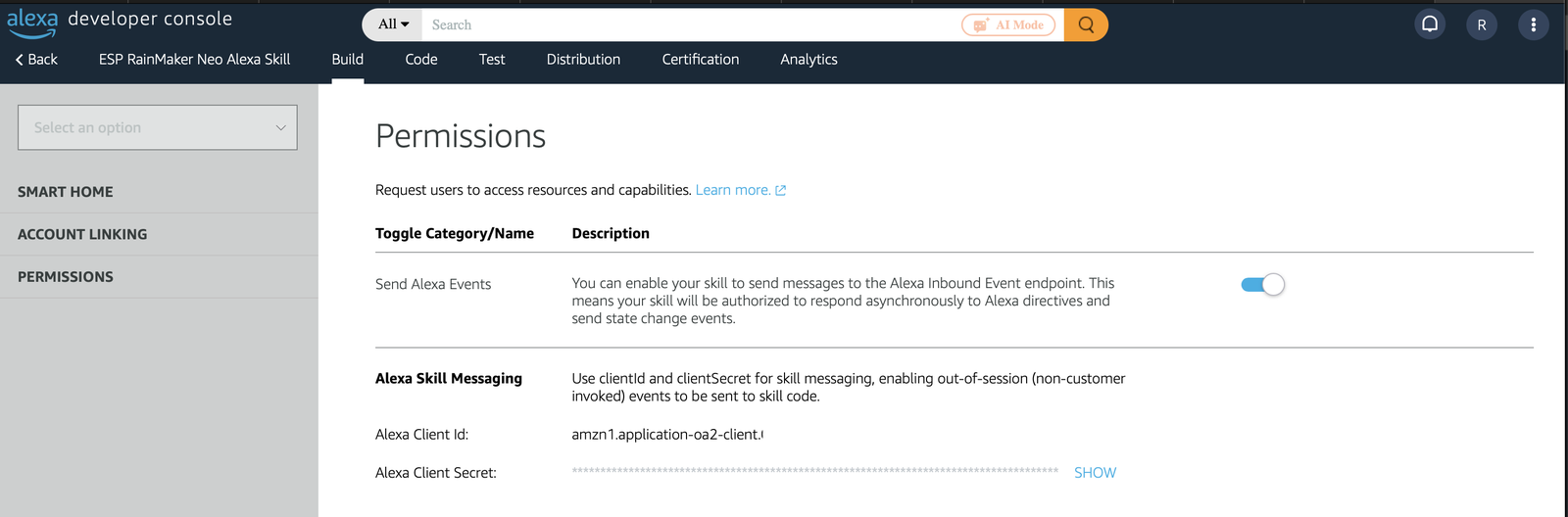
Open Build → Permissions and turn on Send Alexa Events.
-
Under Alexa Skill Messaging, copy the Alexa Client Id, then click SHOW and copy the Alexa Client Secret.
4. Configure Alexa in the dashboard
-
In Settings → Voice assistants → Alexa, click Configure, or Edit if a configuration already exists.
-
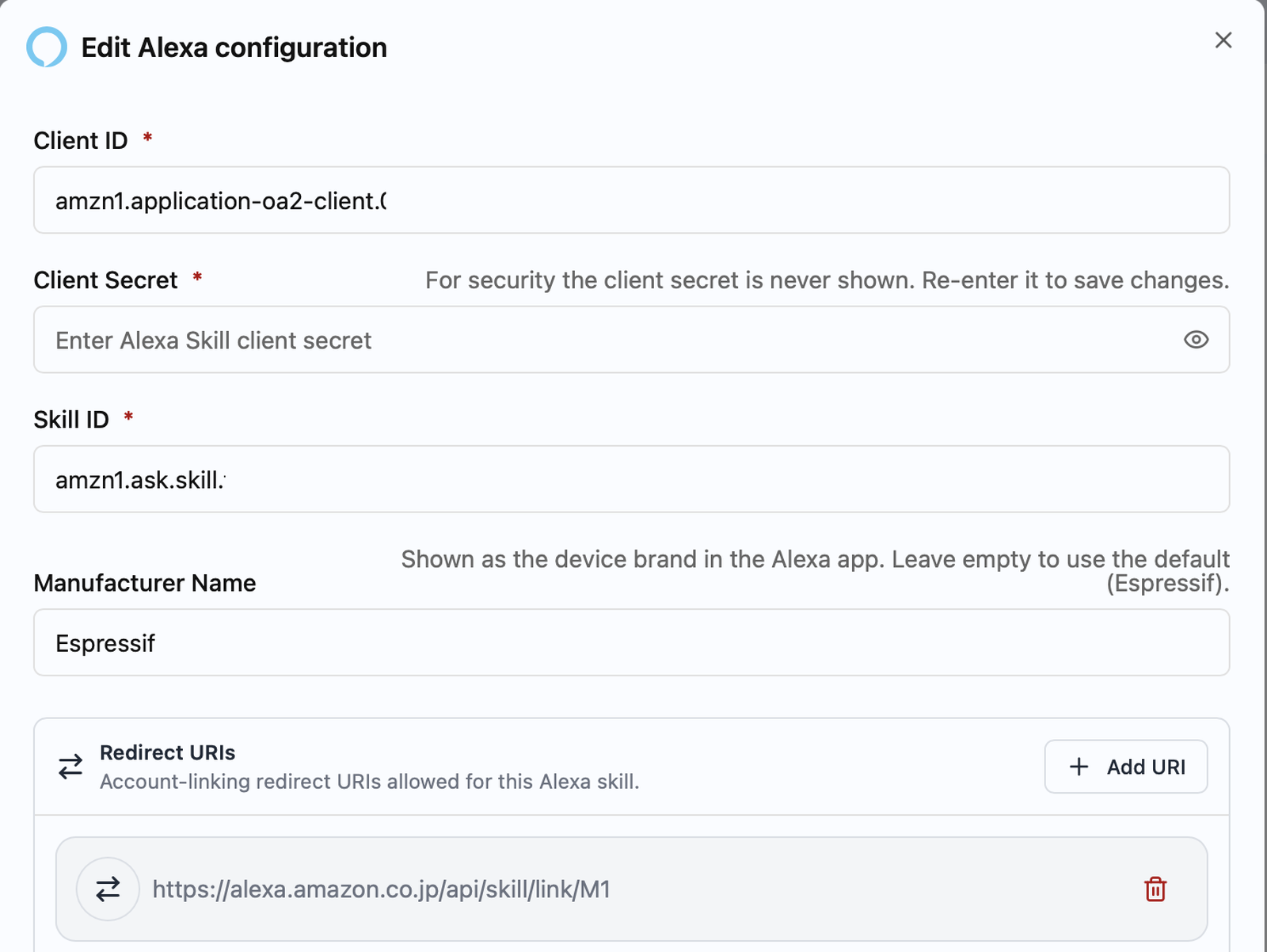
Fill in the form:
- Client ID and Client Secret: the Alexa Client Id and Alexa Client Secret
from step 3, not the
va-clientvalues - Skill ID: the ID from step 1
- Redirect URIs: click Add URI once for each Alexa Redirect URL from step 2
- Manufacturer Name: the brand shown for your devices in the Alexa app. Leave it empty to use the default, Espressif
- Client ID and Client Secret: the Alexa Client Id and Alexa Client Secret
from step 3, not the
-
Click Update. The configuration card shows the client ID, skill ID and redirect URIs.
5. Add the skill endpoints
Amazon checks that the skill may call your deployment when you save the endpoints, and saving the dashboard form in step 4 is what grants that. Saved earlier, the endpoints are rejected.
-
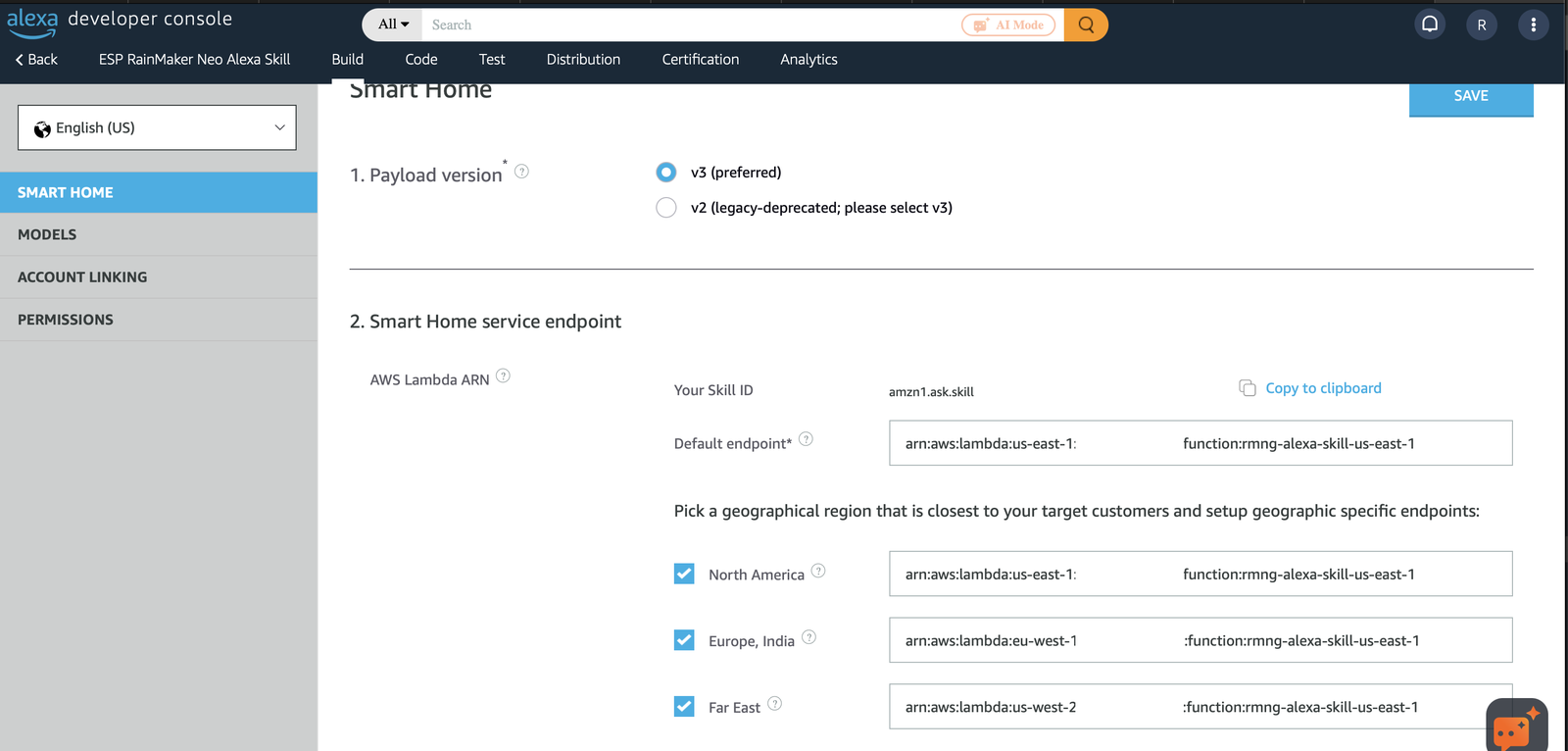
In the Alexa developer console, open Build → Smart Home.
-
Set Default endpoint to the Skill endpoint — North America value from Configuration values.
-
Tick North America, Europe, India and Far East, and paste the matching Skill endpoint value into each.
-
Click SAVE.
6. Check the setup
Most failed setups come down to one of these. Check each before linking:
- Dashboard Client ID and Client Secret are the Alexa Client Id and Alexa Client
Secret from Build → Permissions, not the
va-clientvalues used for account linking. - Redirect URIs in the dashboard list all three Alexa Redirect URLs, not just one.
- Account linking uses Auth Code Grant and HTTP Basic (Recommended), with each scope as its own entry rather than one space-separated line.
- Endpoints were saved after clicking Update in the dashboard, and all three regions are filled in. Users whose Amazon account is in a region without an endpoint cannot link.
- Languages cover every country your users' Amazon accounts are registered in.
- The Alexa app is signed in with the developer account that owns the skill, or with a beta tester account it is shared with.
7. Link the skill in the Alexa app
The skill is now ready. Enable it and discover devices as described in Link Alexa.
Related
- Configurations — the other dashboard Settings screens
- Voice assistants — what the Alexa integration gives your users
- Link Alexa — enable the skill and discover devices
- Alexa specification — the configuration API and automatic setup