Deployment FAQ
Answers to common questions about preparing an AWS account for ESP RainMaker Neo. Read this before you create the account you will deploy into.
How do I create a free tier AWS account?
Use the advanced sign-up. It creates a standard AWS account with no organization policies, so you can deploy ESP RainMaker Neo straight away.
- Open Sign up for AWS (advanced).
- Enter your root user email address and an AWS account name, then choose Verify email address and finish the sign-up.
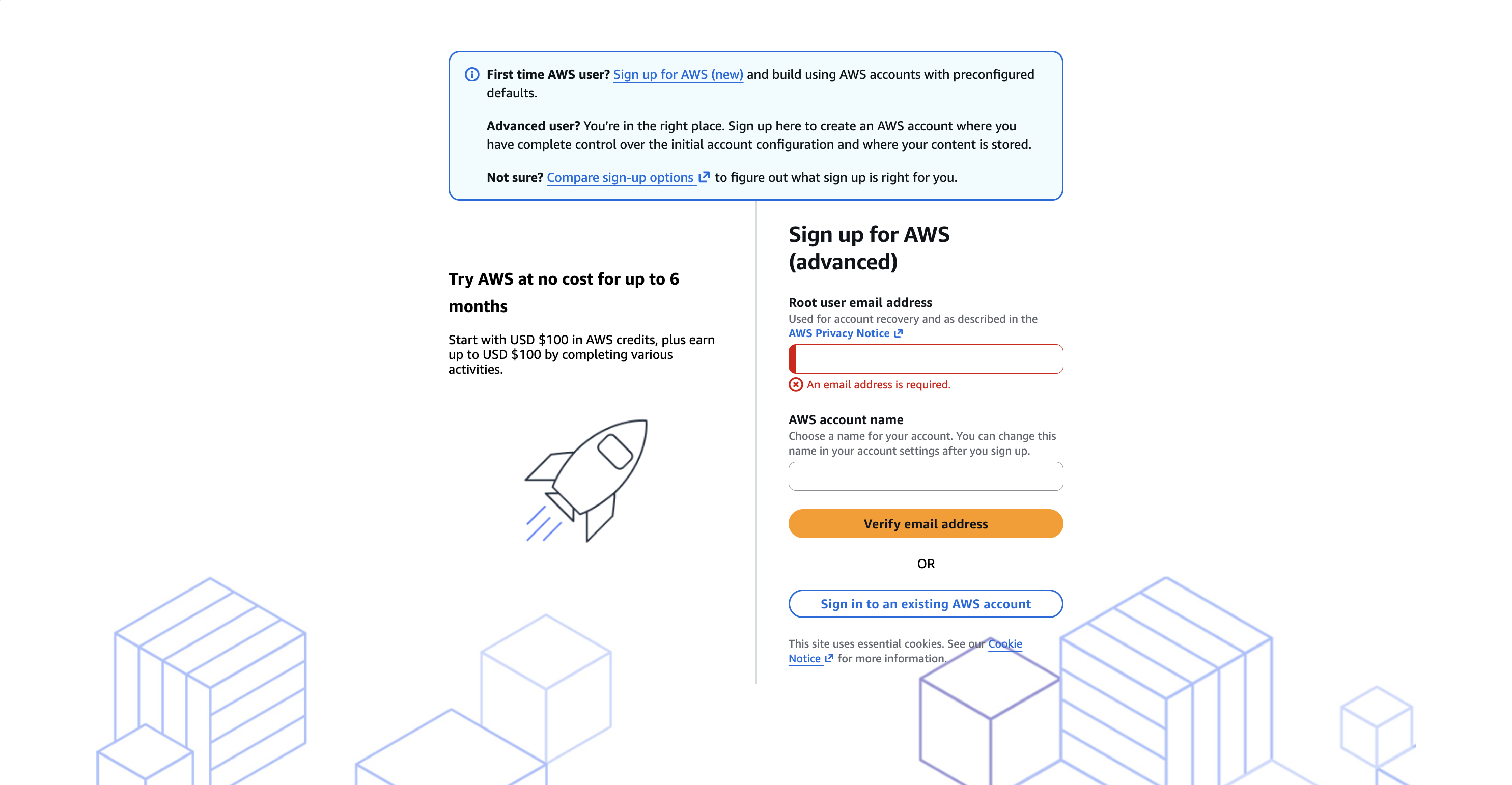
You get USD 100 in AWS credits, the same as with the other sign-up. Both sign-ups ask for a credit or debit card and an ID. Then go to Deploy With Installer or Deploy from Source.
Do not use Sign up for AWS (new). It uses your AWS Builder ID, puts you on the free plan, and creates your account inside an organization that AWS preconfigures. That organization's policies block a deployment: the installer dashboard returns Access Denied, and stacks in blocked regions fail. Fixing it takes extra steps, one of which cannot be reversed. If you already have such an account, follow the prerequisite steps for a Builder ID account before you deploy.
What prerequisite steps do I follow in a Builder ID account before deploying?
A Builder ID account involves more than one AWS account. The steps below say which one to use:
- AWS Builder ID: your sign-in to AWS Settings, where you manage plans and projects. It is not an AWS account itself.
- Deployment account: the AWS account AWS creates for your project, listed on the Projects page. You enable regions in step 6, raise the Lambda limit in step 7, and deploy ESP RainMaker Neo here.
- Management account: created when you activate advanced features in step 3. It owns the organization and its policies, so you detach the policies in steps 4 and 5 here.
The organization AWS creates for a Builder ID account carries policies that block parts of a deployment. Your deployment account is a member of that organization.
Prepare the account once, before you deploy:
-
Sign in to AWS Settings with your AWS Builder ID.
-
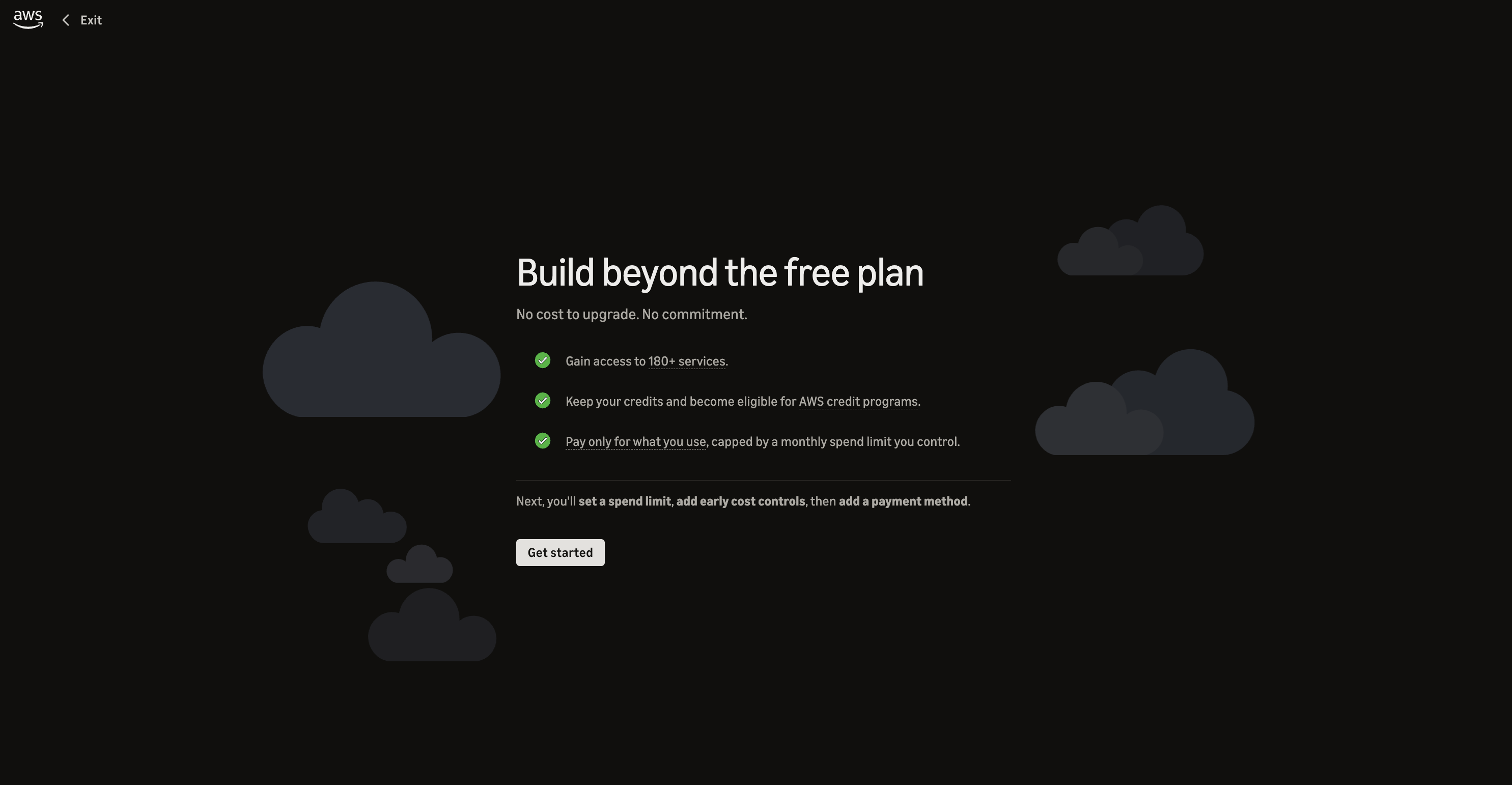
In AWS Settings: Choose Build beyond the free plan, then set a spend limit and add a payment method.
-
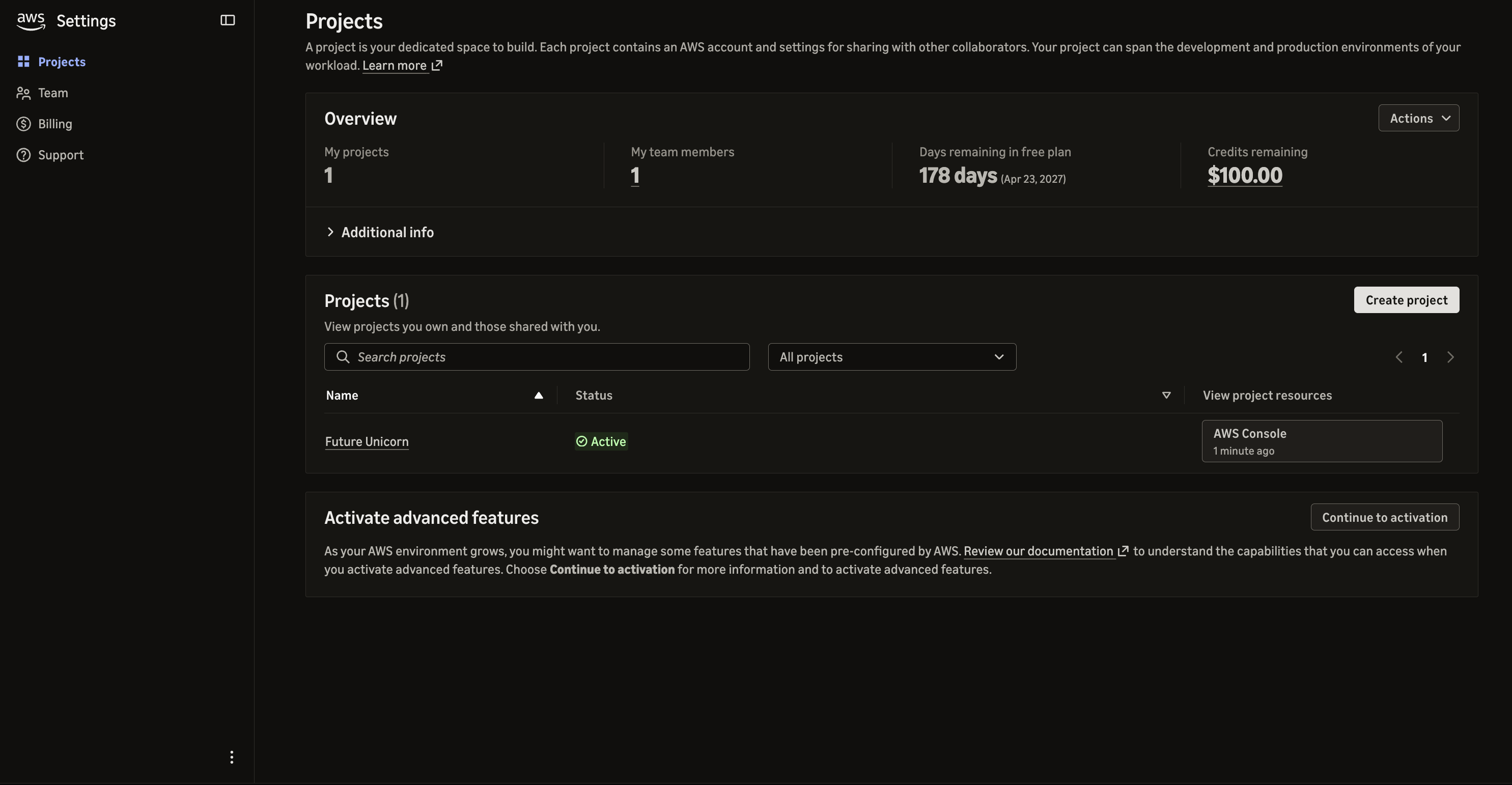
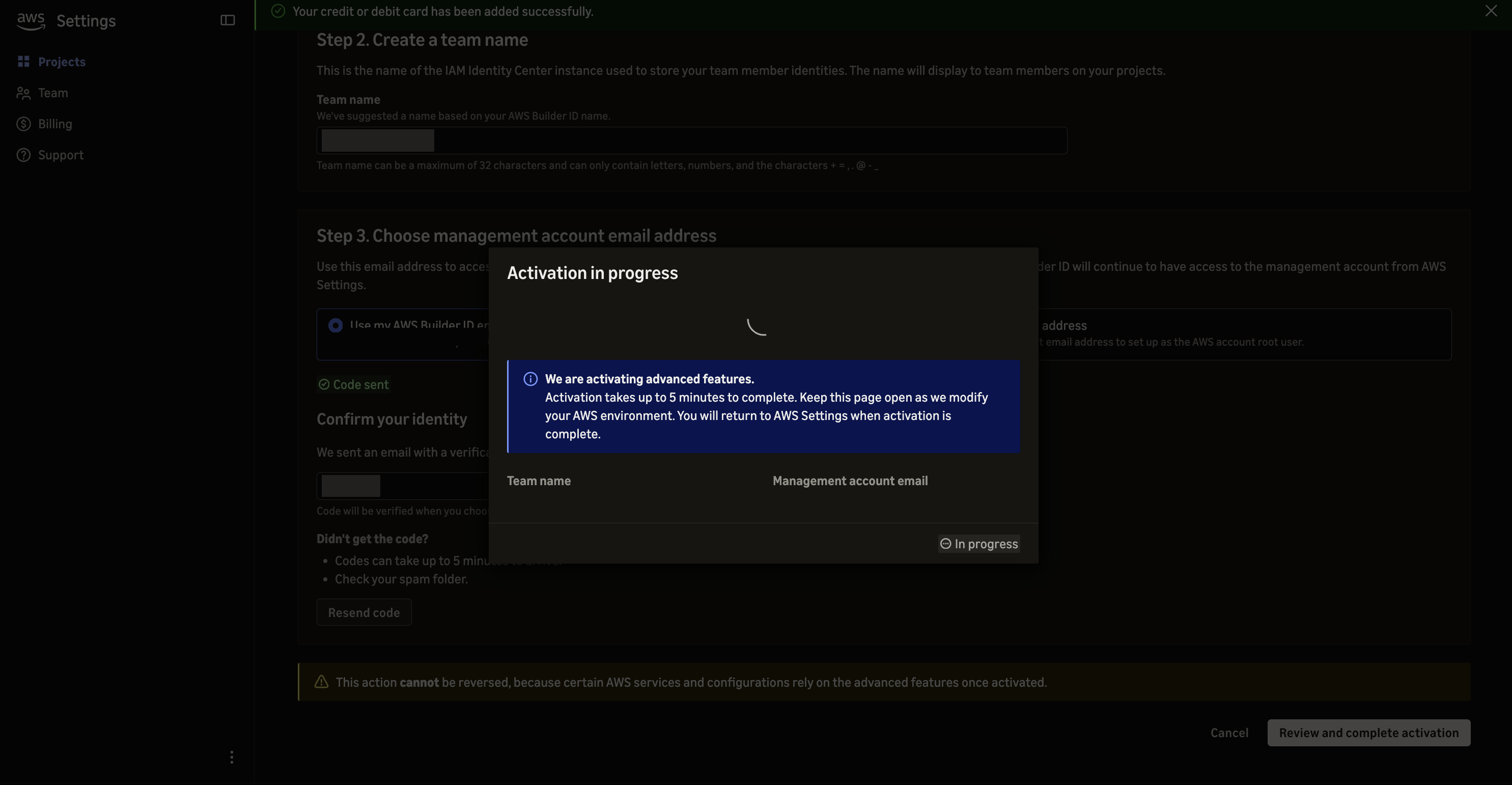
In AWS Settings: On the Projects page, choose Activate advanced features → Continue to activation. This creates a team for your projects and a management account. AWS warns that this cannot be reversed.
-
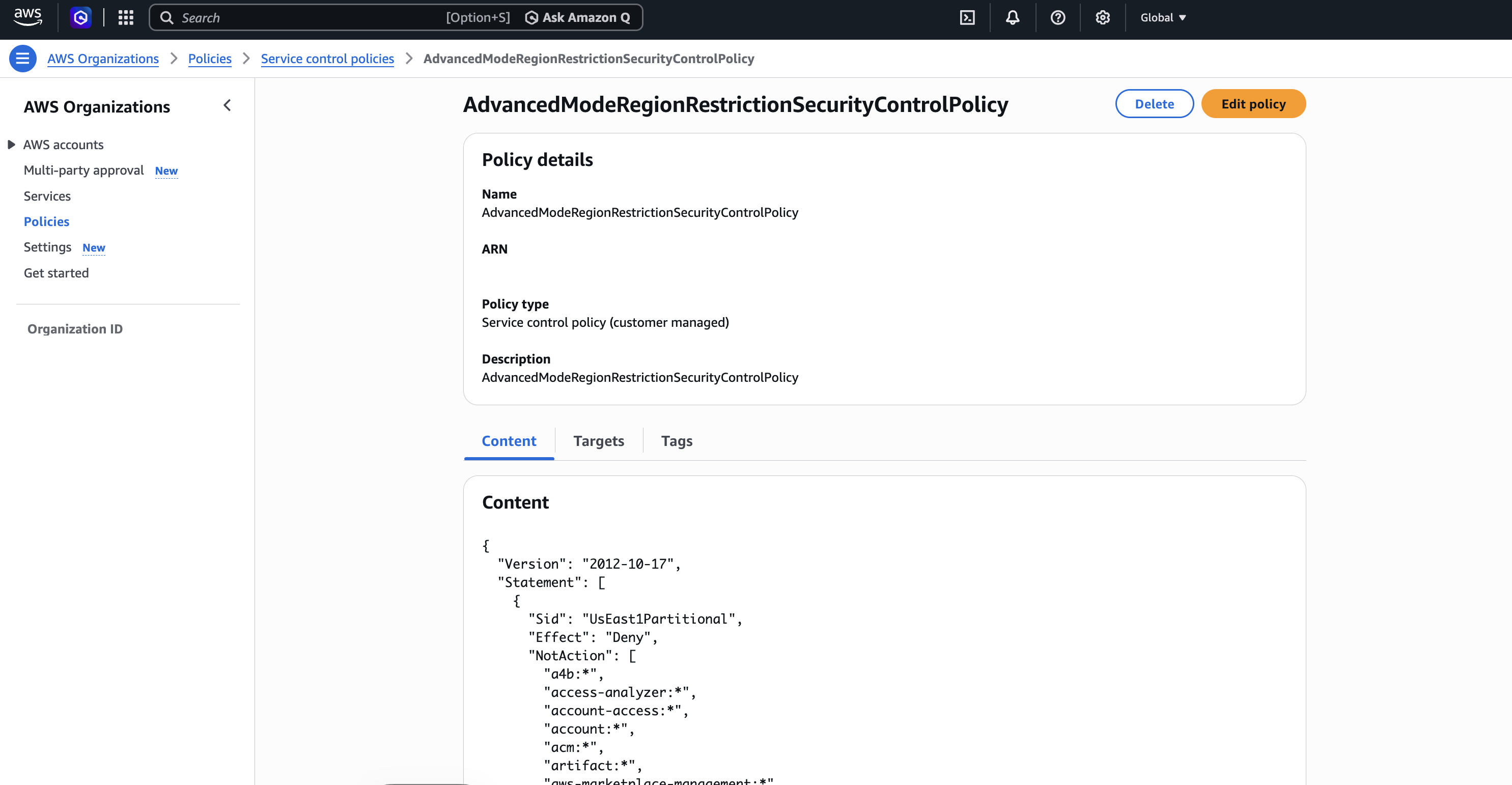
In Management account: Open the management account from AWS Settings, then open AWS Organizations → Policies → Service control policies. Open AdvancedModeRegionRestrictionSecurityControlPolicy, a service control policy, and on its Targets tab detach it from the root. This policy limits which regions your accounts can use, so a deployment into a blocked region fails.
 Why the service control policy has to go
AdvancedModeRegionRestrictionSecurityControlPolicy denies most actions in regions it does not allow, for every user and role in your accounts. A deployment creates stacks in several regions, so while this policy is attached, the stacks in a blocked region fail.
-
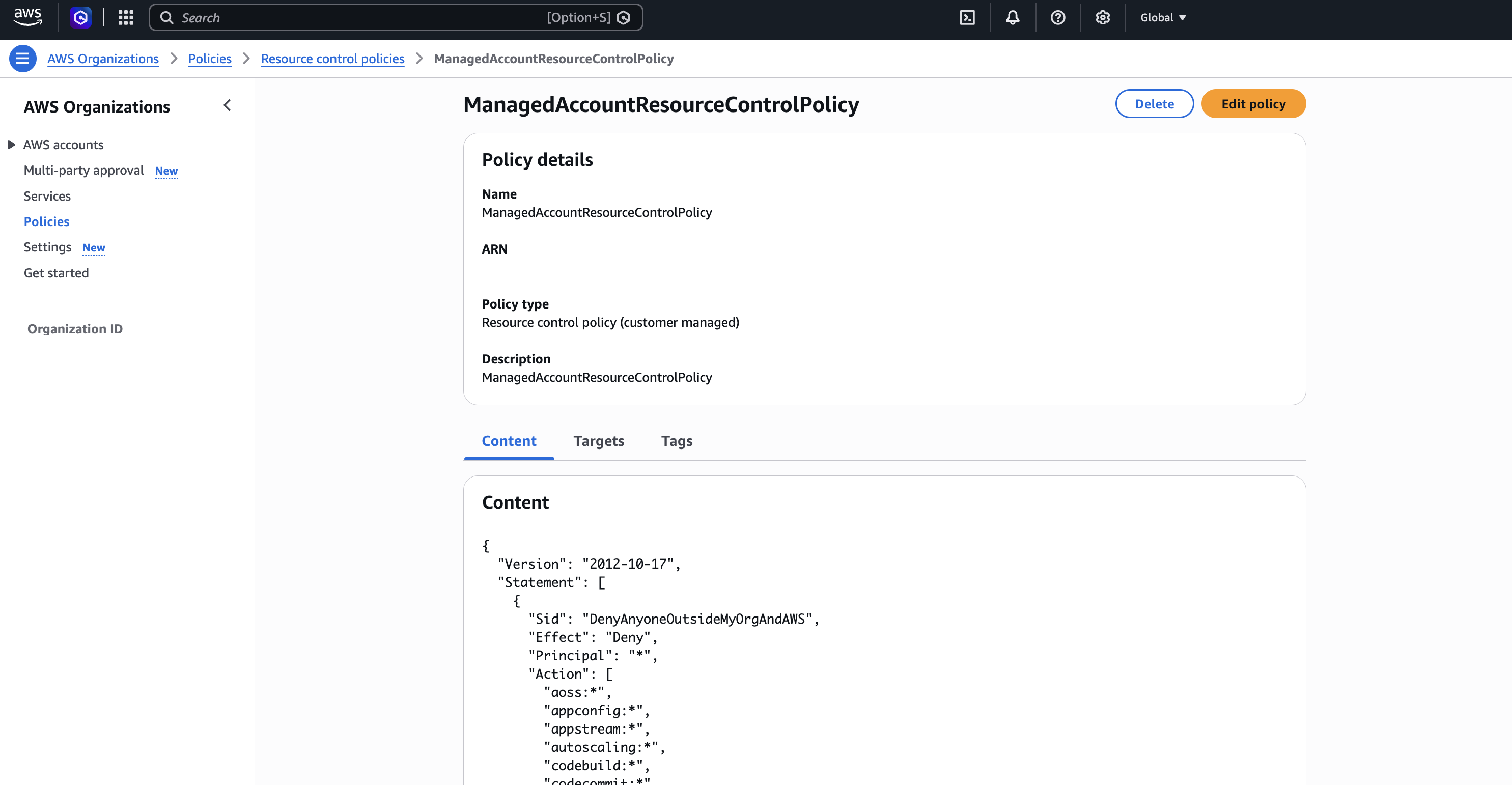
In Management account: Open AWS Organizations → Policies → Resource control policies. Open ManagedAccountResourceControlPolicy, a resource control policy, and on its Targets tab detach it from the root. The installer dashboard then loads instead of returning Access Denied.
 Why the resource control policy has to go
ManagedAccountResourceControlPolicy denies access to S3, DynamoDB, Cognito, KMS and several other services for any caller outside your organization. CloudFront reads the installer dashboard from its S3 bucket as such a caller, so while this policy is attached, every page of the dashboard returns Access Denied.
-
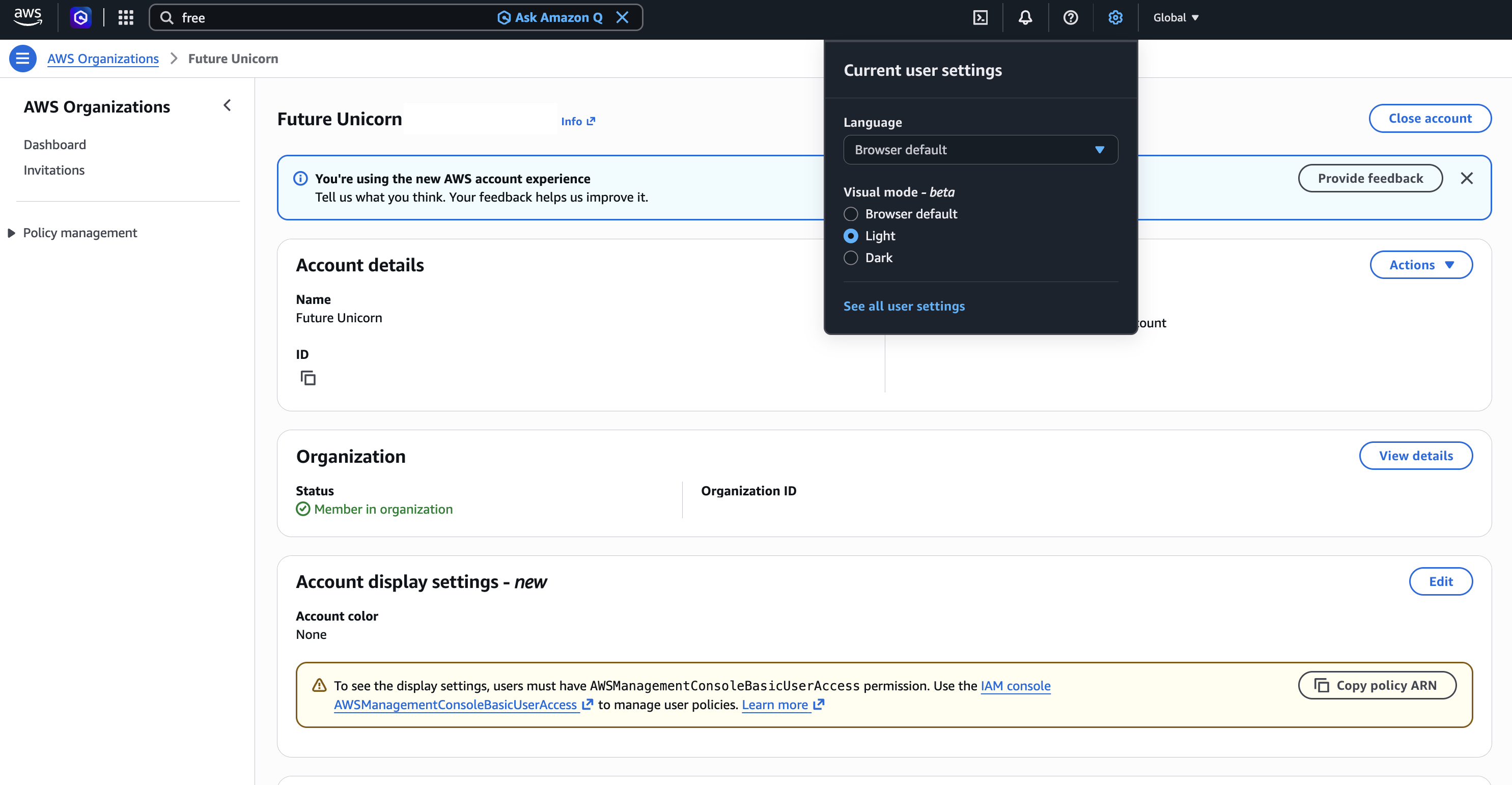
In Deployment account: Open it from AWS Settings → Projects → AWS Console. Choose the settings icon in the top bar, then See all user settings, and enable every region that shows Disabled.
-
In Deployment account: Raise the Lambda concurrency limit to 1000 in every region you deploy to. Follow Why are my Lambda functions being throttled?.
Why are my Lambda functions being throttled?
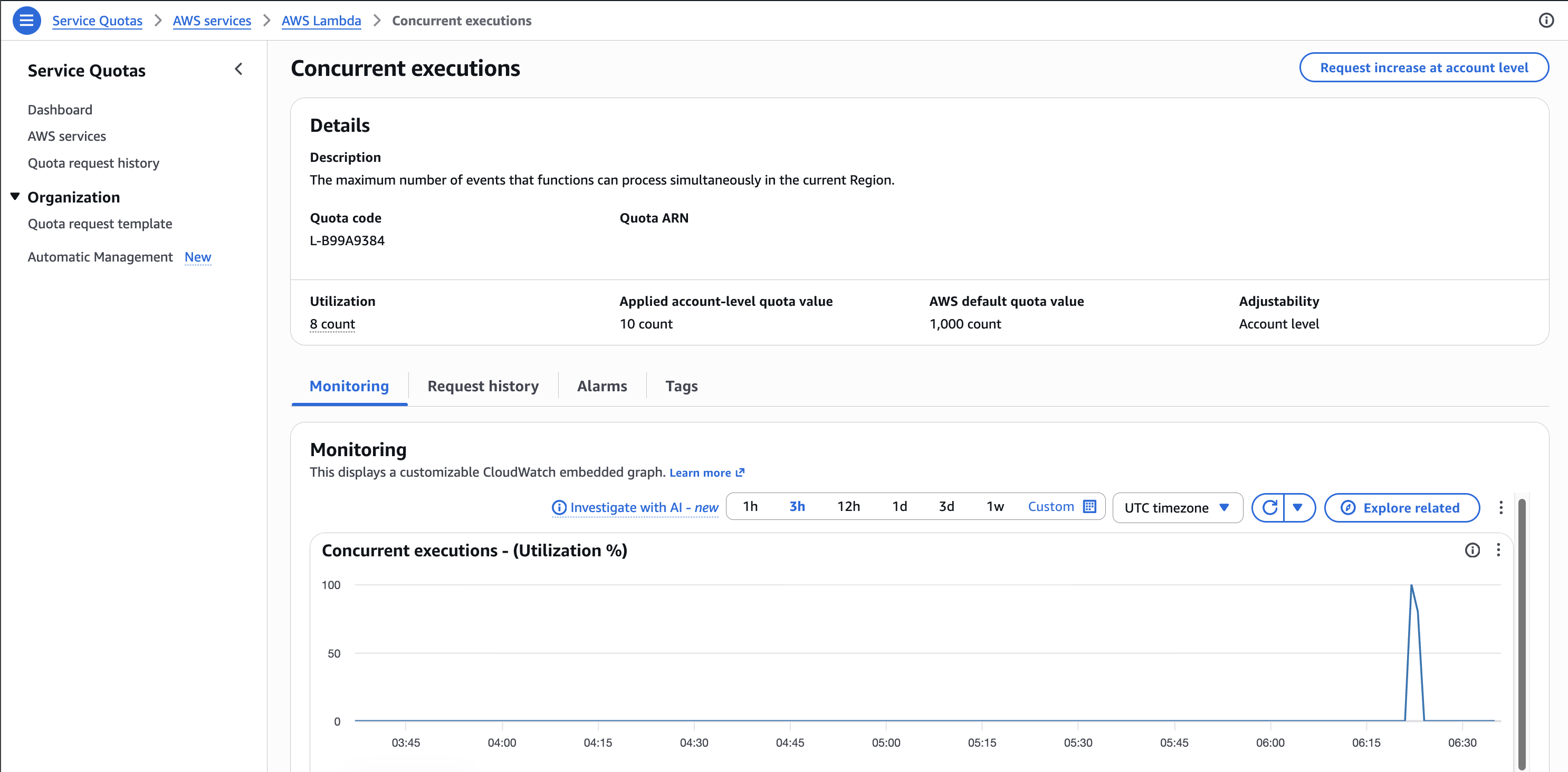
A new AWS account, from either sign-up mode, can start with a Lambda concurrency limit of 10, which means at most 10 function runs at the same time across the whole region. A deployment has more functions than that, so requests get throttled and fail. The AWS default quota value is 1000.
In the installer, the deployment fails with Lambda.TooManyRequestsException:
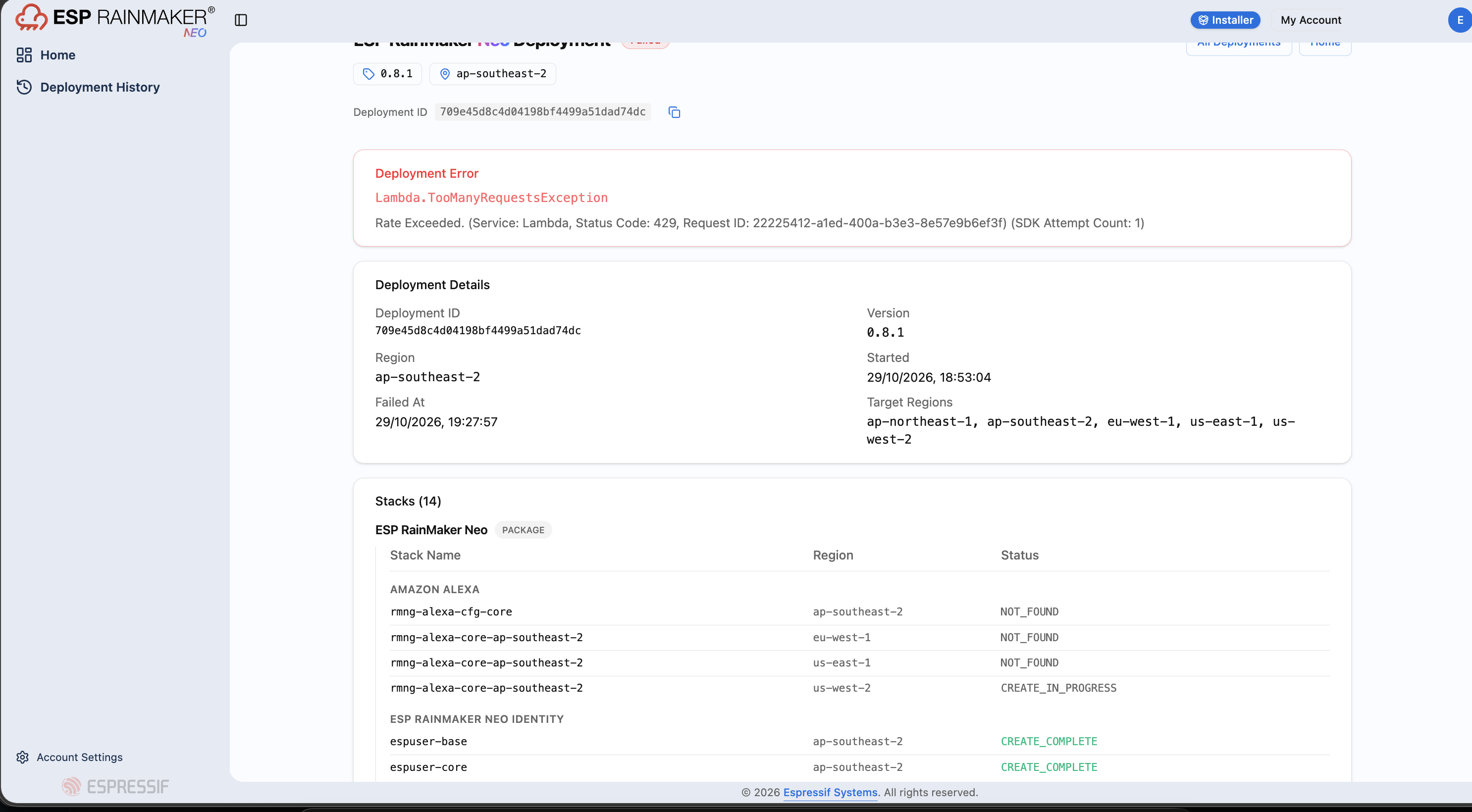
To raise the limit:
-
In Deployment account: Open it from AWS Settings → Projects → AWS Console. In your deployment region, open Service Quotas → AWS services → AWS Lambda → Concurrent executions. If Applied account-level quota value shows 10, continue.
-
Choose Request increase at account level. See Requesting a quota increase.
-
Enter 1000 and submit. AWS reviews the request, and the new limit shows on the Lambda Dashboard once it is approved.
Request the increase in every region you deploy to, since the limit is per region.